
# Integrate yCrash with Cisco AppDynamics
AppDynamics is a popular monitoring solution. By the following steps you can integrate yCrash with AppDynamics. To integrate yCrash with AppDynamics, we will use the Remediation Actions feature from AppDynamics to run yc-360 script in the on-demand mode.
Remediation Actions (opens new window): A remediation action runs a local script in a node. The script executes on the machine from which it was invoked or on the node specified by the remediation action configuration. You can use this type of action to automate your runbook procedures.
yc-360 script on-demand mode: In this mode, yc-360 script is always dormant (i.e., it's not at all running). When you launch the yc-360 script in this mode, you need to pass the process Id of your application. The yc-360 script captures the artifacts, transmits the artifacts to the yCrash server for analysis, and then immediately dies down.
# Prerequisites
Install and set up AppDyamics Health Rules (opens new window).
# Setup the Integration
# Step 1. Create an Action
Go to Alert & Respond from the main menu on the top.
Click Actions menu from the left sidebar.
Select your application from the Applications dropdown. In the below screenshot you will see the “myApp” application is selected.
Now click the +Create button.
Choose Remediation: Run a script or executable on problematic Nodes.
Click OK.
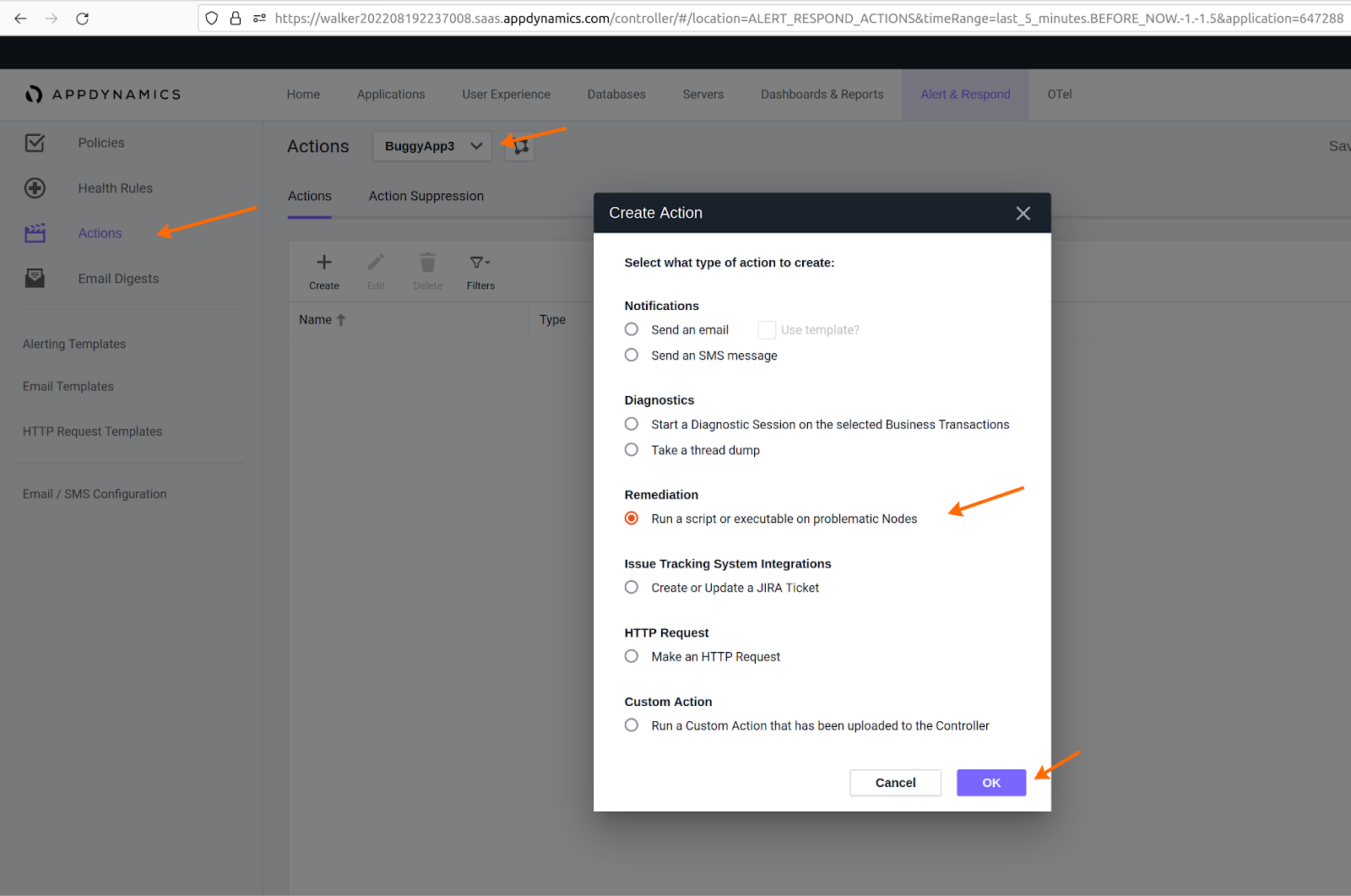
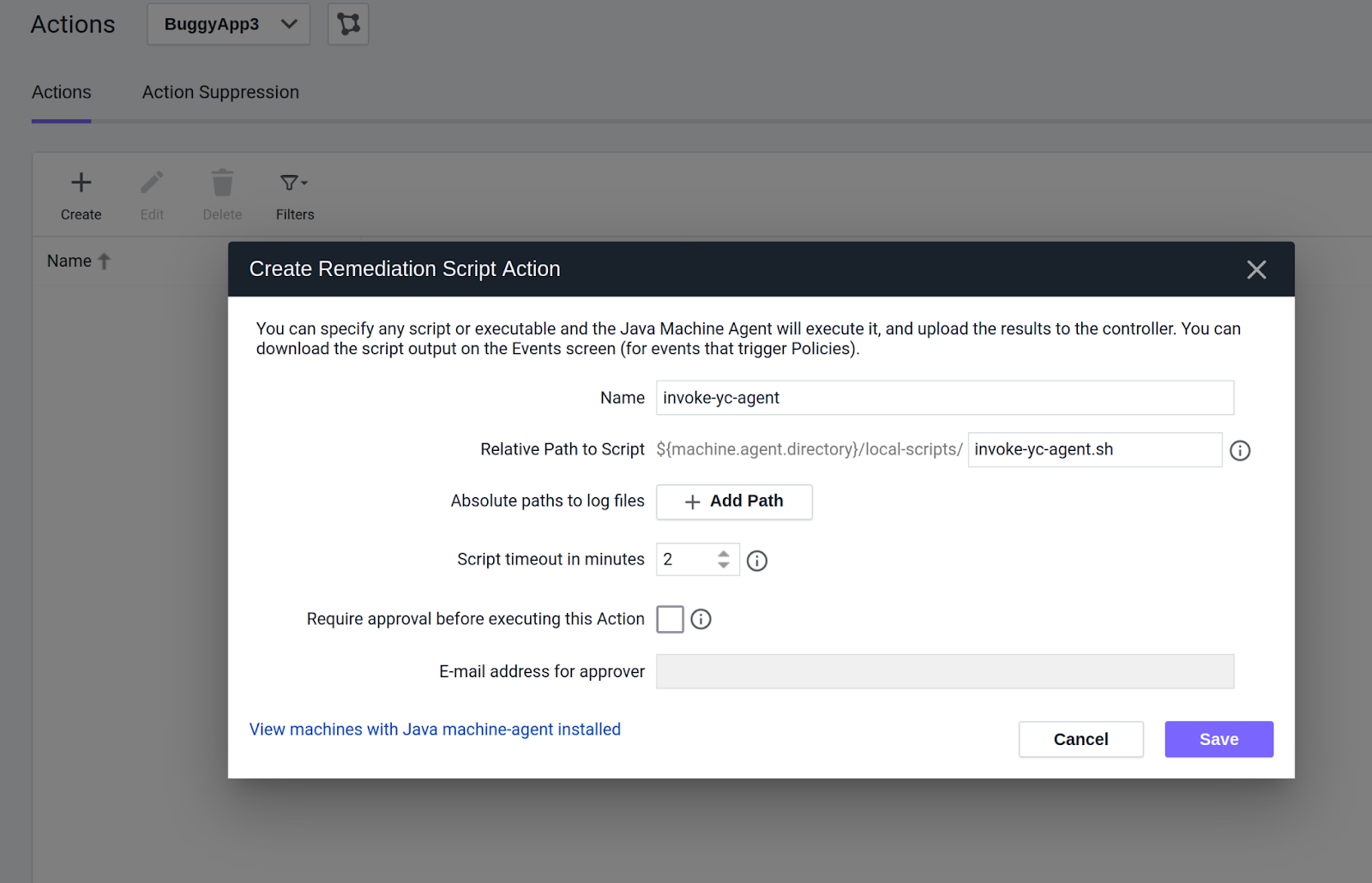
Then fill out the next form which is Create Remediation Script Action form.
a) Enter invoke-yc-360-script in the name field.
b) Enter invoke-yc-360-script.sh in the Relative Path to Script field.
Then click Save.
# Step 2. Install the invoke-yc-360-script.sh
Add the below script in
invoke-yc-360-script.shfile and save this file to/opt/appdynamics/machine-agent/local-scripts/directory.#!/bin/bash if [ -z "${ProcessID}" ] then printf "Could not get PID from ProcessID\n" exit 1 else printf "Got PID ${ProcessID} from ProcessID\n" printf "Going to execute: yc-360 script -c yc-config.yaml -p ${ProcessID}\n" # TODO: Update yc-360 script path to your installation # See https://docs.ycrash.io/ # /opt/yc-360-script/yc -c yc-config.yaml -p ${ProcessID} fi1
2
3
4
5
6
7
8
9
10
11
12
13Set it as an executable:
chmod +x /opt/appdynamics/machine-agent/local-scripts/invoke-yc-360-script.sh1Check the file owner, it should match with the parent directory.
# Step 3. Create a Policy
Goto Alert & Respond from the main menu on the top.
Click Policies from the left sidebar.
Select your application from the Applications dropdown.
Click the Create Policy Manually button.
Fill the form:
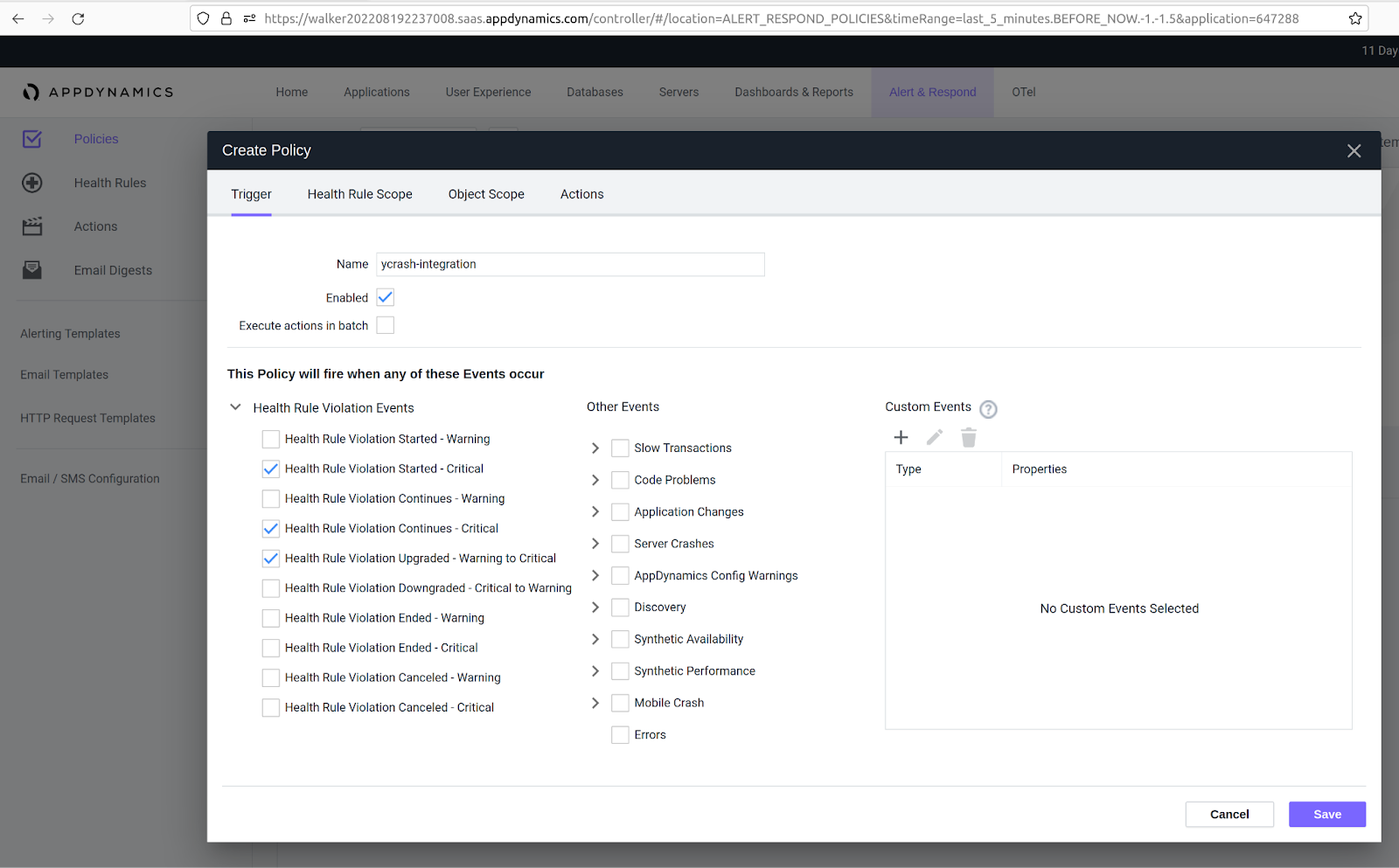
a) On tab Trigger
- Enter ycrash-integration in the name field.
- We would suggest to uncheck Execute actions in batch.
- Health Rule Violation Events:
- Enable Health Rule Violation Started - Critical.
- Enable Health Rule Violation Continues - Critical.
- Enable Health Rule Violation Upgraded - Warning to Critical.
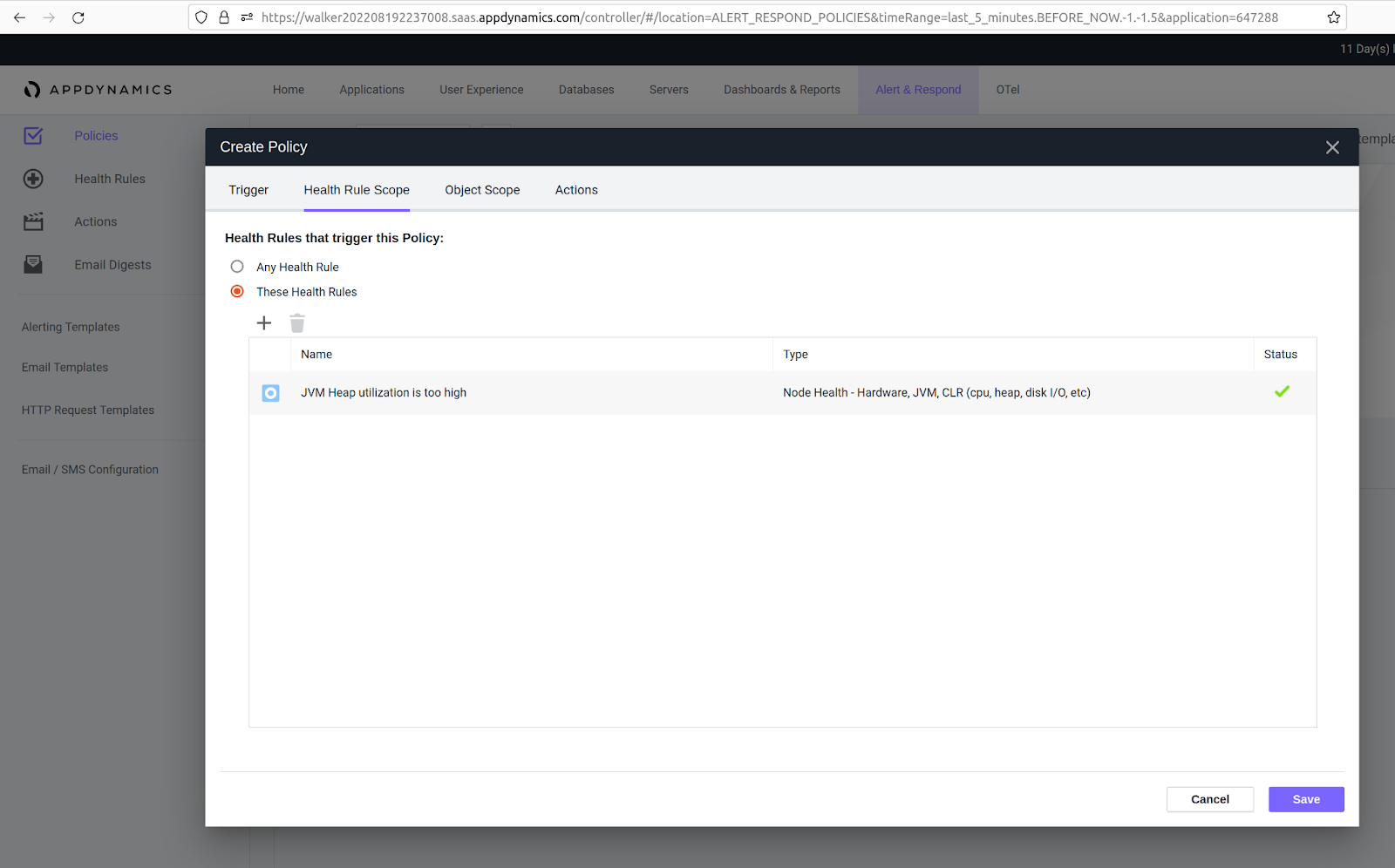
b) On tab Health Rule Scope
- Choose These Health Rules.
- Click + button.
- Select the health rules. In this document, we are going to use JVM Heap Utilization is too high.
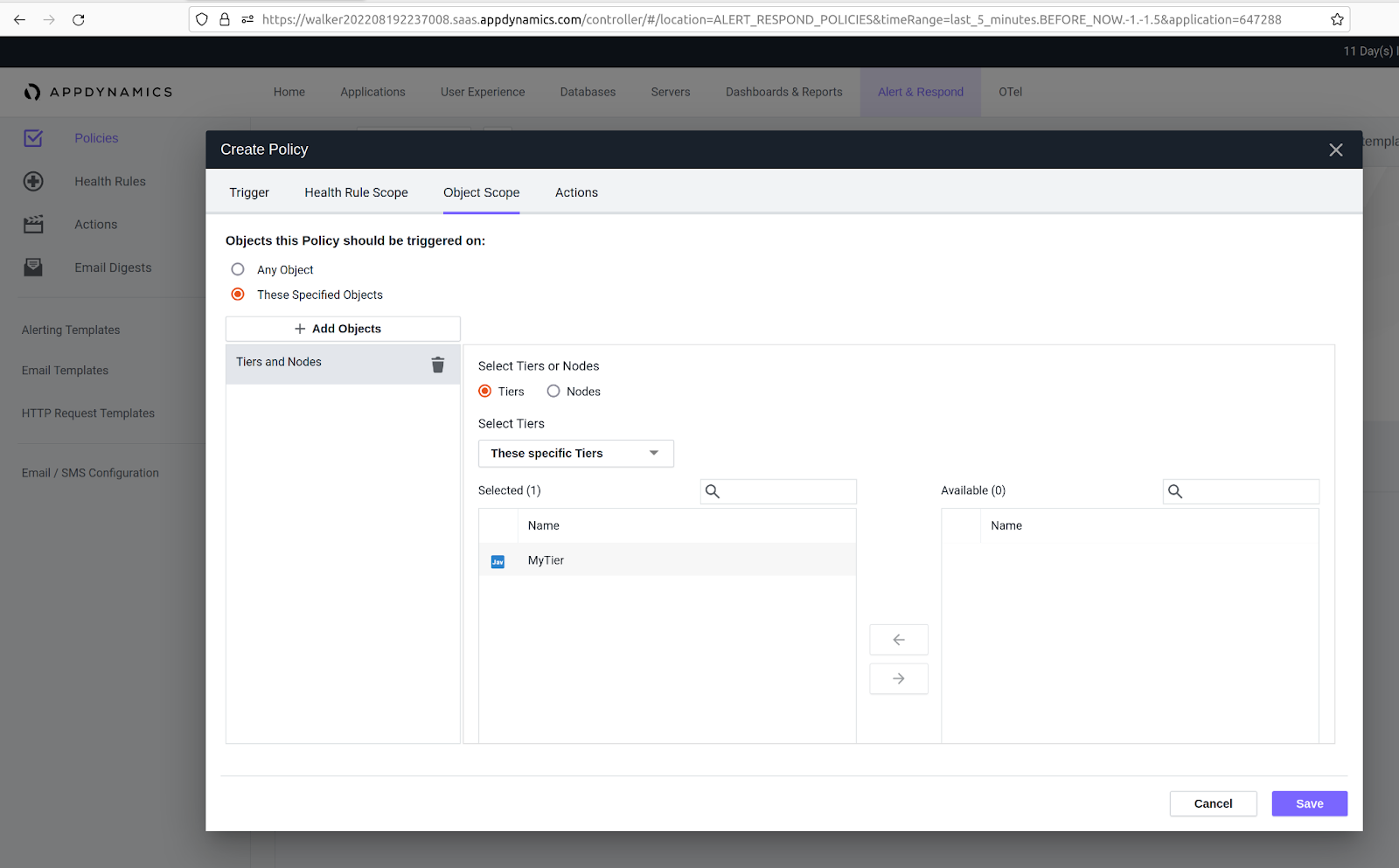
c) On tab Object Scope
- Choose These Specified Objects.
- Click the + Add Objects button.
- Select Tiers and Nodes.
- Select your relevant Tiers or Nodes or select all tiers if all your servers are running this setup.
d) On tab Actions
- On Actions to Execute, click + button.
- Select the one you created previously: invoke-yc-360-script.
- Click the Select button.
- Execute Action on Affected Nodes:
- Execute Action on: 100% of the Nodes
- Click OK button.
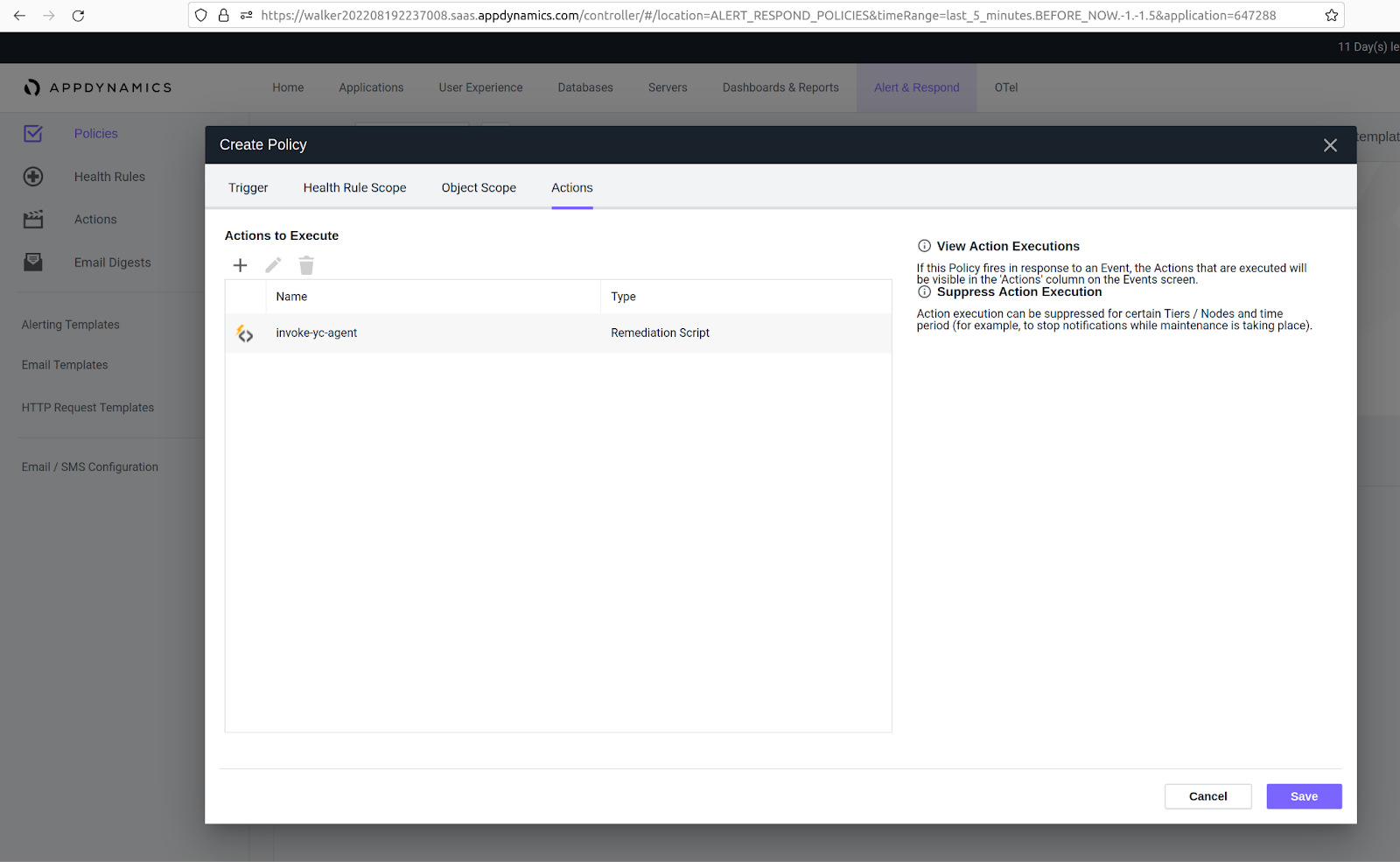
- Click Save button.
# Step 4. Review Health Rules Events and Invocations
Go to Alert & Respond from the main menu on the top.
Click Health Rules from the left sidebar.
Select your application from the Applications dropdown.
Select the Health Rule you just attached to the policy.
Check the Evaluation Events on the right side.
In this document, we are using
myAppso we are triggering a memory leak to violate JVM Heap Utilization is too high.
<img src="/appdyn16.png">
Once the rule is violated, the event shows up there. Click the Details and you will see the invoked script and the output.
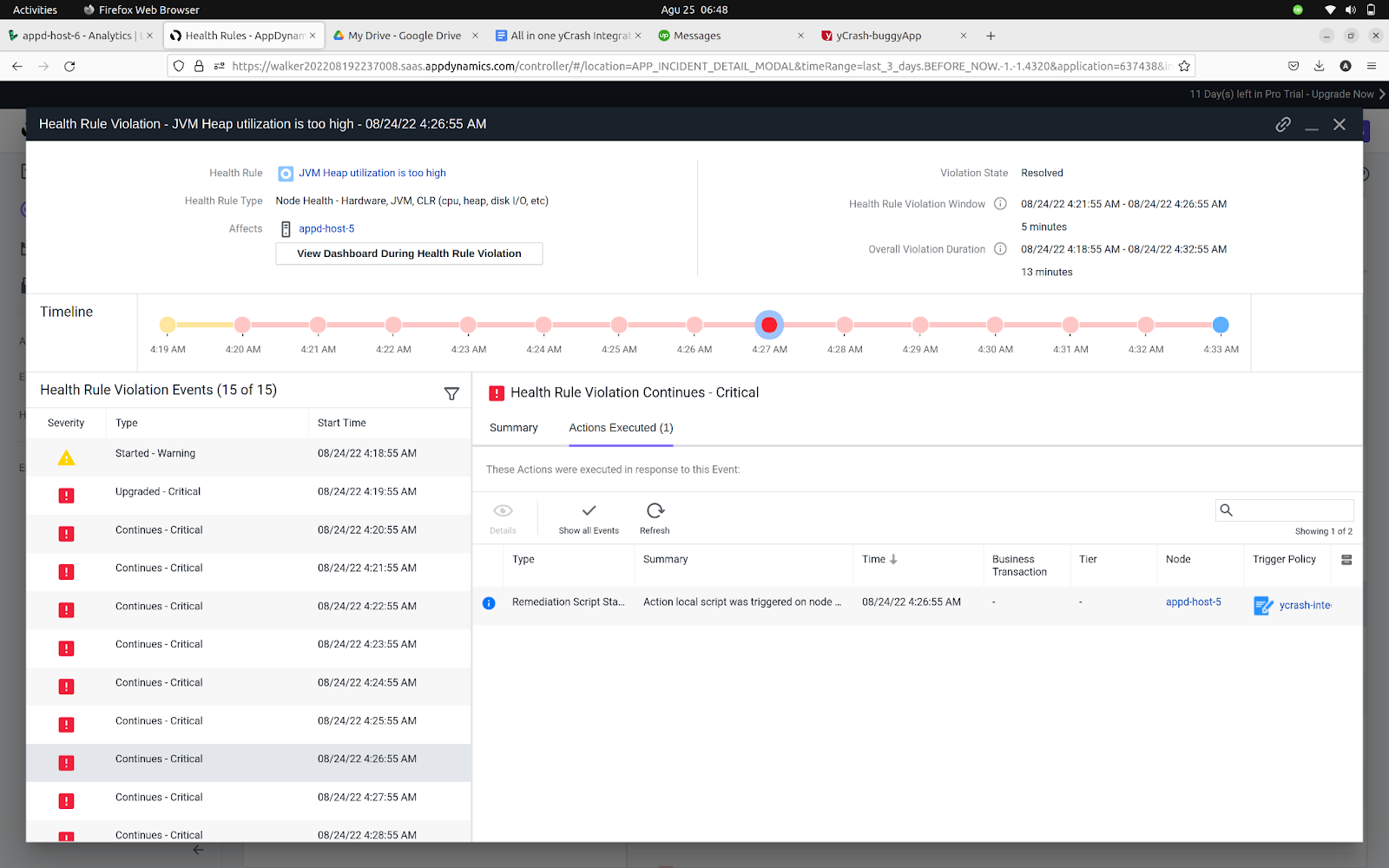
At this point, if the script works, it should trigger the yc-360 script on demand command.
# FAQ
1) Why is yc-360 script not capturing application level artifacts such as GC log, thread dump and heap dump?
This is probably happening because the uid/gid of the user who is running the yc-360 script and your java process is different. The yc-360 script internally uses jattach open source tool to capture application level artifacts if the java application is running inside a container. If credentials(uid/gid) do not match, jattach automatically tries to change them with seteuid/setegid calls. This is allowed to a privileged account only - typically root. There are couple solutions to address this problem:
Solution: 1 You can run the appdynamics-machine-agent as root. It will invoke the remediation script as root and run yc-360 script as root.Solution: 2 If you can't run appdynamics-machine-agent as root then you can run yc-360 script in API mode separately as root. Please follow the steps to invoke yc-360 script Action API:
a. Update your "/opt/appdynamics/machine-agent/local-scripts/invoke-yc-360-script.sh" remediation script with the below script.
#!/bin/bash
if [ -z "${ProcessID}" ]
then
        printf "Could not get PID from ProcessID\n"
        exit 1
else
        printf "Got PID ${ProcessID} from ProcessID\n"

        USAGE="{\"key\": \"Ycrash@c1533d37-0198-4ff1-937f-707b47a6d6d5\", \"actions\": [\"capture ${ProcessID}\"], \"waitFor\": true}"

        printf "Going to call curl -H 'Content-Type: application/json' -X POST --data-binary @-  http://localhost:8085/action"
        echo $USAGE | curl -H 'Content-Type: application/json' -X POST --data-binary @-  http://localhost:8085/action
fi
2
3
4
5
6
7
8
9
10
11
12
13
b. Run the yc-360 script in API mode separately as root. Please check the below documentation to see how to enable yc-360 script Action API.
2) New to AppDynamics?
Follow this link for a complete step-by-step guide on setting up alerts in AppDynamics.
← Prometheus Grafana →