
# Boomi Integration
# How to capture the Boomi report?
You can configure boomi related details in the config.yaml file to capture process data from your boomi environment and display it in the yCrash dashboard. This boomi report allows you to view and monitor the process running in the Boomi environment, providing insights into their performance and status. With this integration, you can efficiently track and troubleshoot process-related issues, making it easier to ensure smooth operations within your Boomi workflows.
# Prerequisites
Before capturing boomi report, make sure you have the following:
- A working installation of yCrash application.
- Access to the yc-360 script
- Access to the yc-360 script configuration file:
yc-config.yaml - Boomi credentials and Atom ID to capture the process details.
# Configuration:
To capture Boomi report, follow these steps:
Open the config.yaml file in a text editor.
In order to capture the execution record details from the Boomi server, add the following lines in the configuration file:
boomi: true
boomiUser: <boomi_user_name>
boomiPassword: <boomi_password>
boomiAcctId: <boomi_acct_id>
period: 1 # 1 hour, 2 hours etc
atomId: <atom_id>
2
3
4
5
6
boomiUser: username of the Boomi account
boomiPassword: Boomi user account password
boomiAcctId: Boomi account ID
period: Duration (in hours) for which the execution details can be captured. If the value of the period is 1 means, yc-360 script will fetch the process execution details for the last one hour. If the value is 2, it will fetch the process execution details from the Boomi server for the last two hours. So, it is important to set the value for the period flag in the configuration file.
atomId: Boomi atom ID for which the execution records are requested.
NOTE: Boomi REST API uses basic authentication, so the username and password needs to be supplied without any encoding
- Save the config.yaml file
# How to capture the Boomi execution data?
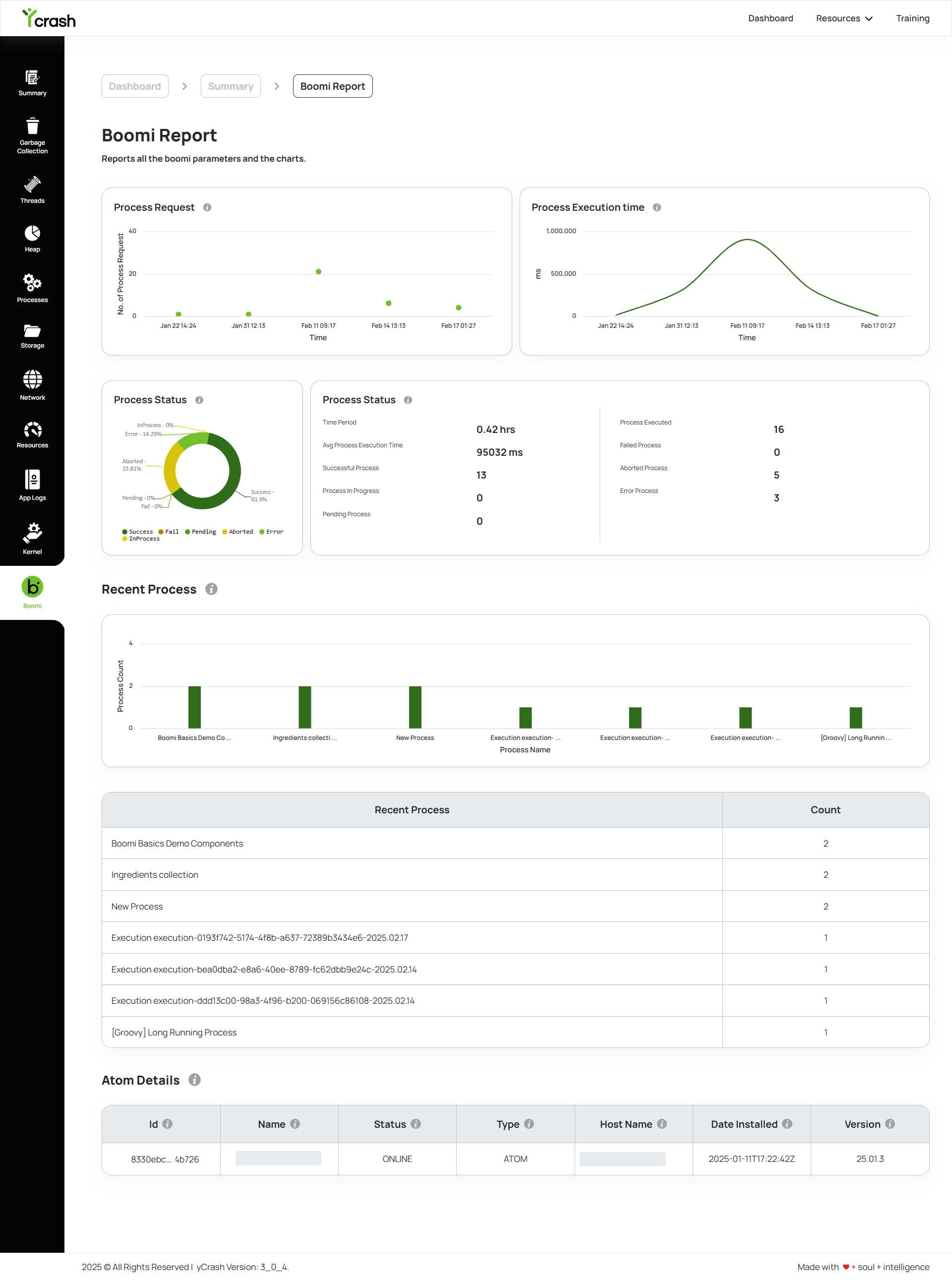
Run any of the yc-360 script modes mentioned here to capture the Boomi report. In the yc-360 script, you can notice the boomi samples are getting captured. Once the incident is generated in yc-360 script, you can go to the dashboard and click on the incident which is generated and you can see the boomi report.
# FAQ
Why is the boomi report not generated even after configuring Boomi details?
If the "Number of records" is zero, a boomi report will not be generated.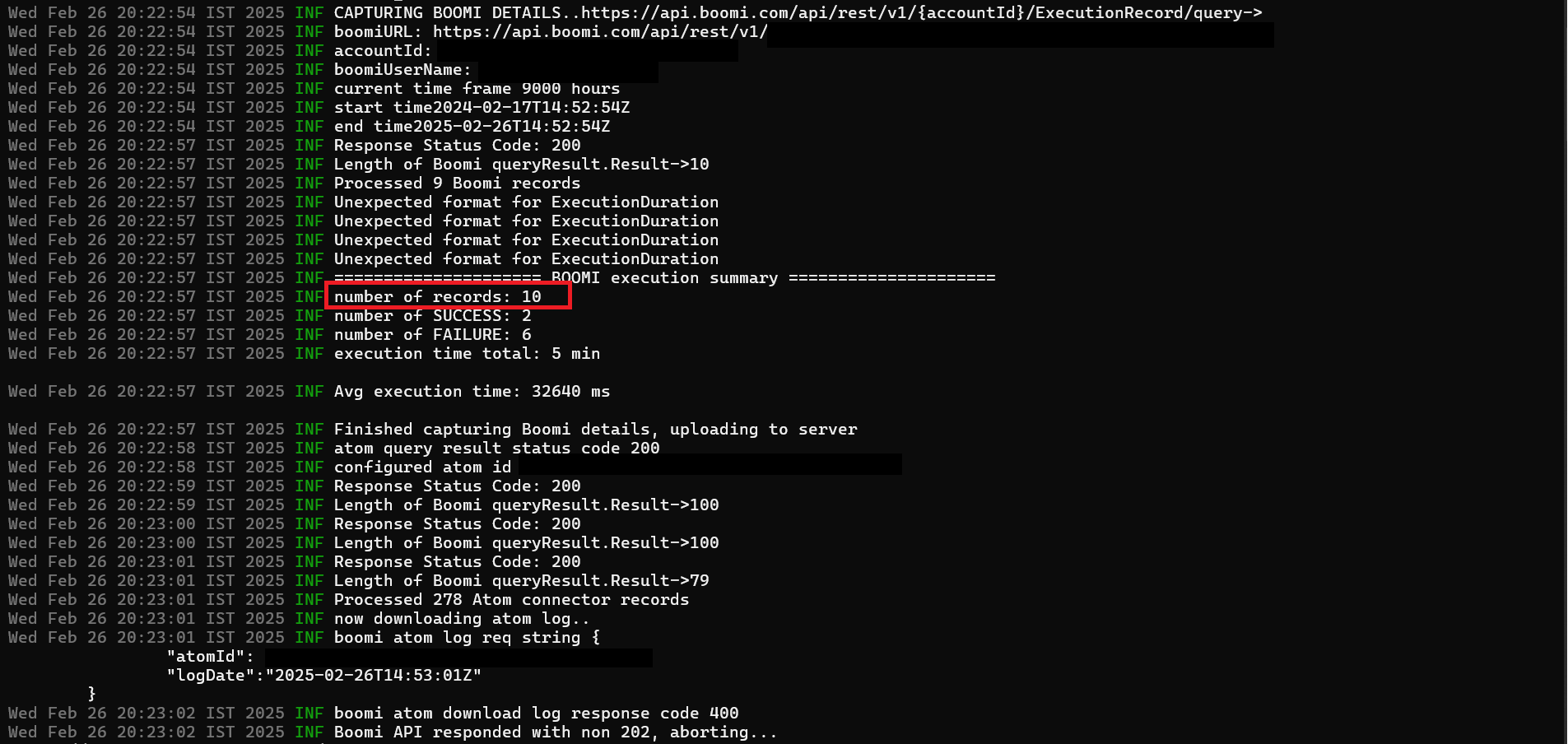
← JFR FAQ Introduction →