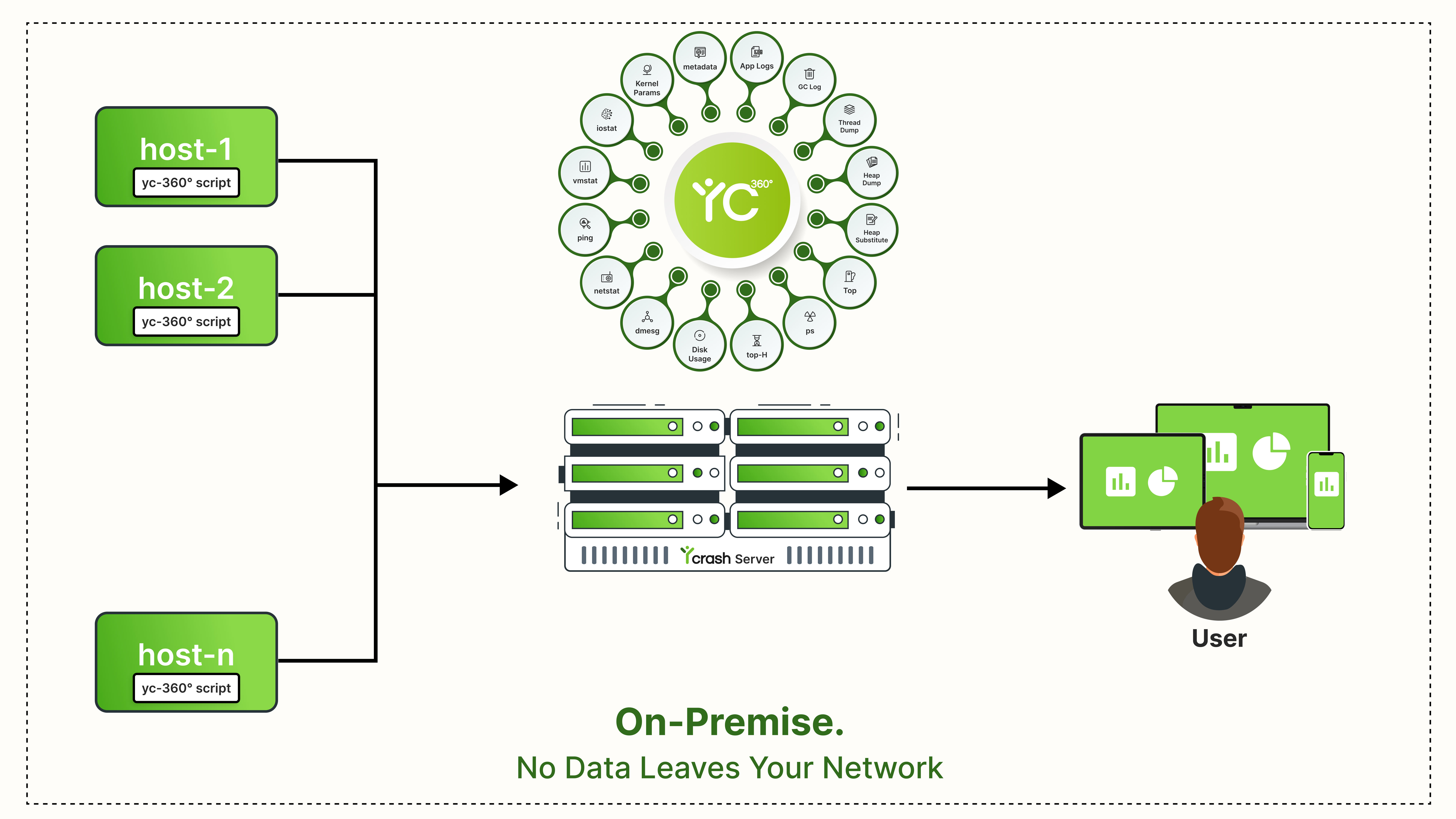
yCrash comprises two core components that work together to deliver precise, automated root cause analysis:
yc-360 Script – Captures vital troubleshooting artifacts (GC logs, Thread dumps, Heap dumps, netstat, etc.) from your application and securely transmits them to yCrash Server for analysis.
yCrash Server – Receives the artifacts, performs intelligent analysis, and generates a unified root cause analysis report to pinpoint the source of performance issues with speed and clarity.
1. Create and navigate to the yCrash Server installation directory:
C:
mkdir C:\workspace\yc
cd C:\workspace\yc
1 2 3
Note: If you're already on the C: drive, you can skip the C: command.
2. Download the latest yCrash Enterprise Edition zip file: Use a web browser to download yc-latest.zip(opens new window) and save it to C:\workspace\yc.
3. Extract the downloaded zip file: Right-click on yc-latest.zip → Extract All → extract to C:\workspace\yc\yc-latest.
4. Add the license file: Copy the license.lic file (provided during registration) into the unzipped directory. For example, if the file is in your Downloads folder, run the following command :
cd yc-latest
copy %USERPROFILE%\Downloads\license.lic C:\workspace\yc\yc-latest
1 2
5. Start the yCrash server: Run the following command to launch the yCrash application.
launch-yc-server.bat
1
INFO
To stop the yCrash server, use the following command:
4. Add the license file: Copy the license.lic file (provided during registration) into the unzipped directory. For example, if the file is in your Downloads folder, run the following command:
cd yc-latest
cp ~\Downloads\license.lic .
1 2
5. Start the yCrash server: Run the following command to launch the yCrash application.
.\launch-yc-server.bat
1
INFO
To stop the yCrash server, use the following command:
stop-yc-server.bat
1
Run yCrash Server in a Docker Container
Deploy the yCrash Server quickly using Docker. You can either: