
# How to integrate yCrash with Dynatrace
# Prerequisites
In this documentation we assume that you have already installed and setup Dynatrace and your applications are being monitored by Dynatrace. If you haven’t installed it yet then you may want to check Dynatrace official documentation (opens new window).
Now let's integrate yCrash with Dynatrace.
# Configure webhook endpoint URL in Dynatrace
Please follow the below steps to configure your webhook endpoint:
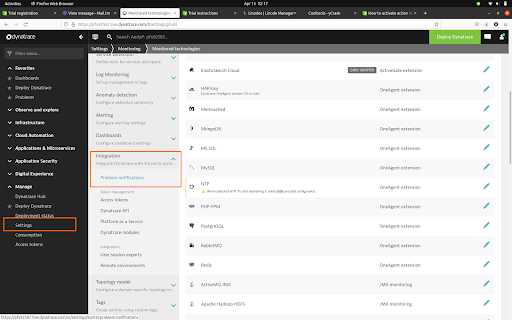
- Once you are logged in to Dynatrace, go to "Settings -> integration" menu and click on the "Problem notifications" option.
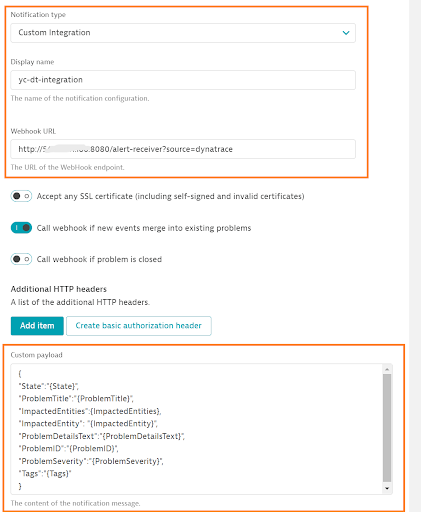
- On the "Problem notifications" page, click on the "Add notification" button. It will open the form as shown in the below screenshot. In the form,
Select Notification type as "Custom Notification" and enter the display name.
In your case the webhook URL will be
https://<my-ycrash-server>/alert-receiver?source=dynatraceAdd the below list of mandatory webhook payload properties in the "custom payload" field.
{
  "ImpactedEntities": {ImpactedEntities},
  "ImpactedEntity": "{ImpactedEntity}",
  "PID": "{PID}",
  "ProblemDetailsHTML": "{ProblemDetailsHTML}",
  "ProblemDetailsJSON": {ProblemDetailsJSON},
  "ProblemID": "{ProblemID}",
  "ProblemImpact": "{ProblemImpact}",
  "ProblemTitle": "{ProblemTitle}",
  "Problem URL": "https://example.com",
  "State": "{State}",
  "Tags": "{Tags}"
}
2
3
4
5
6
7
8
9
10
11
12
13
NOTE:
{ImpactedEntities}and{ProblemDetailsJSON}are JSON data types and must not have quotes around them.
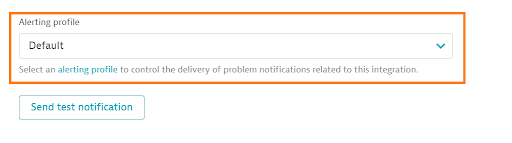
- Next select the alerting profile. As you can see in the below screenshot, we have selected "Default" alerting profile. You can change it to your custom alerting profile based on your requirements.
Once you have filled the form, click on the "Save changes" button.
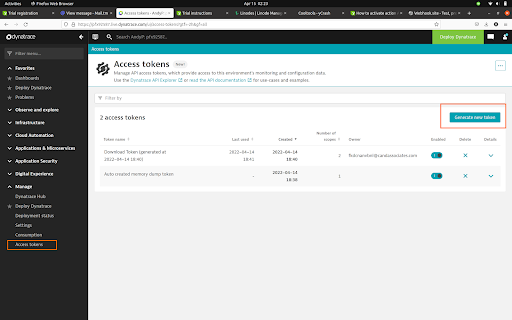
Next we will generate access token in Dynatrace. The access token is used by yCrash to invoke Dynatrace API internally. Inorder to create access token, go to "Access tokens" menu and click on "Generate new token" button.
- In the generate token form, fill the token name and select the following scopes from the table - Read entities, Write entities, Access problem and event feed, metrics, and topology.
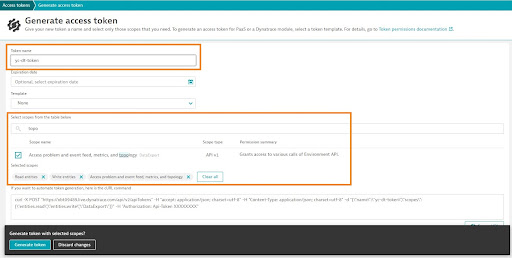
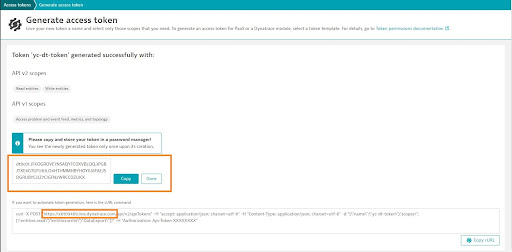
- When you click on the "Generate token" button, it will generate one unique token for you as shown in the below screenshot. Copy the token and API host URL from the curl command. We will use these both values in the next section.
# Configure monitoring-tools.json file in yCrash
The monitoring-tools.json file is used to configure the custom properties for the integration with monitoring tools. Inorder to integrate yCrash with Dynatrace, you may want to configure the below 4 properties in monitoring-tools.json file:
| Properties | Description |
|---|---|
ycAgentPort | Configure the port number where your yc-360 script is listening to. By default the value will be 8085. |
ycAgentProtocol | Protocol (http/https) that is configured for the yc-360 script. By default the value will be https. |
dynatraceApiUrl | This is a mandatory property used to configure the Dynatrace API URL. Paste the API host URL that we copied in the previous step. The yCrash will use this API to get the IP address where your target application is running. |
dynatraceAuthToken | This is a mandatory property used to configure the dynatrace auth token. Paste the token that we copied in the previous step. The auth token is used by yCrash while calling dynatrace api. |
By default the value of ycAgentPort will be 8085 and ycAgentProtocol will be https. In case if you don't configure these properties in the monitoring-tools.json file then the yCrash will use the default values. Here are the steps to configure monitoring-tools.json file:
Create a
monitoring-tools.jsonfile and add the above 4 properties into it.Place this file in "Upload" directory. If you don’t know what is upload directory then please visit What is upload directory? page to learn about it.
Here is a sample
monitoring-tools.jsonfile.
{
    "ycAgentPort": "8080",
    "ycAgentProtocol": "http",
    "dynatraceAuthToken": "dt0c01.JFKOGRDVE7NSAQYFCDXVBLQQ.3PGBJTXE4GTGFU63LO4HTHMMHBYHOYIU6FAEJSDGRUBYCJJZ7CIGFN2WRCCDZUKX",
    "dynatraceApiUrl": "https://xbt40984892.live.dynatrace.com"
}
2
3
4
5
6