
# Individual Upload
The yc-360 script automatically captures the troubleshooting artifacts (i.e, GC logs, thread dumps, heap dumps...) and transmits to the yCrash server. Sometimes there might be situations where you want to upload the troubleshooting artifacts manually to the yCrash server. To facilitate this requirement, 'Upload Incident' feature has been developed.
To upload the incident manually you need to follow just three simple steps:
# Step 1: Go to Upload Incident Form.
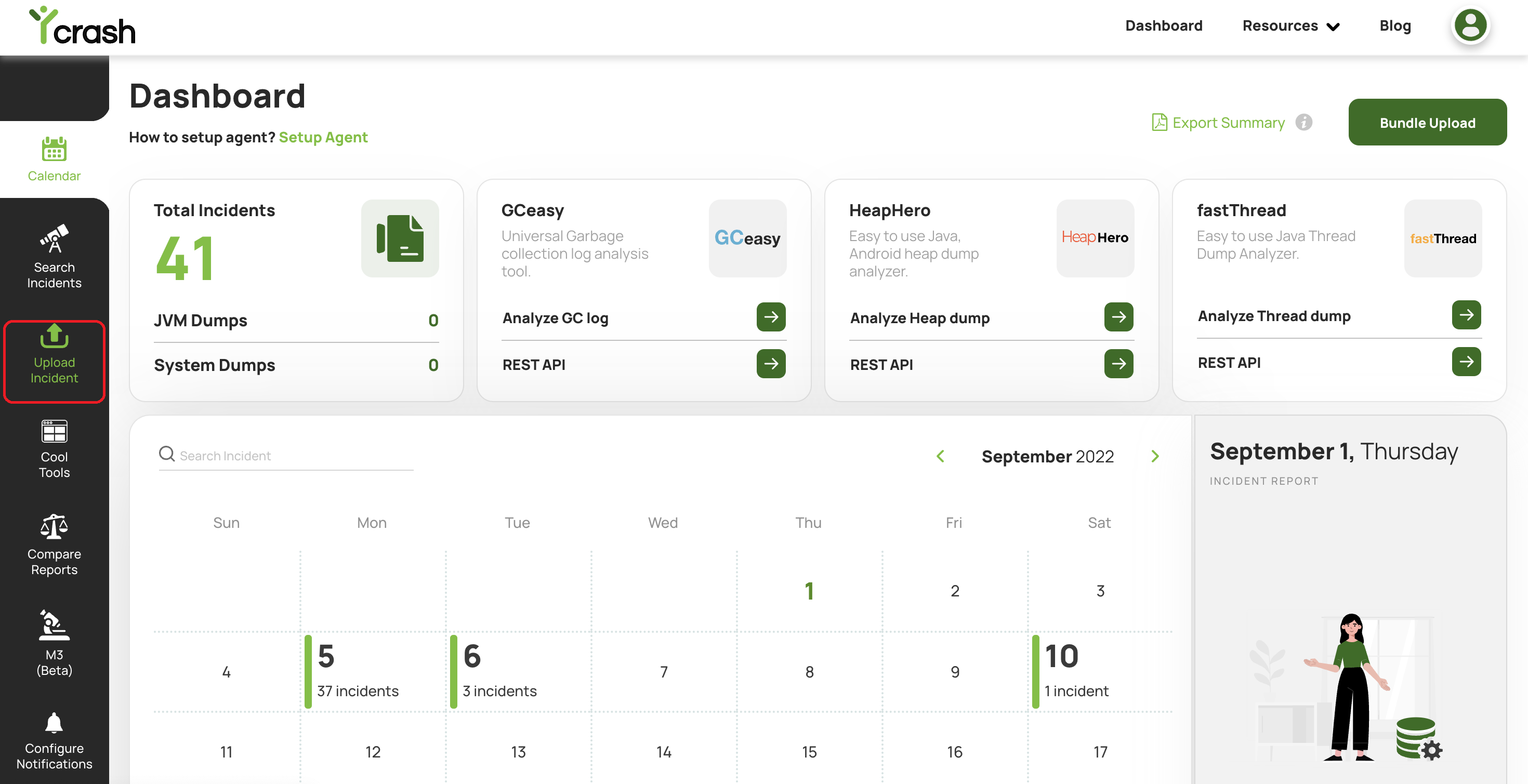
From the yCrash dashboard page, click on the Upload Incident menu item in the left panel.
# Step 2: Upload the artifacts.
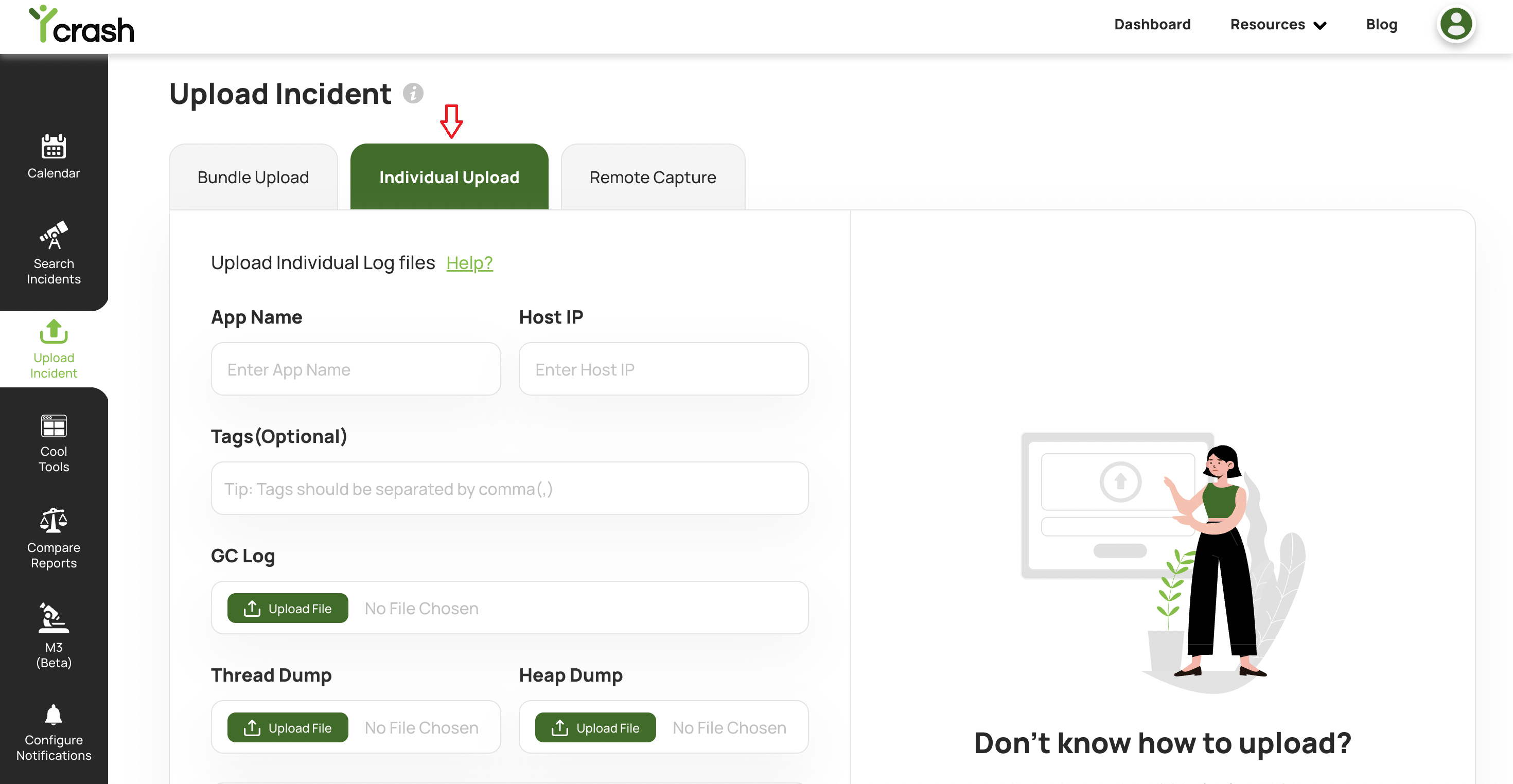
In the 'Individual Upload' page you will see three tabs: 'Bundle Upload' , 'Individual Upload' and 'Remote Capture'. Click on the 'Individual Upload' tab. It will open up the 'Individual upload' form. This form will contain following fields:
App name
Host IP
Tags
GC Log
Thread Dump
Heap Dump
+Add Files dropdown button.
Fill up the form input fields and upload the artifacts(GC log, Thread dump, Heap dump) in their respective file inputs.
Note: You don't need to upload all the files mentioned in the fields and dropdown. You can upload the files whichever you want to analyze.
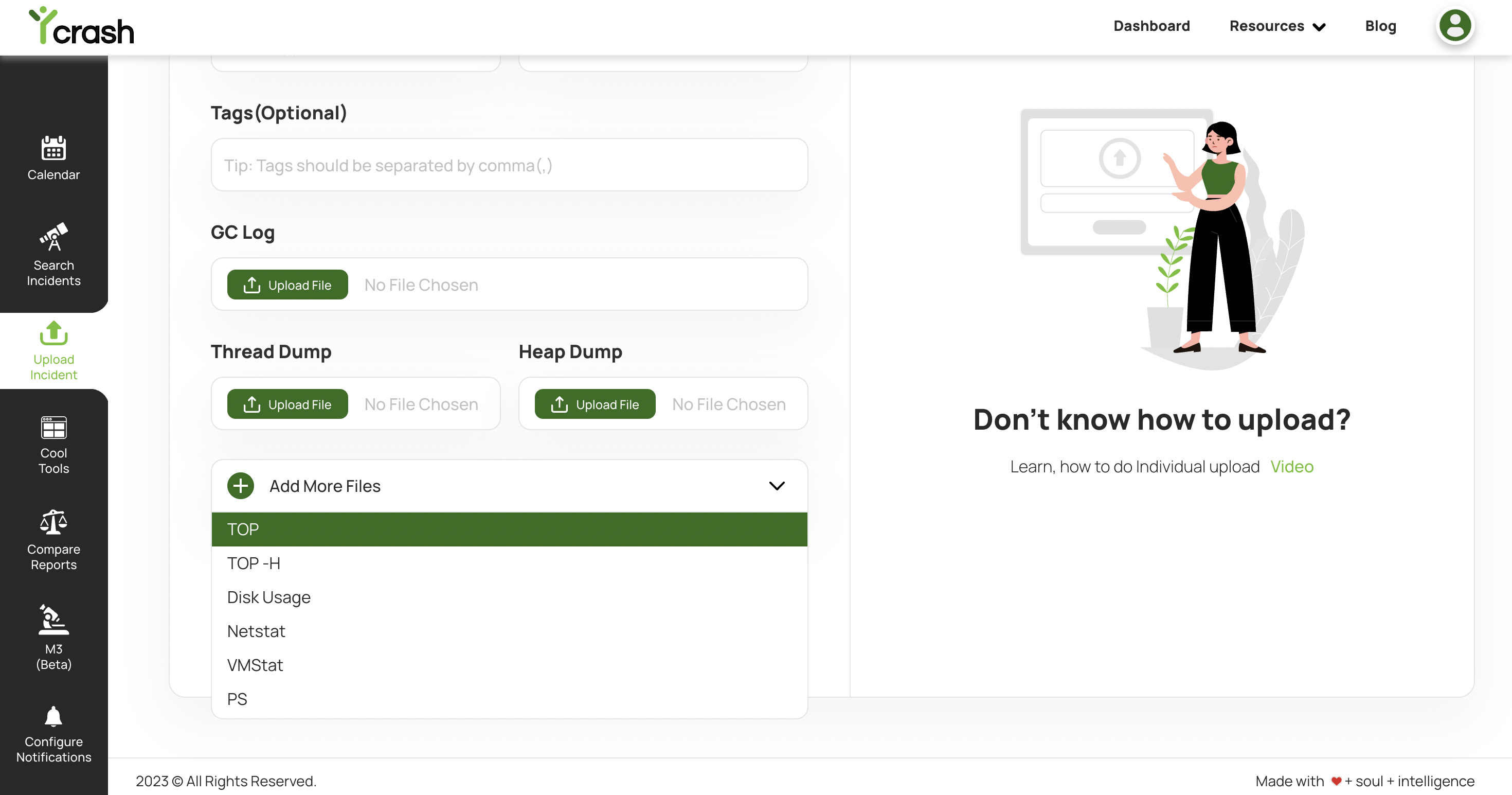
To upload the other operating system artifacts (like top, top -H, PS, netStat, vmstat, disk usage) click on the "+Add Files" drop-down button. From the drop-down menu select the appropriate file you would like to upload. Keep repeating this step, until you have added all the artifacts (as shown in the above screenshot).
After uploading all the files just click on the Analyze button. Now all artifacts will be analyzed and you will be taken to the RCA summary page, displaying the root cause of the issue.