
# Custom Logo Support in yCrash
# Overview
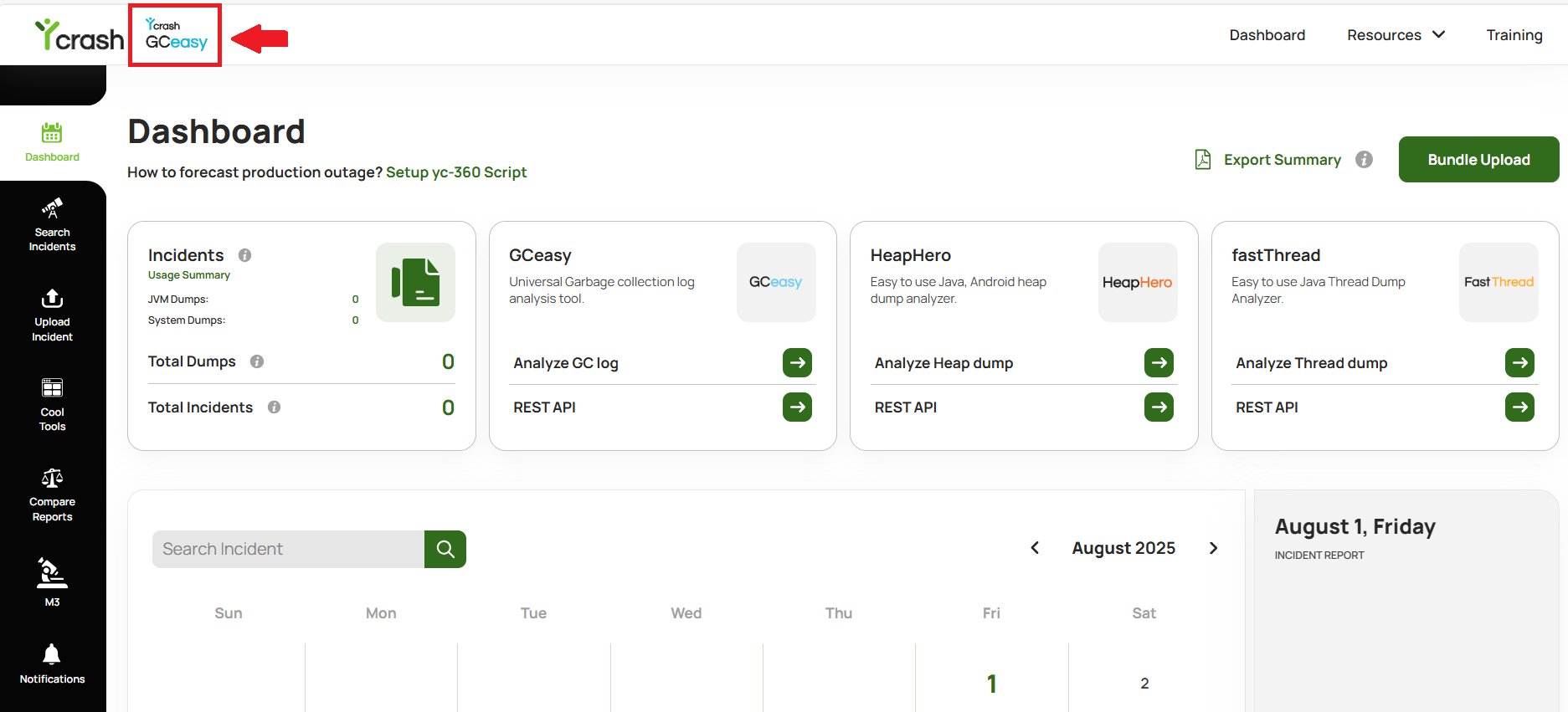
yCrash now offers the ability to show your organization's logo next to the yCrash logo, allowing seamless addition of your branding within the application. This feature was implemented in version 3.1
# Configuration Steps
# 1. Place Your Logo in the Upload Directory
Copy your company logo image file to the yCrash upload directory (opens new window).
For example, if your application is launched with the following upload directory path
java ... -DuploadDir=/opt/ycrash/dumps ...
Then, place your logo file in "/opt/ycrash/dumps/company-log.png"
# 2. Set the System Property
Configure the yCrash application to use your logo by setting the customLogo system property in your launch-yc-server.{sh | bat}
Example:
-DcustomLogo="company-logo.png"
Your launch script should be updated as follows:
java -Xms2g -Xmx4g -DuploadDir=/opt/ycrash/dumps -DcustomLogo="company-logo.png" -jar webapp-runner.jar -AconnectionTimeout=3600000 --port 8080 yc.war
# 3. Restart yCrash
After updating the lauch-yc-server.{sh | bat} file restart the yCrash application for the changes to take effect.
# Behavior
The configured custom logo will appear alongside the default YCrash logo in the yCrash application's header
Note:
- Supported image formats: png, svg
- If the logo format is invalid or the logo missing from the configured path, only the default yCrash logo will be displayed on the header.