# Bundle Upload
There are two quickest options to upload a new incident for analysis.
# Upload from the Dashboard
Step 1: Open the Dashboard
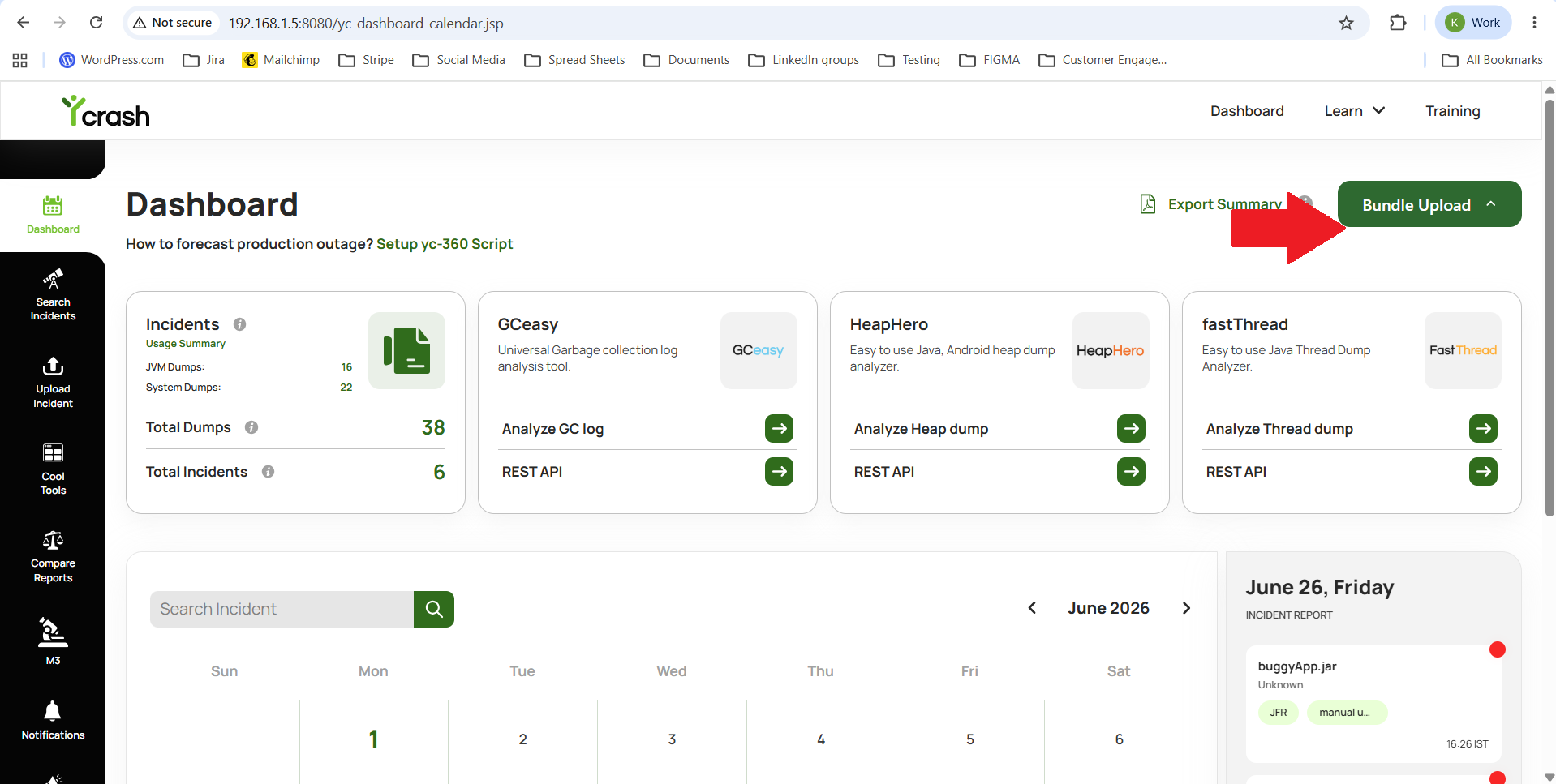
Step 2: Click the Bundle Upload button available on the Dashboard.
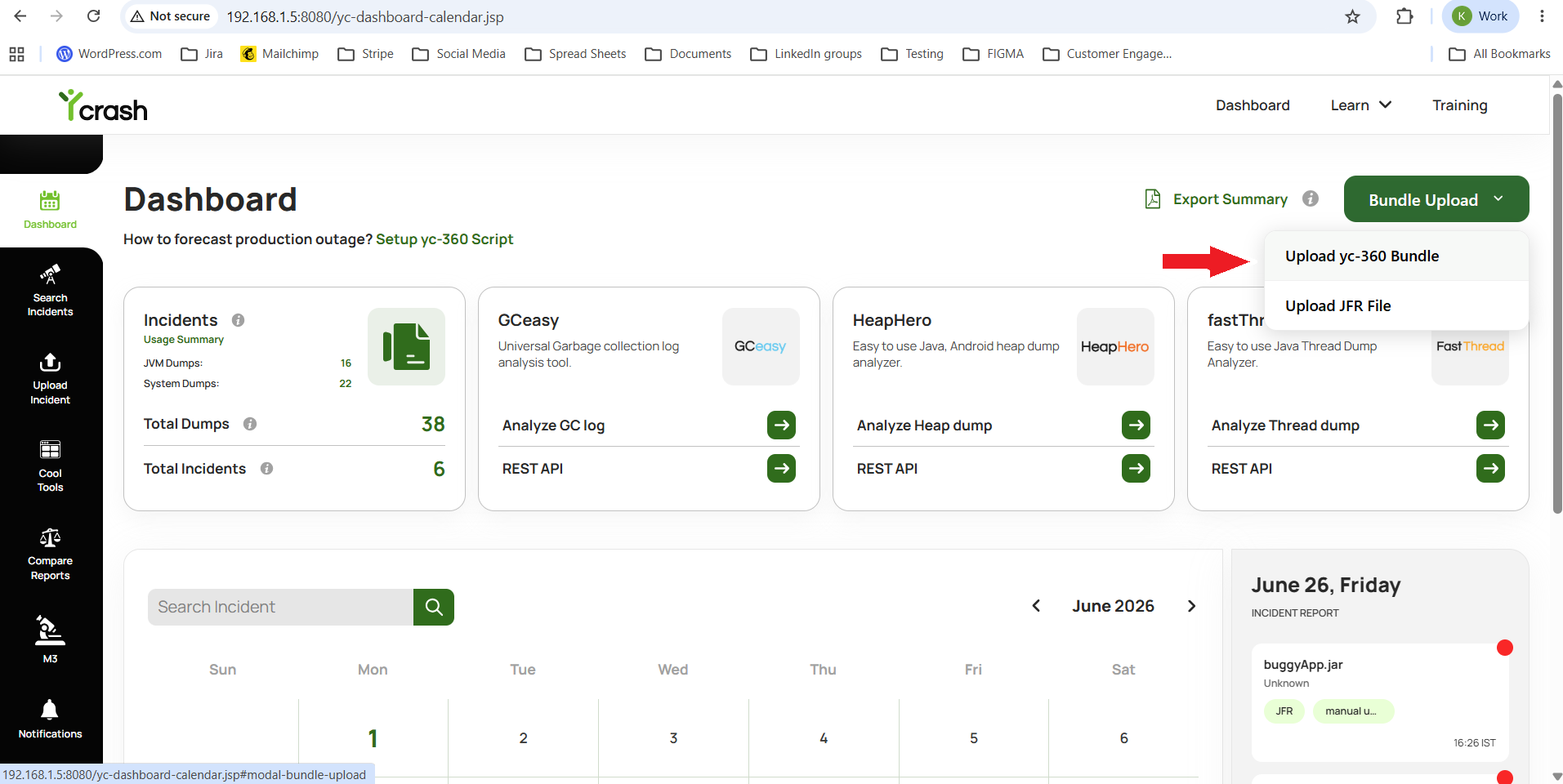
Step 3: Select "Upload YC-360 bundle" option
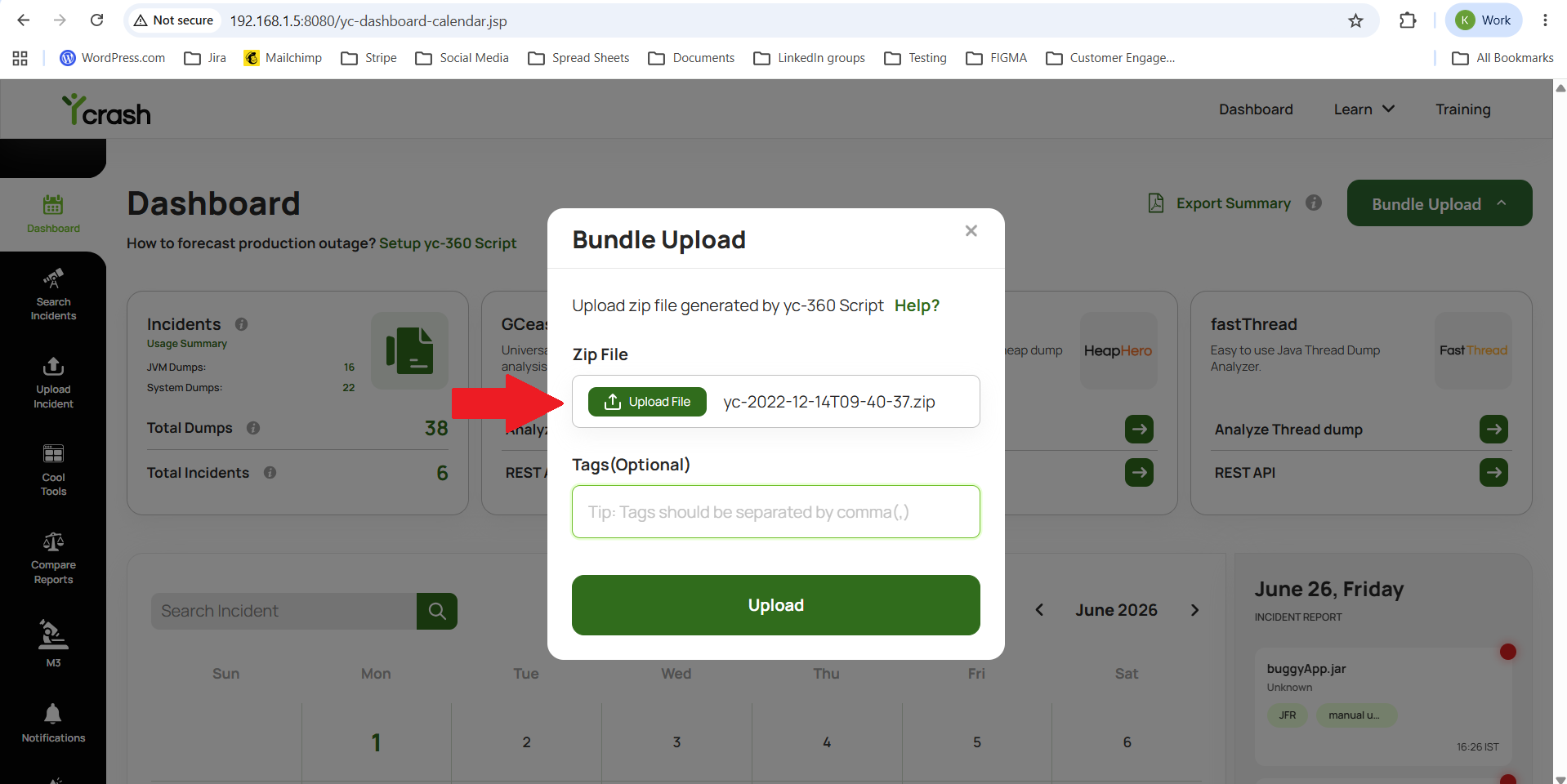
Step 4: Select the ZIP or ZST file generated by the yc-360 onlyCapture script.
Tags (Optional) – Specify tags for your future reference.
Step 5: Click the "Upload" button to upload the bundle.
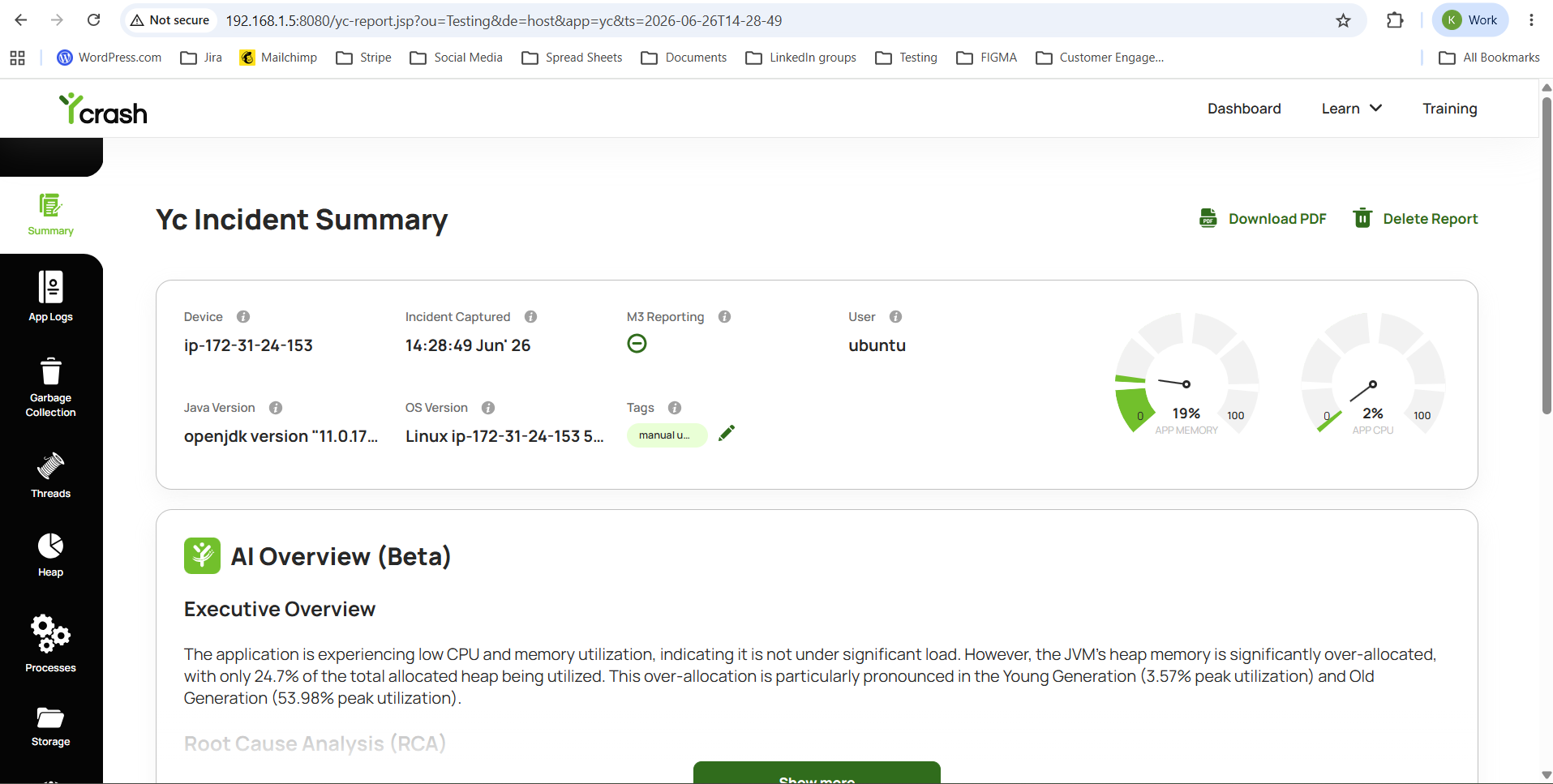
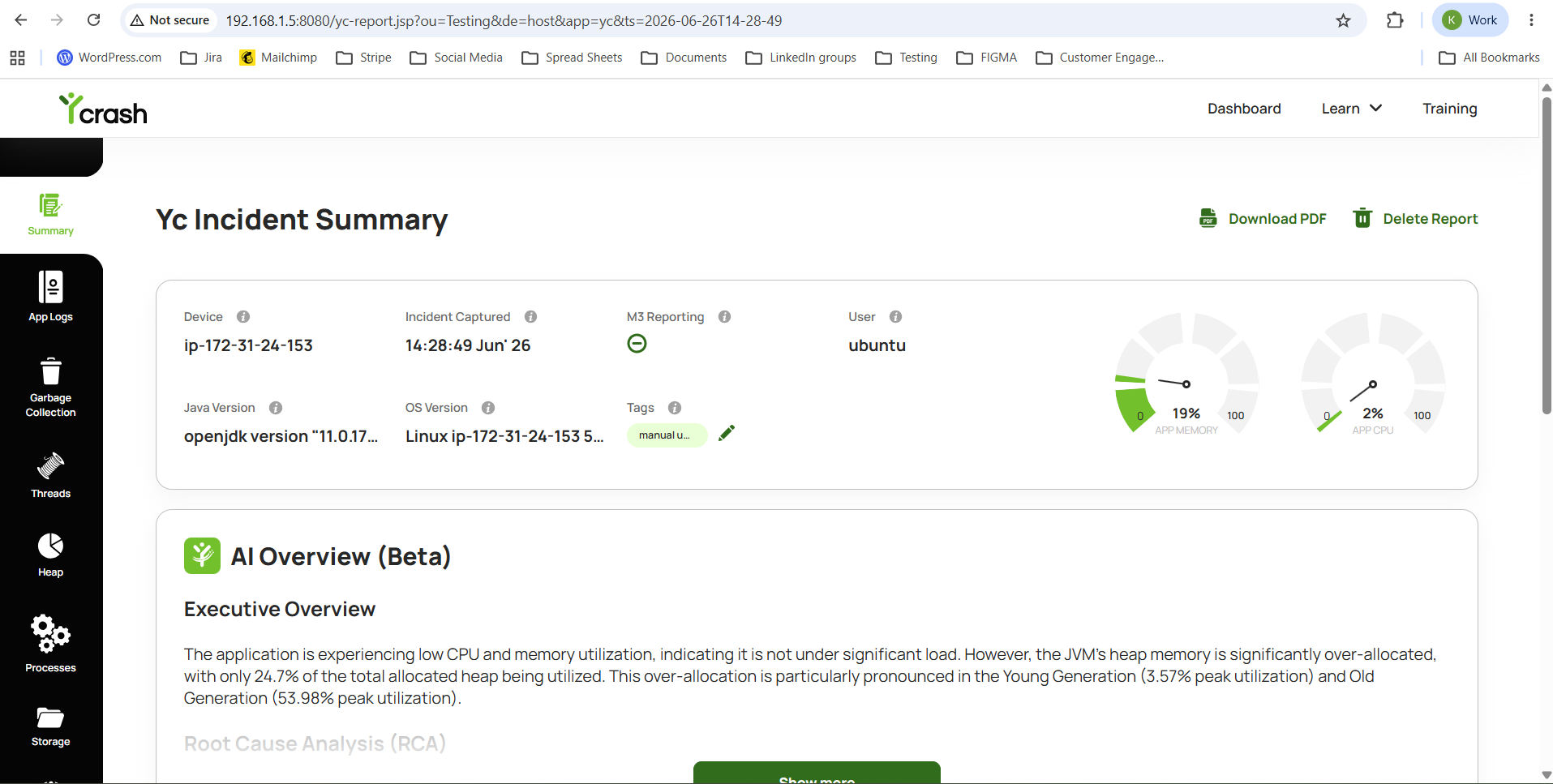
Once the upload is complete, yCrash automatically analyzes all artifacts and generates a consolidated Root Cause Analysis report.
# Upload from the Upload Incident Page
You can also upload a bundle from the Upload Incident page.
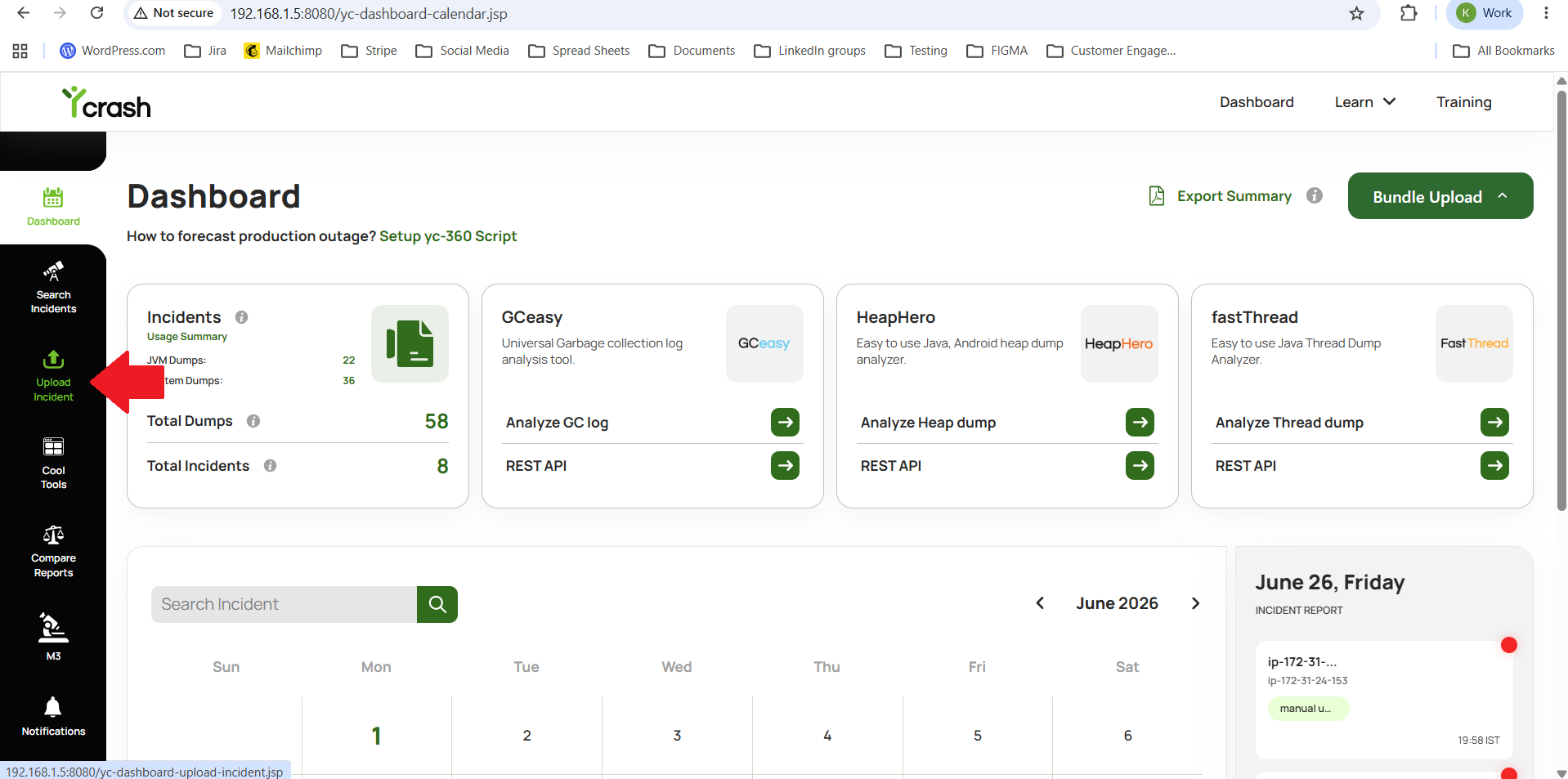
Step 1: Open the Upload Incident Page. From the left navigation menu, click Upload Incident.
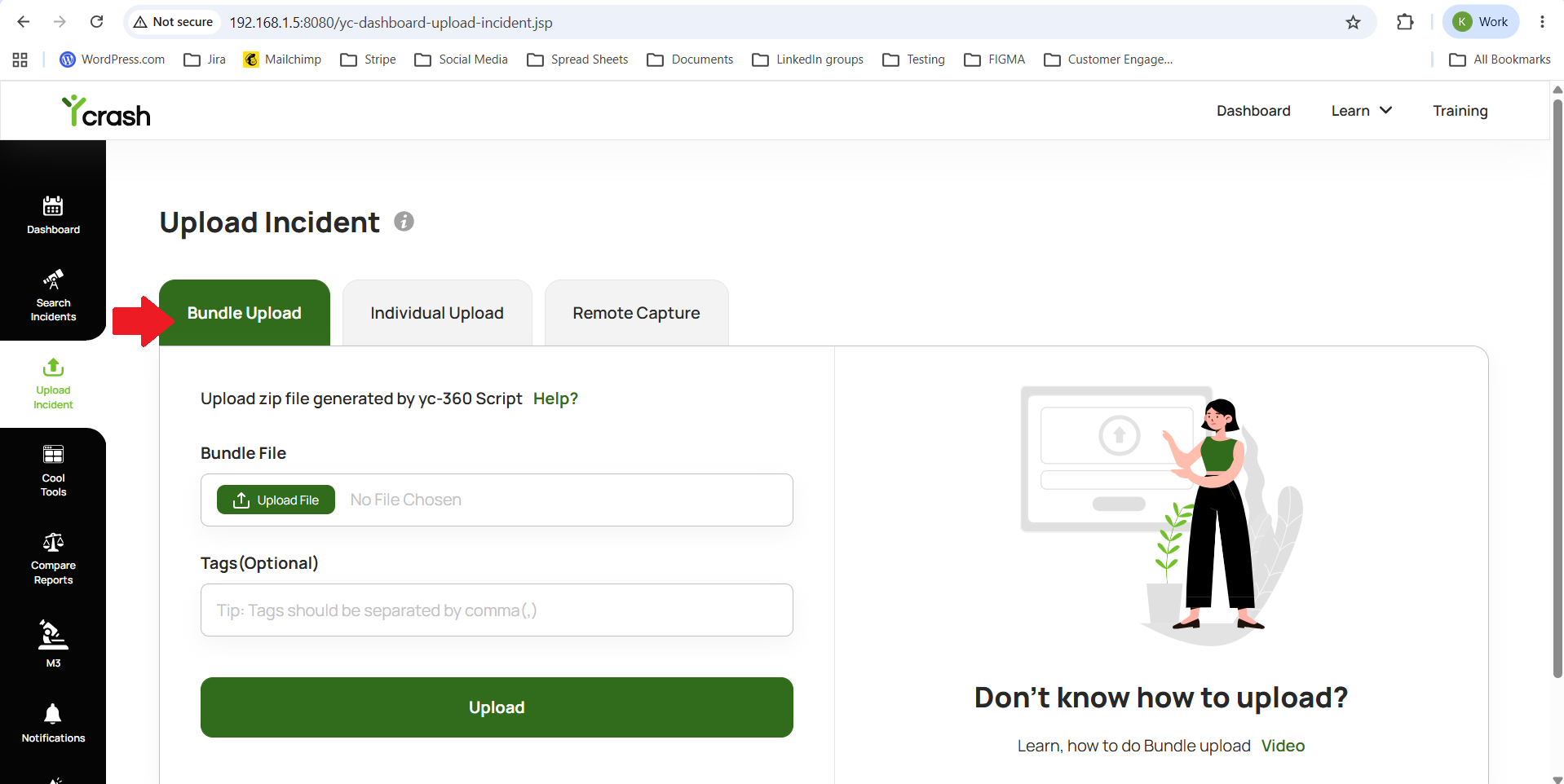
Step 2: Select the Bundle Upload Tab. The Upload Incident page contains three tabs Bundle Upload, Individual Upload, Remote Capture. Select the Bundle Upload tab.
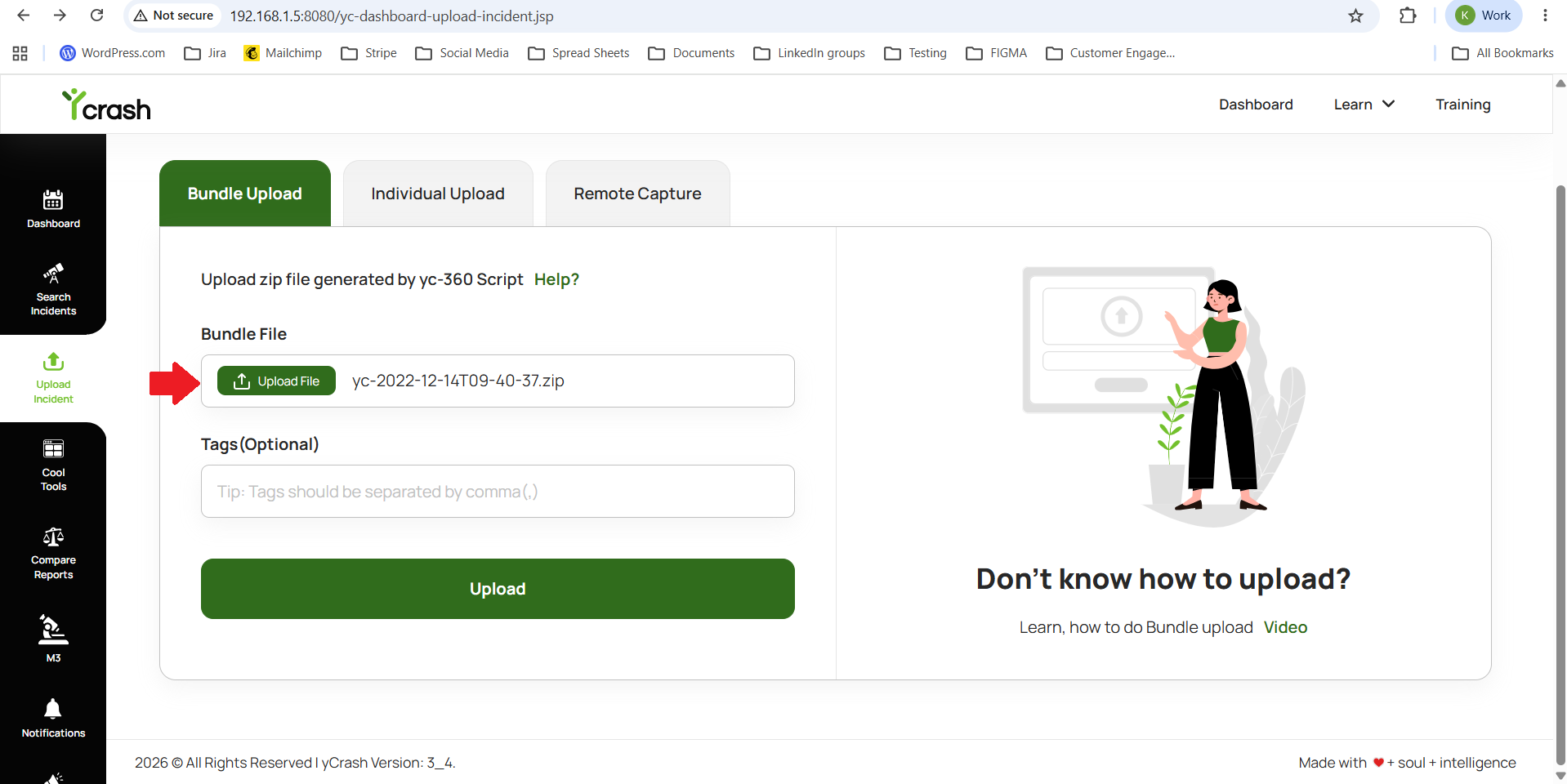
Step 3: Select the ZIP or ZST file generated by the yc-360 onlyCapture script.
Tags (Optional) – Specify tags for your future reference.
Step 4: Click the "Upload" button to upload the bundle.
Once the upload is complete, yCrash automatically analyzes all artifacts and generates a consolidated Root Cause Analysis report.