
# Google Chat Notification
Google Chat webhook notifications enable you to receive real-time incident alerts and data from the yCrash Server directly in your Google Chat group. This documentation explains how to configure Google Chat webhook notifications and understand the payload format.
Note
This feature is available only for logs uploaded through the yc-360 script (On-Demand Mode or Micro Metrics Monitoring Mode). It is not supported for manual uploads.
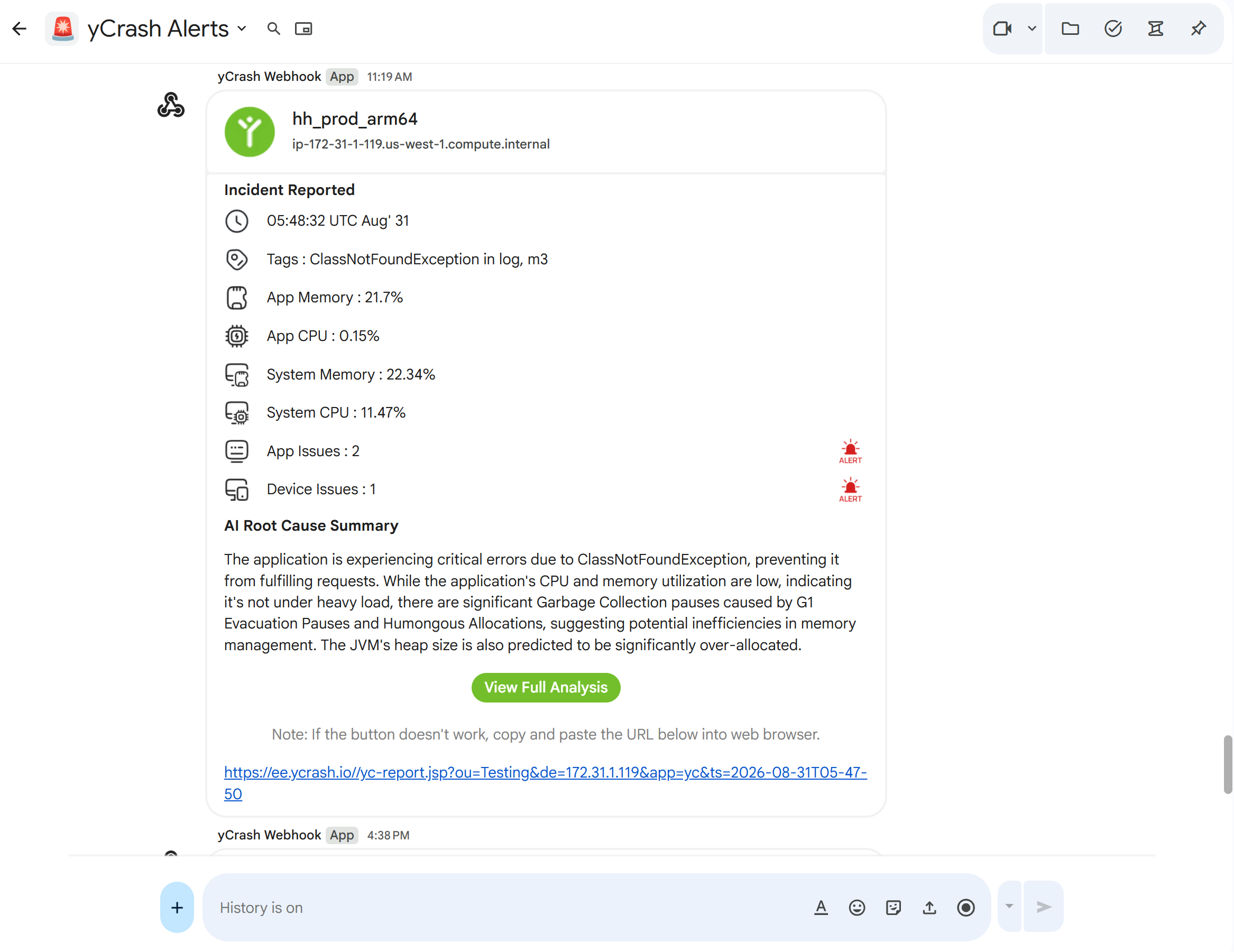
An example yCrash incident alert message displayed inside a Google Chat space.
# Step 1: Configure "Incoming Webhooks" in your Google Chat Channel.
To set up Google Chat webhook notifications, follow these steps,
In your Google Chat channel, navigate to the channel where you want to receive notifications from the yCrash application.
Click on the channel name and click on the Apps & integrations option.
Click on the option Webhooks.
Click on the Add webhooks option.
In the Incoming Webhooks popup provide the name and click on the Save button.
The required Incoming Webhooks URL will be generated and a toaster message will appear as "Webhook Created".
Copy the generated endpoint URL.
# Step 2: Configure Google Chat notification Settings in yCrash
We can configure Google Chat notification settings following these steps,
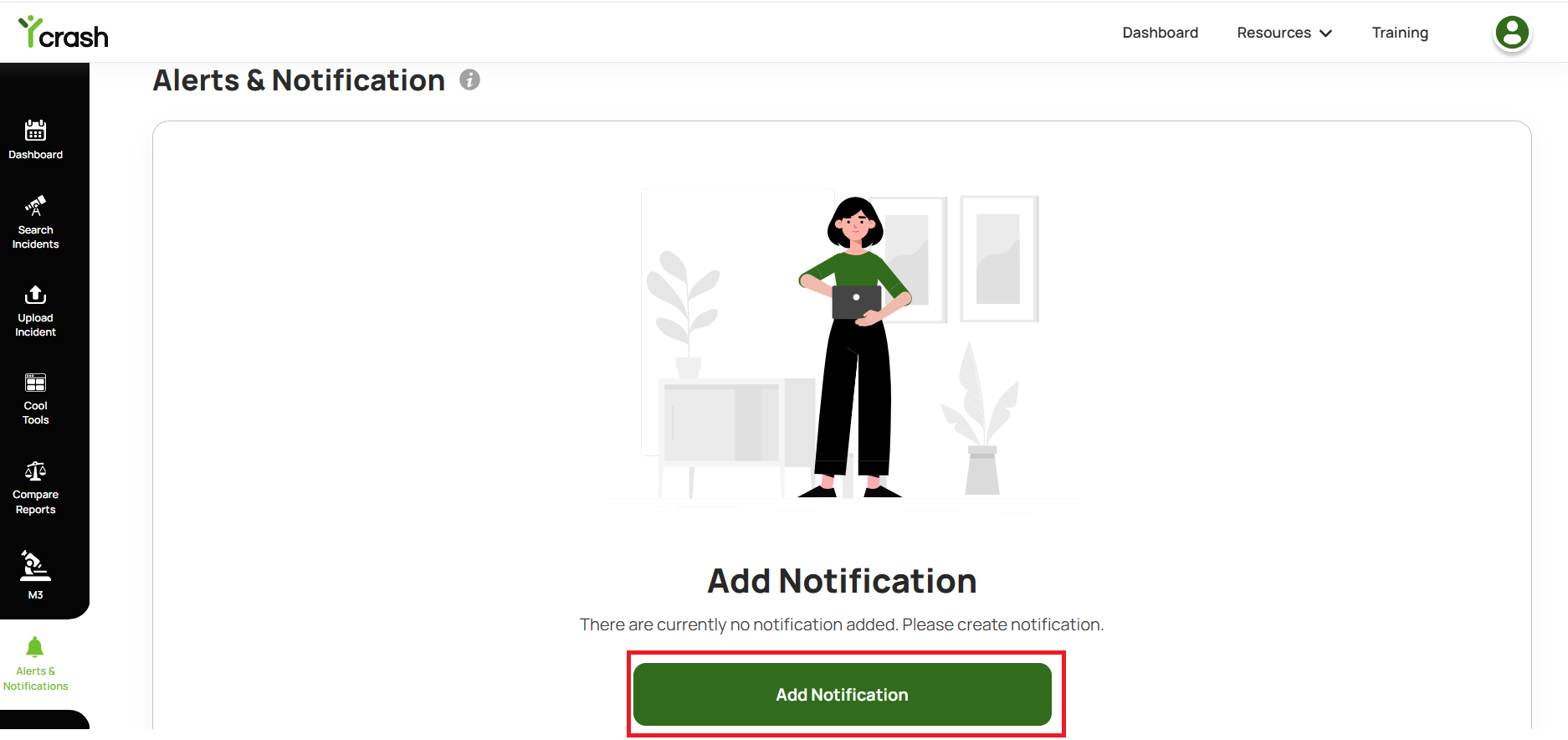
Click on the 'Alerts & Notification' menu item on the left panel on the dashboard.
Click on the 'Add Notification' button.
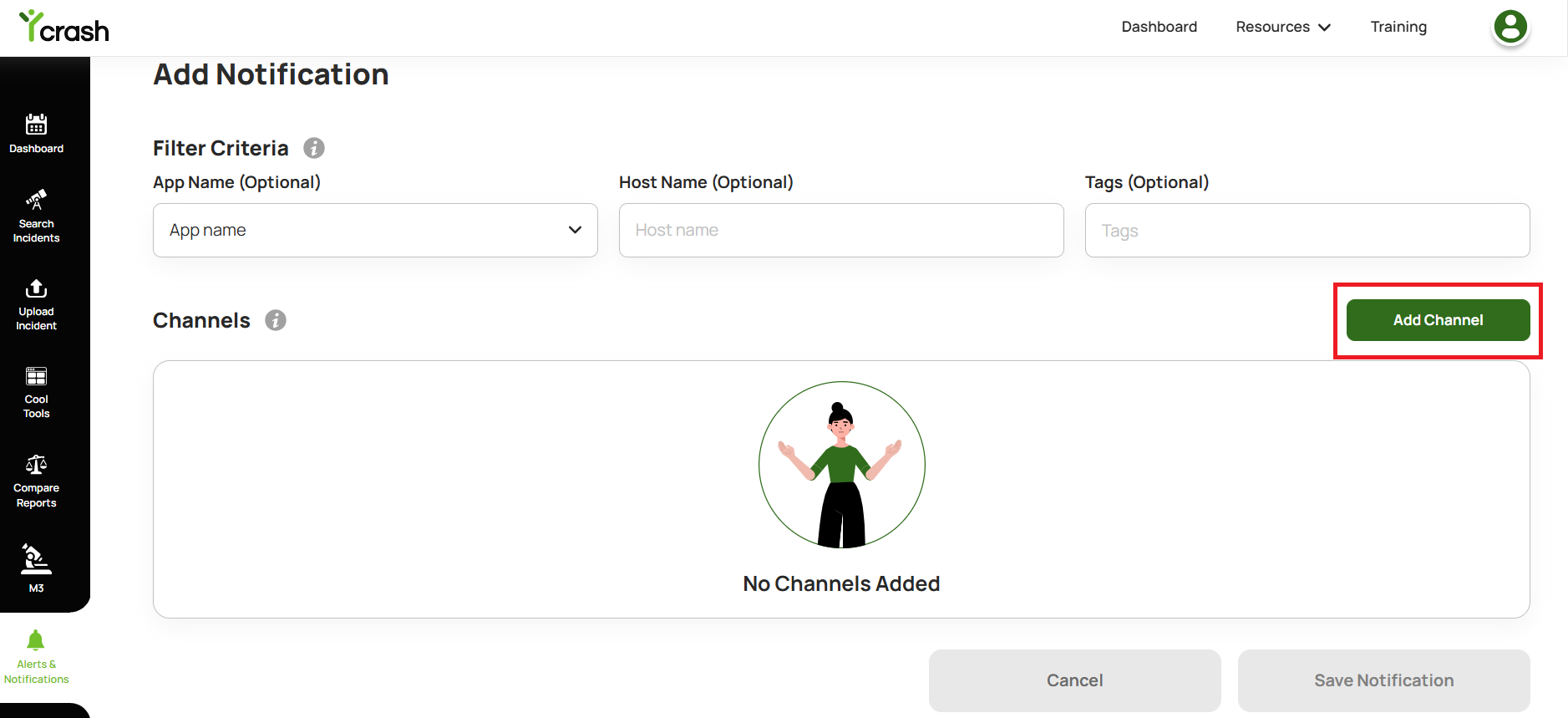
- From the Add Notification page, click 'Add Channel'.
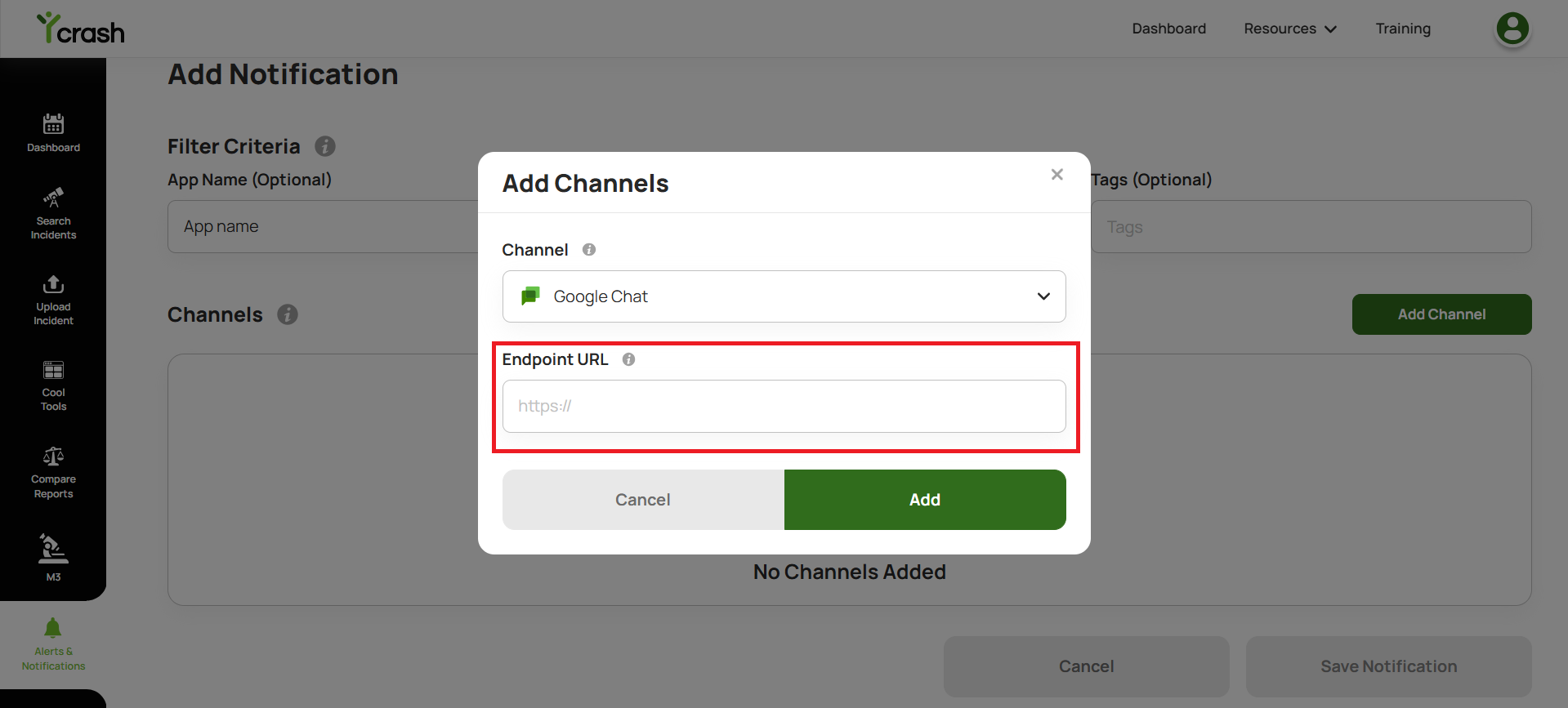
The Add Channel popup will appear. Select Google Chat in the channel field.
Paste the copied endpoint URL from the Google Chat channel into the Endpoint URL field.
- Click on the Add button and click on the Save Notificatio button.
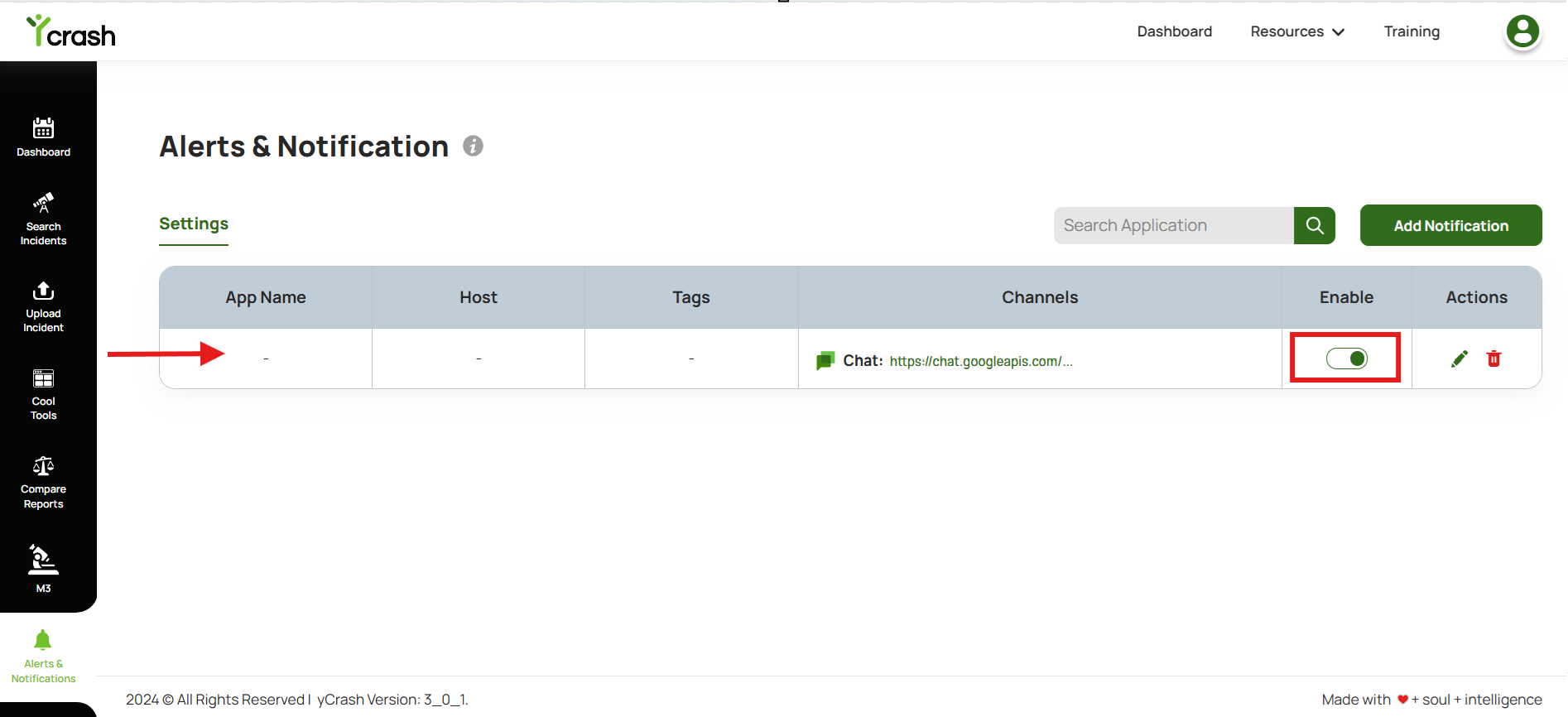
Ensure the created channel is enabled by default. Users are allowed to enable or disable channels as per user's needs. Additionally, users can edit or delete any created channels.
The steps explained above are for creating channels to send notifications without applying any filters. Alternatively, you can configure rules to notify users only when specific filters, such as App Name (optional), Host Name (optional), or Tags (optional) that are configured, match the incidents. To create a channel with filter criteria please refer to this documentation.