
# Email Notification
This document explains how to configure email notifications in the yCrash application to alert users whenever new incidents are reported.
Note
This feature is available only for logs uploaded through the yc-360 script (On-Demand Mode or Micro Metrics Monitoring Mode). It is not supported for manual uploads.
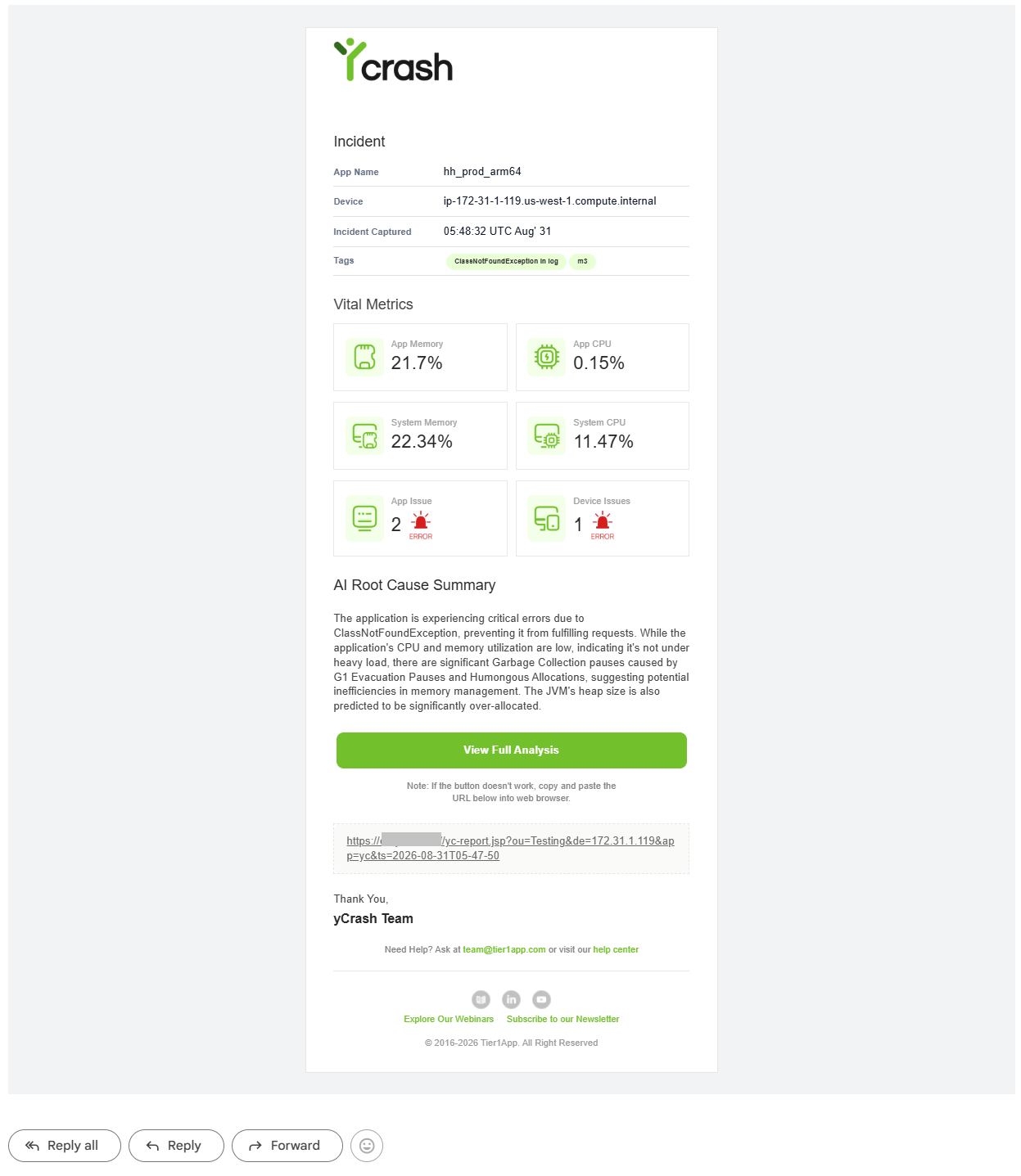
An example yCrash incident notification email with key diagnostic metrics and report link.
# Prerequisite
To enable email notifications, create a mail.xml file with the following configuration:
# SMTP with SSL mode
<?xml version="1.0" encoding="UTF-8"?>
<!DOCTYPE properties SYSTEM "http://java.sun.com/dtd/properties.dtd">
<properties>
    <!--
        Your company's SMTP Host configurations
     -->
    <entry key="mail.smtp.host">smtp.example.com</entry>
    <entry key="mail.smtp.port">465</entry>
    <entry key="mail.smtp.ssl.enable">true</entry>
    <entry key="mail.smtp.auth">true</entry>

    <!--
         This is optional, required only if your SMTP server
        Requires User name and password for authentication
     -->
    <entry key="username">***************</entry>
    <entry key="password">***************</entry>
</properties>
2
3
4
5
6
7
8
9
10
11
12
13
14
15
16
17
18
# SMTP with TLS mode
<?xml version="1.0" encoding="UTF-8"?>
<!DOCTYPE properties SYSTEM "http://java.sun.com/dtd/properties.dtd">
<properties>
    <!--
        Your company's SMTP Host configurations
     -->
    <entry key="mail.smtp.host">smtp.example.com</entry>
    <entry key="mail.smtp.port">587</entry>
    <entry key="mail.smtp.auth">true</entry>
    <entry key="mail.smtp.starttls.enable">true</entry>
    <entry key="mail.smtp.ssl.protocols">TLSv1.2</entry>
    <entry key="mail.transport.protocol">smtp</entry>

    <!--
         This is optional, required only if your SMTP server
        Requires User name and password for authentication
     -->
    <entry key="username">***************</entry>
    <entry key="password">***************</entry>
</properties>
2
3
4
5
6
7
8
9
10
11
12
13
14
15
16
17
18
19
20
# SMTP Configuration Properties
Here is a description of these properties:
| Property | Description |
|---|---|
mail.smtp.host | The hostname or IP address of your SMTP server. |
mail.smtp.port | The port number used by your SMTP server. |
mail.smtp.ssl.enable | Enables SSL mode for SMTP communication. |
mail.smtp.starttls.enable | Enables TLS mode for SMTP communication. |
mail.smtp.auth | Determines whether authentication is required to establish a connection with the SMTP server. |
mail.smtp.ssl.protocols | Specifies the allowed SSL protocol versions. |
mail.transport.protocol | Defines the applicable transport protocol. |
username | The username for SMTP authentication. This property is optional if your SMTP server does not require authentication. |
password | The password for SMTP authentication. This property is optional if your SMTP server does not require authentication. |
# Step 1: Place mail.xml in the Upload Directory
Drop the mail.xml file into the upload directory of your yCrash application.
# Step 2: Configure Email Notification Settings
To configure email notifications follow these steps:
Click on the 'Alerts & Notification' menu item on the left panel on the dashboard.
Click on the 'Add Notification' button.
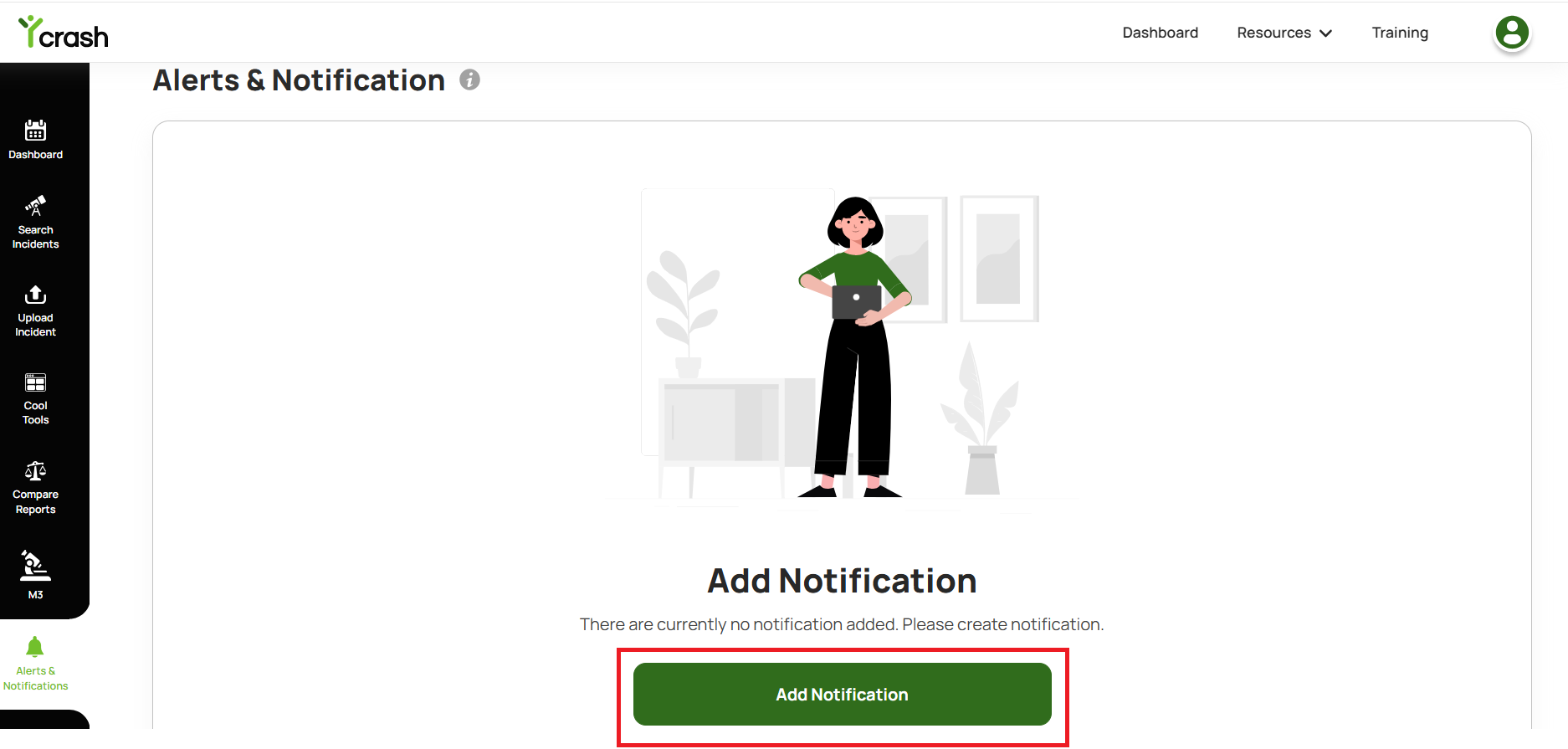
- From the Add Notification page, click 'Add Channel'
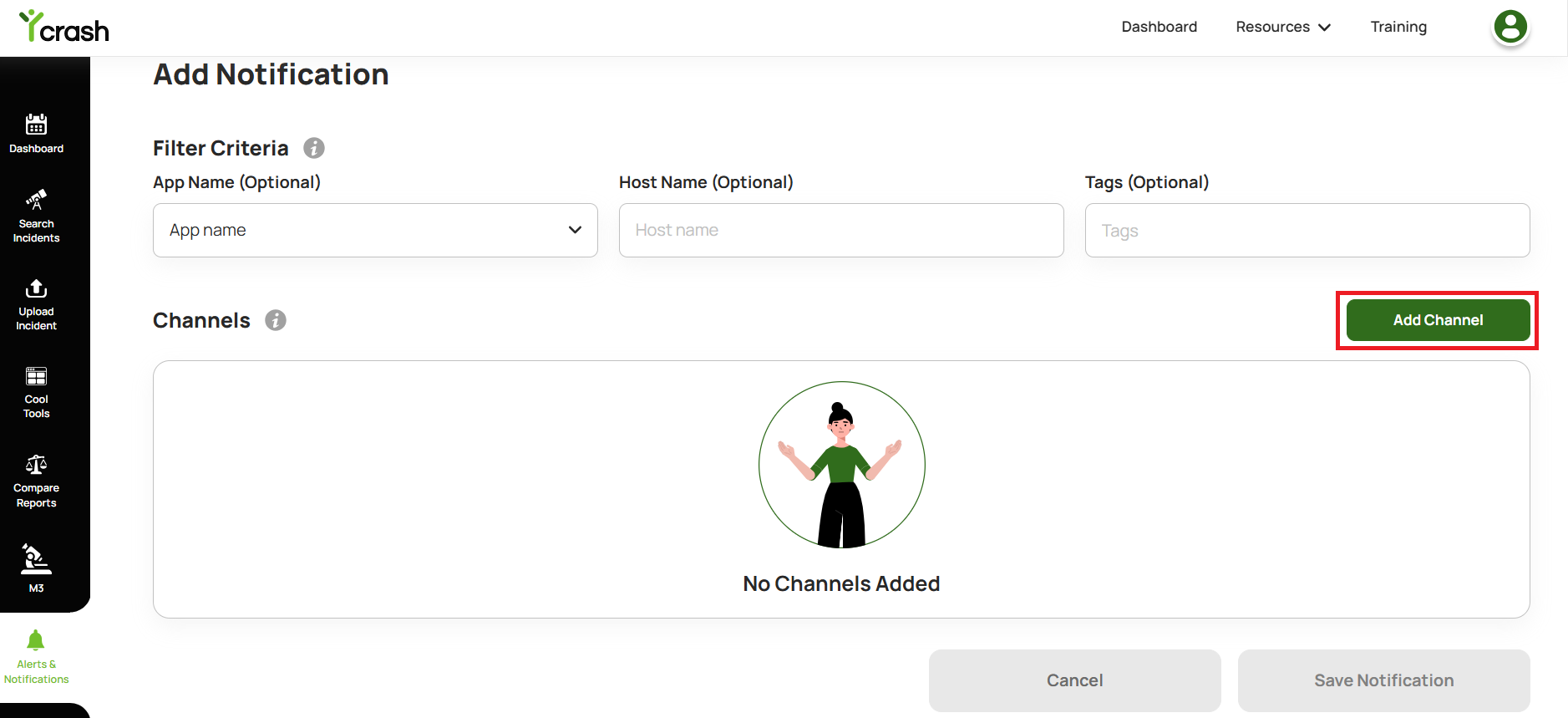
The Add Channel popup will appear. Ensure Email is selected in the channel field.
In the Email address field, enter the email addresses where notifications should be sent. For multiple addresses, separate each email with a comma (e.g., user1@mycompany.com, user2@mycompany.com).
Fill in the Subject and Body Text fields to personalize the email template. You can customize these fields to tailor the email to your needs.
Click Add to confirm the new notification channel, then click Save Notification on the Notification page.
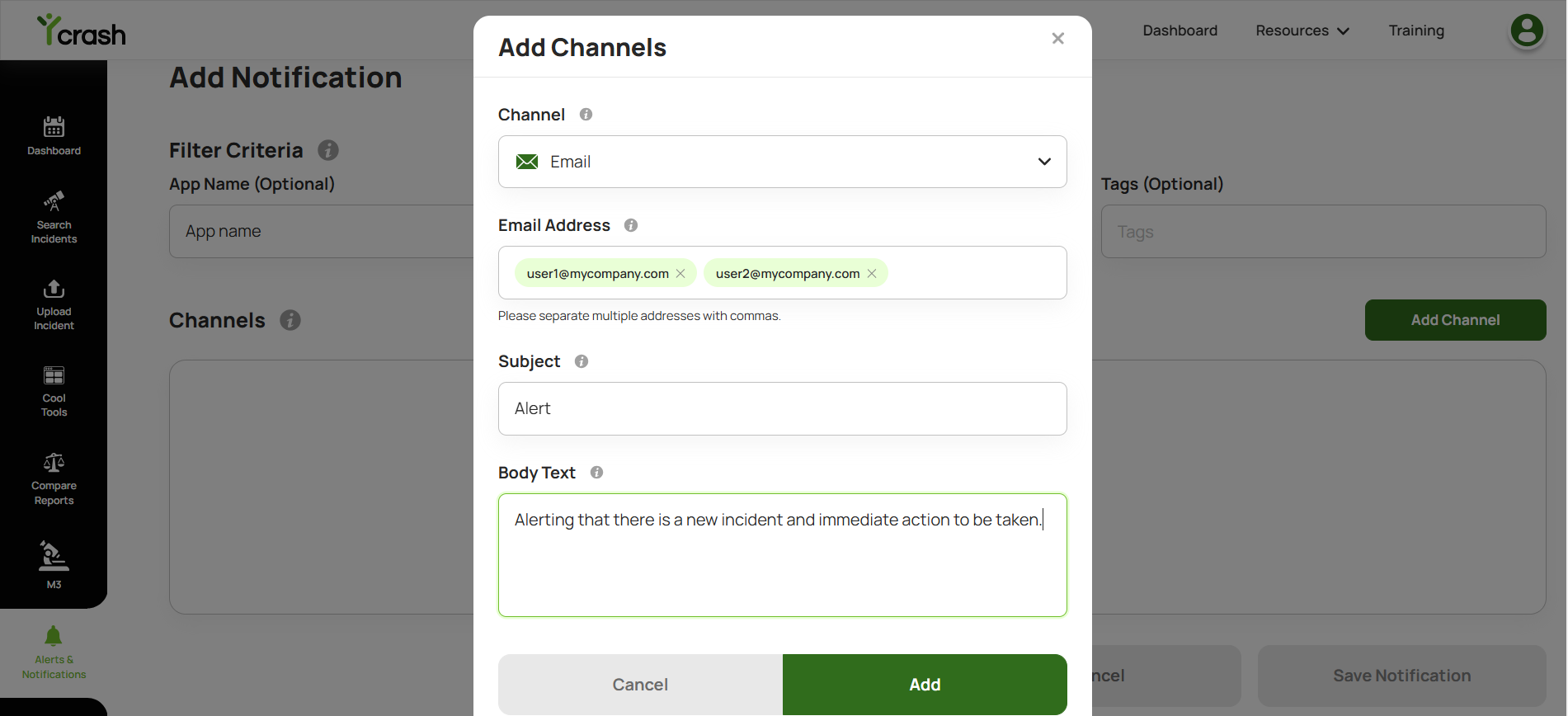
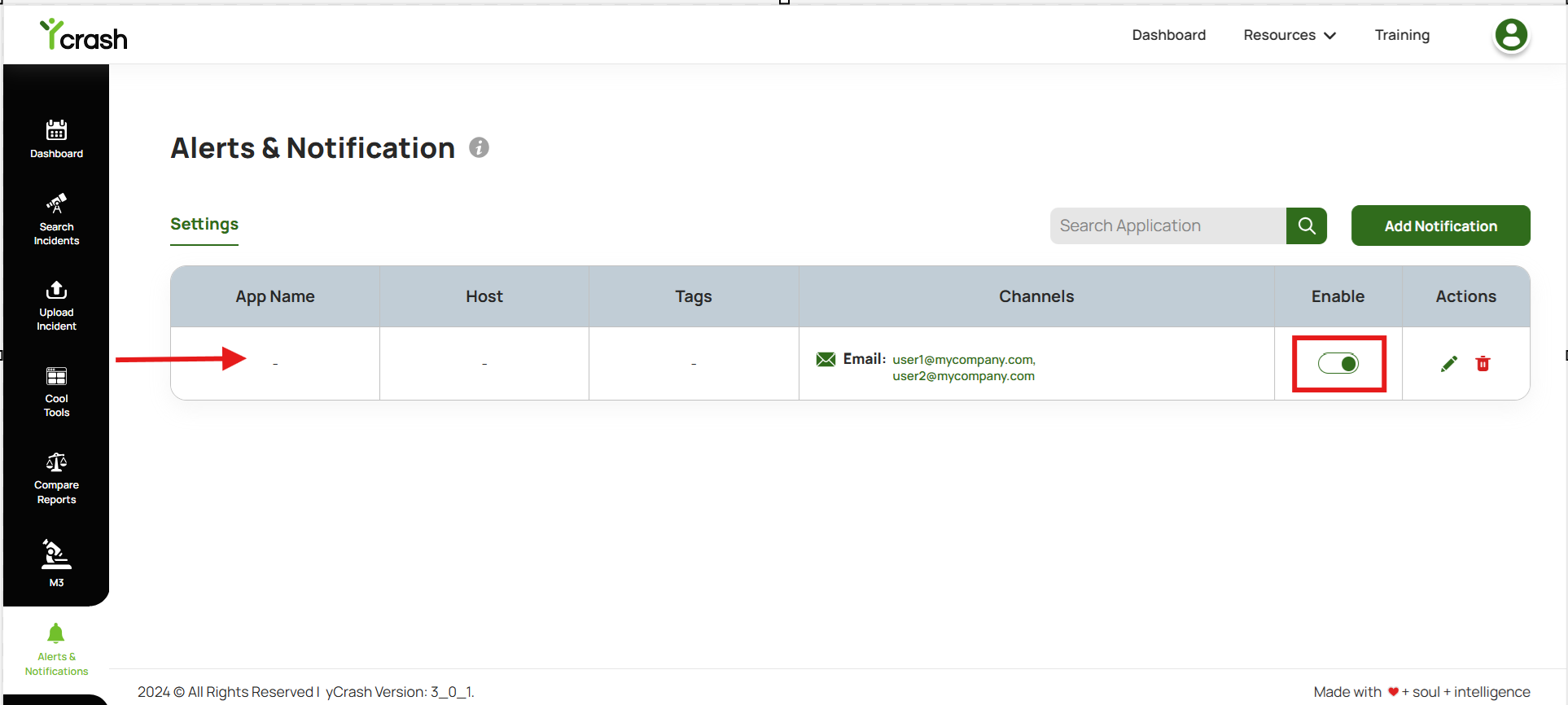
Ensure the created channel is enabled by default. Users are allowed to enable or disable channels as per user's needs. Additionally, users can edit or delete any created channels.
The steps explained above are for creating channels to send notifications without applying any filters. Alternatively, you can configure rules to notify users only when specific filters, such as App Name (optional), Host Name (optional), or Tags (optional) that are configured, match the incidents. To create a channel with filter criteria please refer to this documentation.
# Frequent Questions
Below are the commonly confronted problems by our users when configuring email notifications.
1. I am trying to use Gmail SMTP, but notification emails aren't sent out. Why?
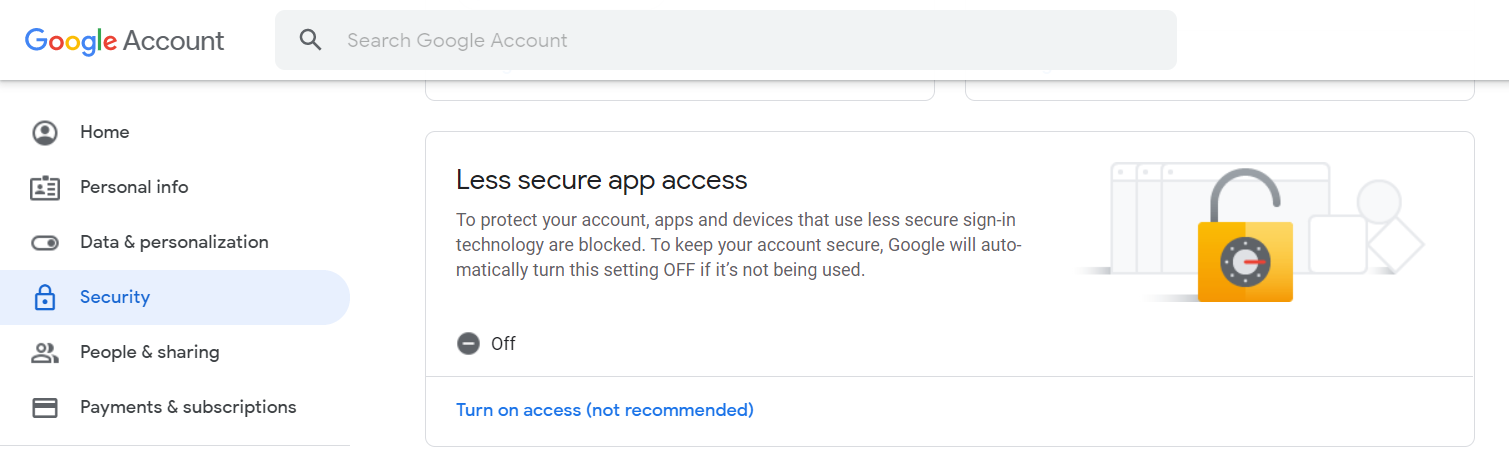
It might be due to google security; you need to enable the less secure apps in your Gmail account.
Go to Google Account > Click on Security > Scroll down to Less secure app access section and turn on the access.
2. I am still not receiving email, despite allowing access to less secure apps?
Some antivirus apps will block the emails which are coming from SMTP. You need to disable the Email shield settings in the antivirus.