
# How to reset your password?
You can reset the password to your JVM Performance Masterclass account, using two methods:
# Method 1: Forgot Password
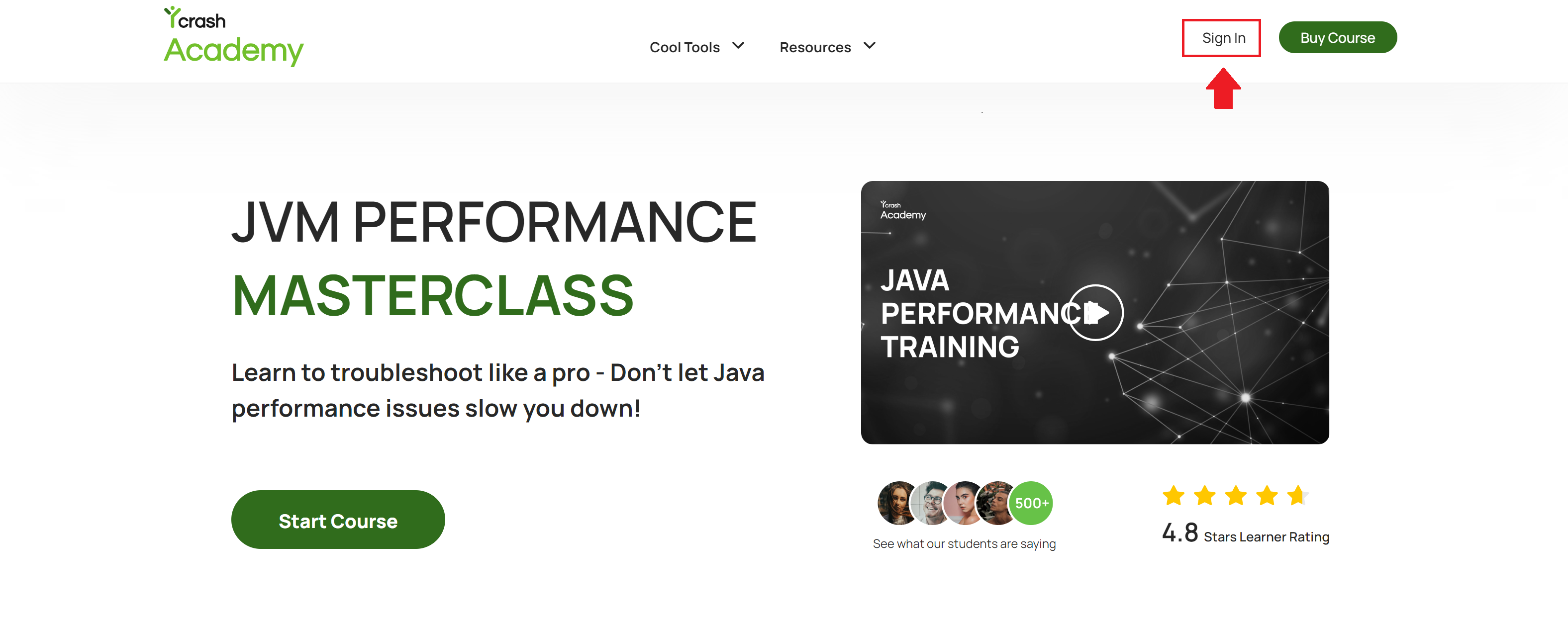
- On the yCrash Academy dashboard, you will find the “Sign-in” button. Click on it to log in to the account.
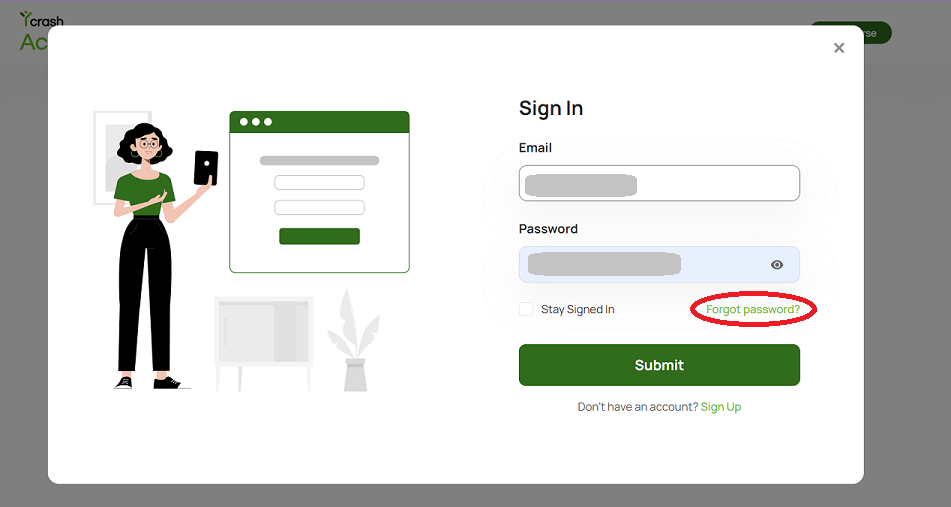
- Click on the "Forgot password" link on the login page.
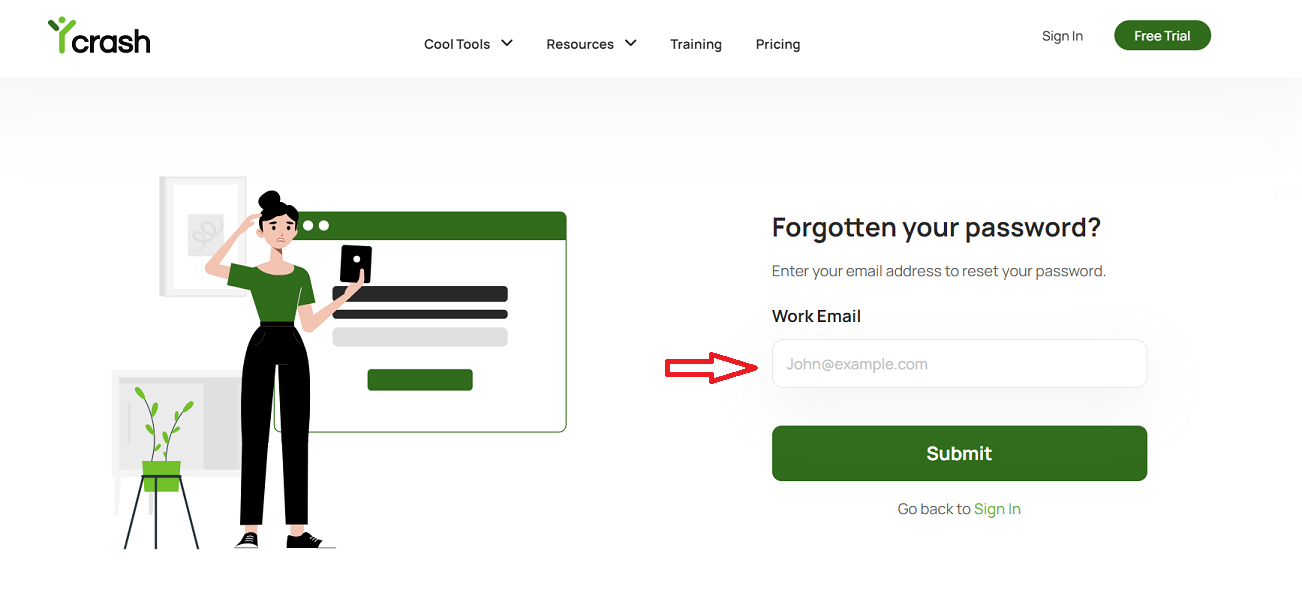
- You will be prompted to enter the email address associated with your account.
- Once you enter the email address and submit, you will receive an email with instructions on how to reset your password.
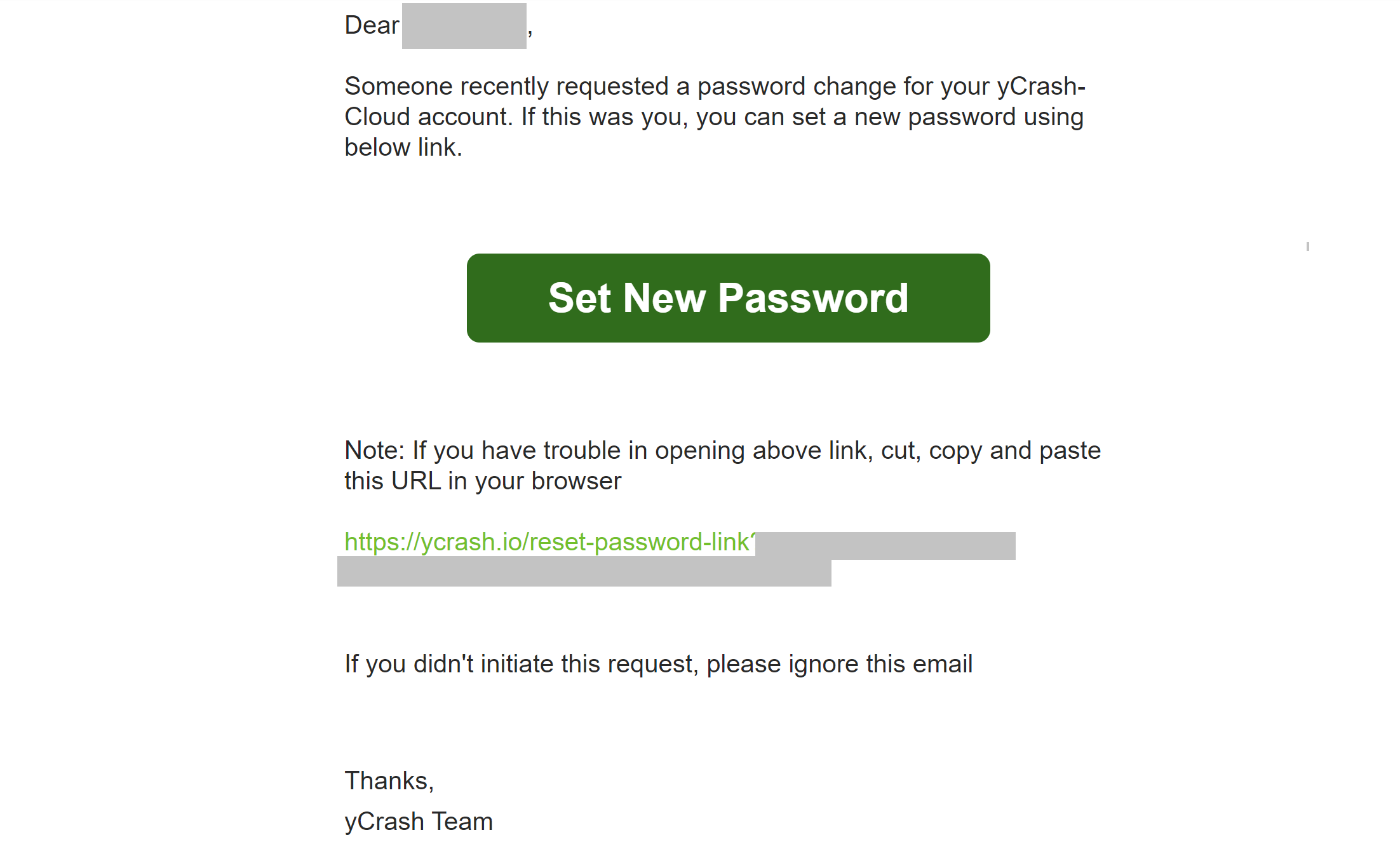
- Click on the “Set New Password” button and it will take you to a page to enter a new password. Confirm the new password and save the changes.
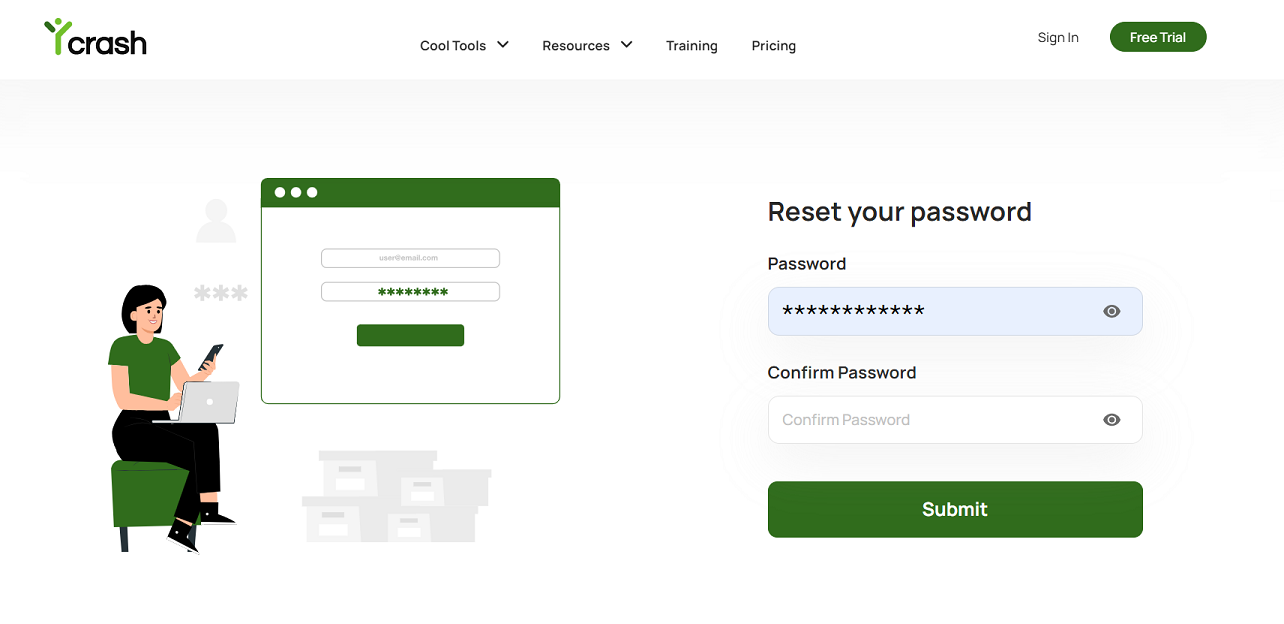
- You will get a confirmation message on the screen.
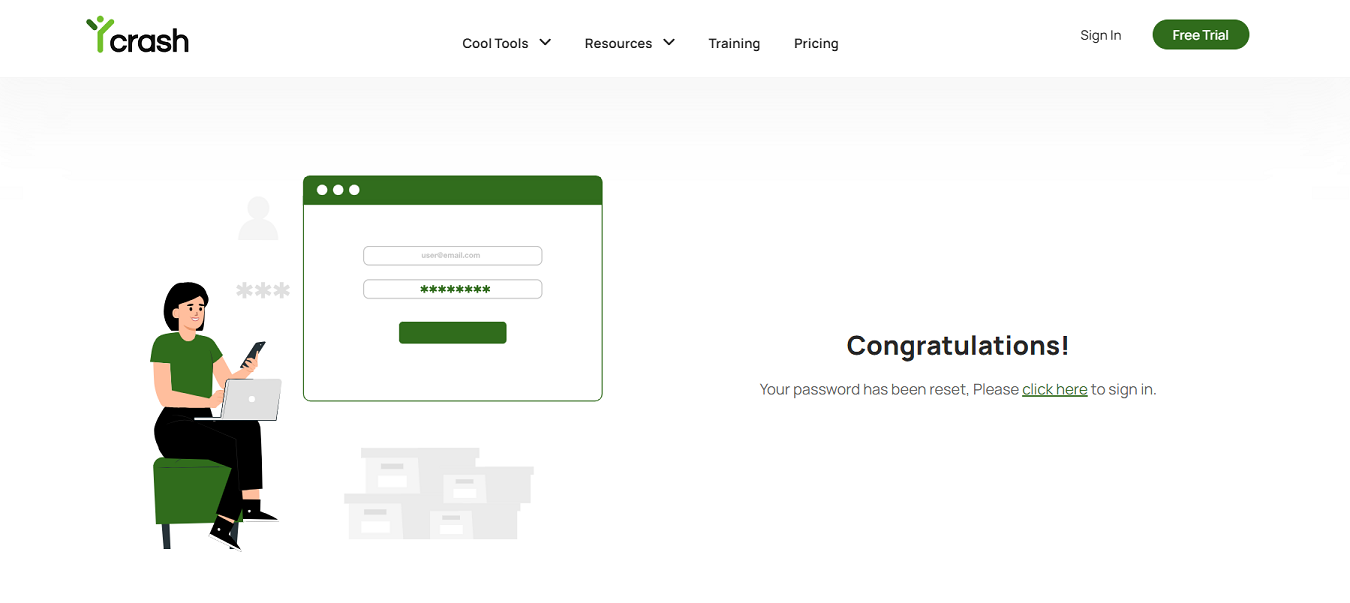
- You can now Sign-in to your account using the updated password.
# Method 2: Change Password from Account Settings
- Sign-in to your account.
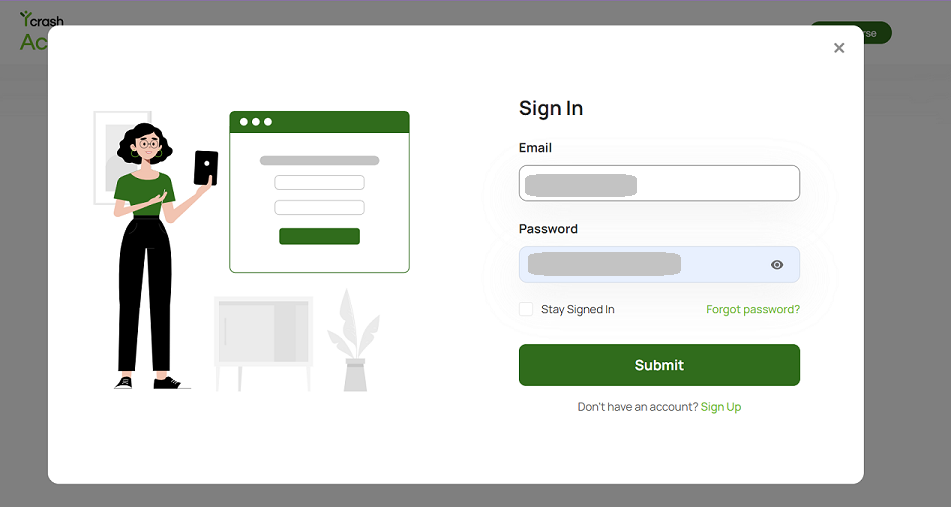
- Once you sign in, it will take you to the yCrash Academy dashboard page. On the dashboard page, click on ‘Profile icon’ in the header menu (top right corner) and click on the "Account Settings" menu.

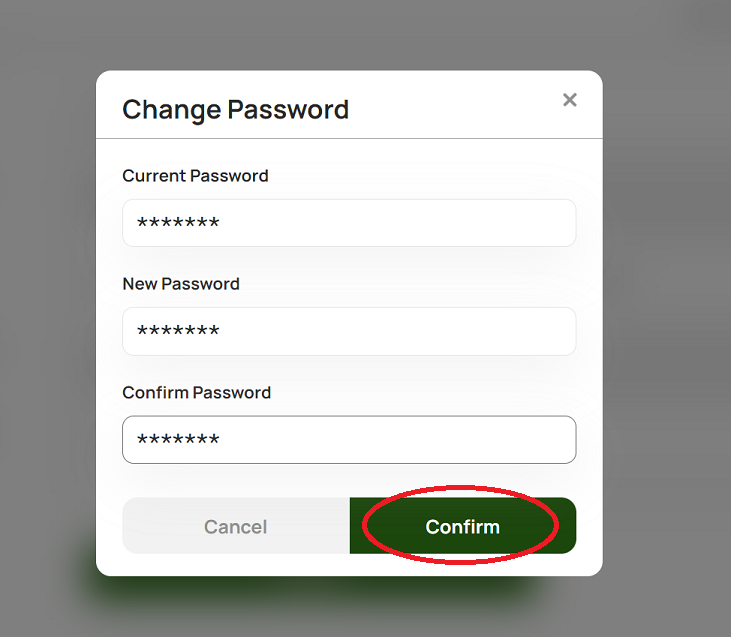
- It will take you to the account settings page. You will see a field to enter a new password where you can click on the ‘Change Password’ button.
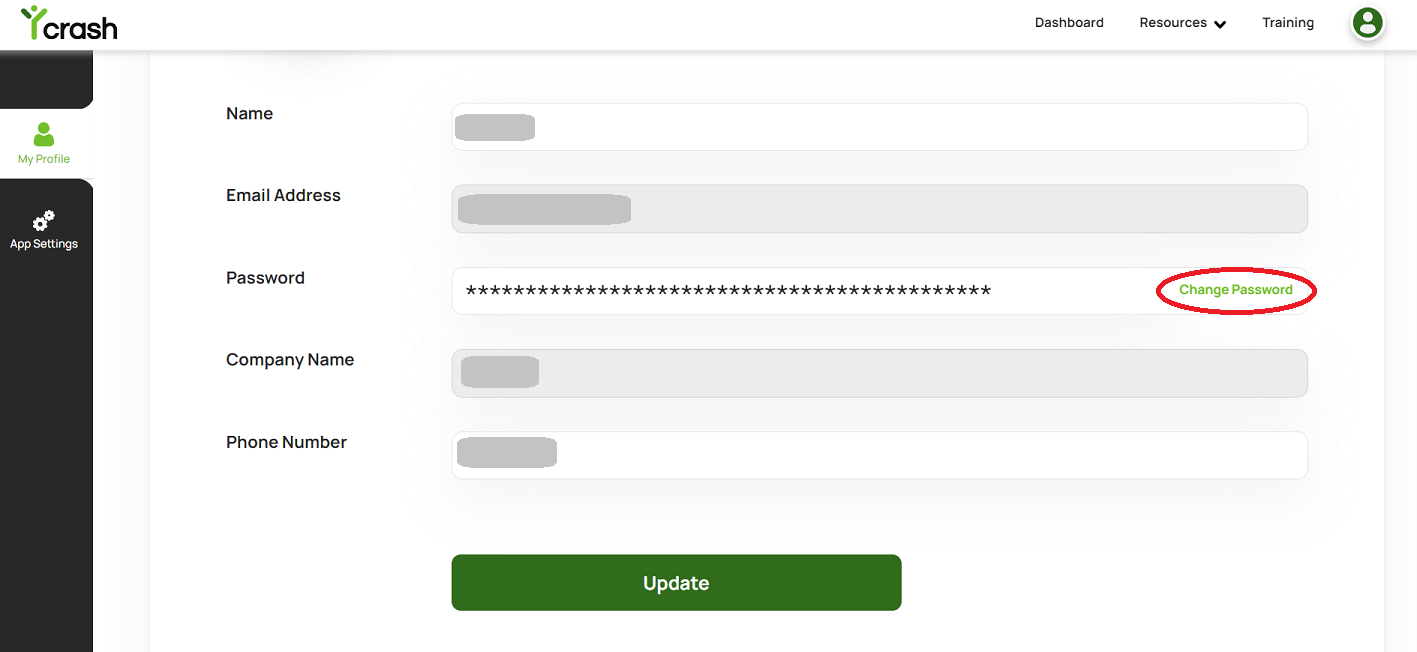
- Follow the prompts to enter a new password, and click on the ‘Confirm’ button.
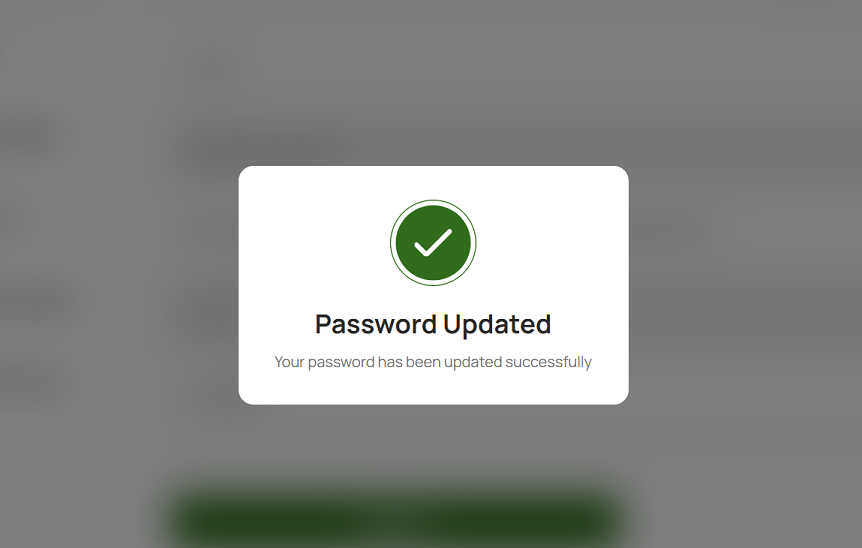
- You will get a confirmation message for updating the password.
- Now you can sign-in to your account using the new password.
Congratulations! You have successfully updated your password. If you need additional assistance, write to us at support@tier1app.com. We are here to help!