
# Settings Reader
yCrash has a lot of configurations files (storage.xml, admin-access-settings.json, h2-connector.xml, etc), if you want to see what settings yCrash is picking up in run time, you can refer the settings page to see it.
# How to access the Settings page?
From the browser, invoke the URL: http://hostname:port/settings (opens new window). Example: http://localhost:8080/settings (opens new window).
You will see a list of configured files. When you click on each file, the browser displays its corresponding response as formatted JSON output for JSON files containing thresholds and metrics, an XML response for XML files with credentials information, and the configured JVM arguments for the yCrash application.
# What information is present in the settings page?
The settings page contains the settings which are configured in the yCrash application. It displays the file names along with their purposes and provides information on how to configure them. Users can click on the file names to view the specific settings configured. The layout will appear as follows:
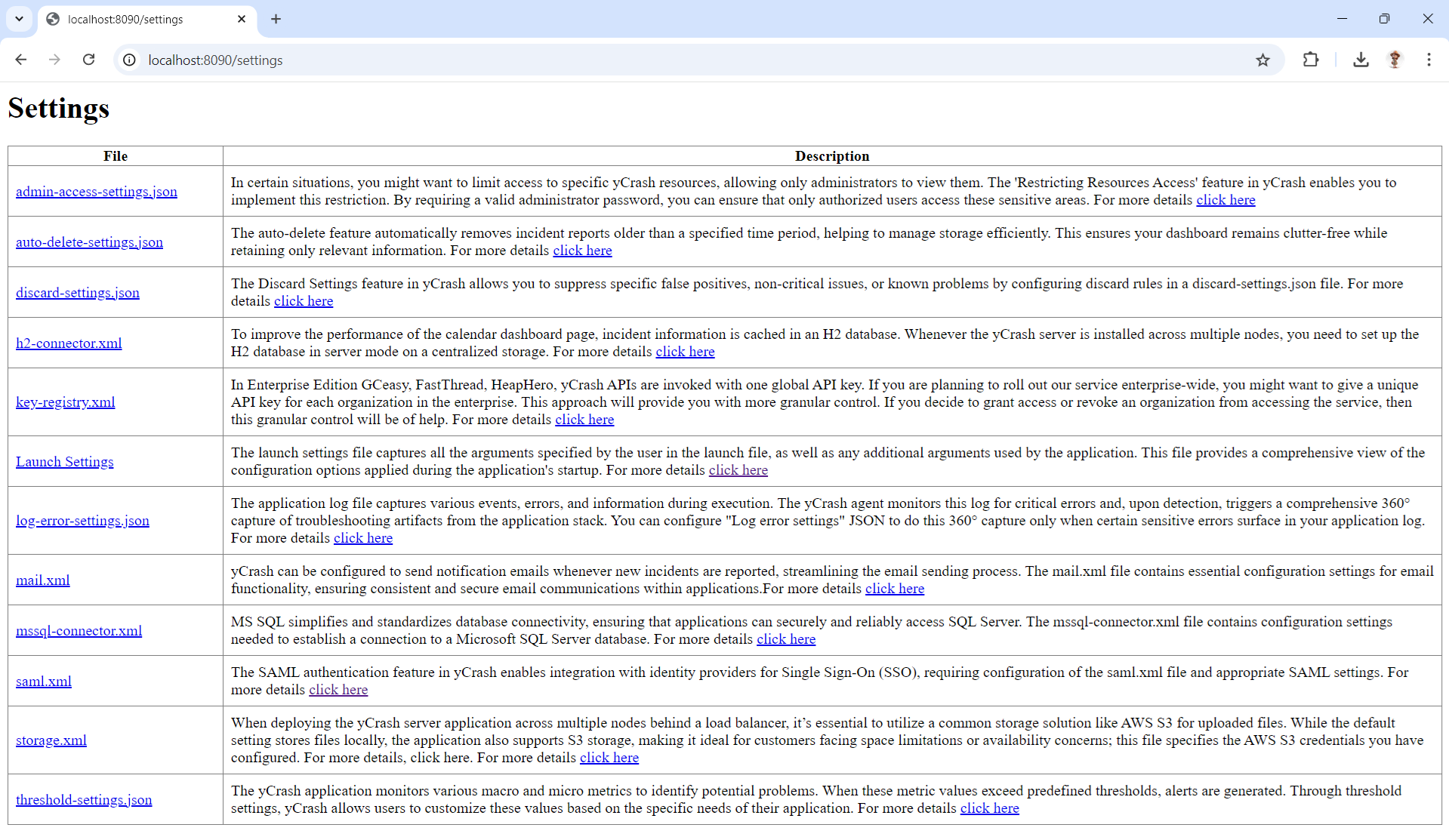
Figure 1: Settings page layout of the yCrash application, displaying Configured settings and their purposes
# Access restriction
To restrict access to the /settings page and allow only administrators to view it, use the 'Restricting Resource Access' feature. By requiring a valid administrator password, you can ensure that only authorized users can access these sensitive areas. For more details, refer here.
# Sensitive information are masked
Some of the information in the files, such as usernames, passwords, keys, URLs, and IDs, is sensitive, so we are masking those values.
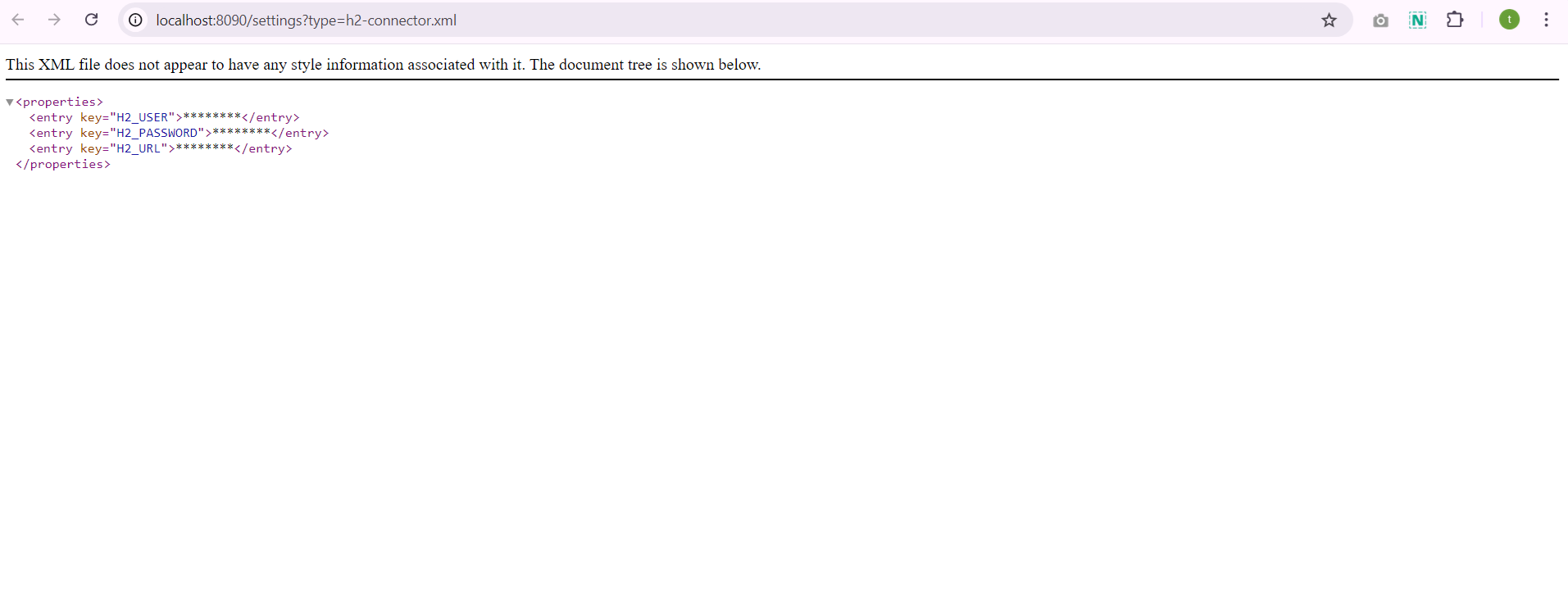
Figure 2: Masking of sensitive information configured in the yCrash application
# Invalid configurations are pointed out
If any files are in invalid format, we are displaying the file name with an "Invalid" warning icon. when user clicks on that file, we will show the invalid format which is configured.
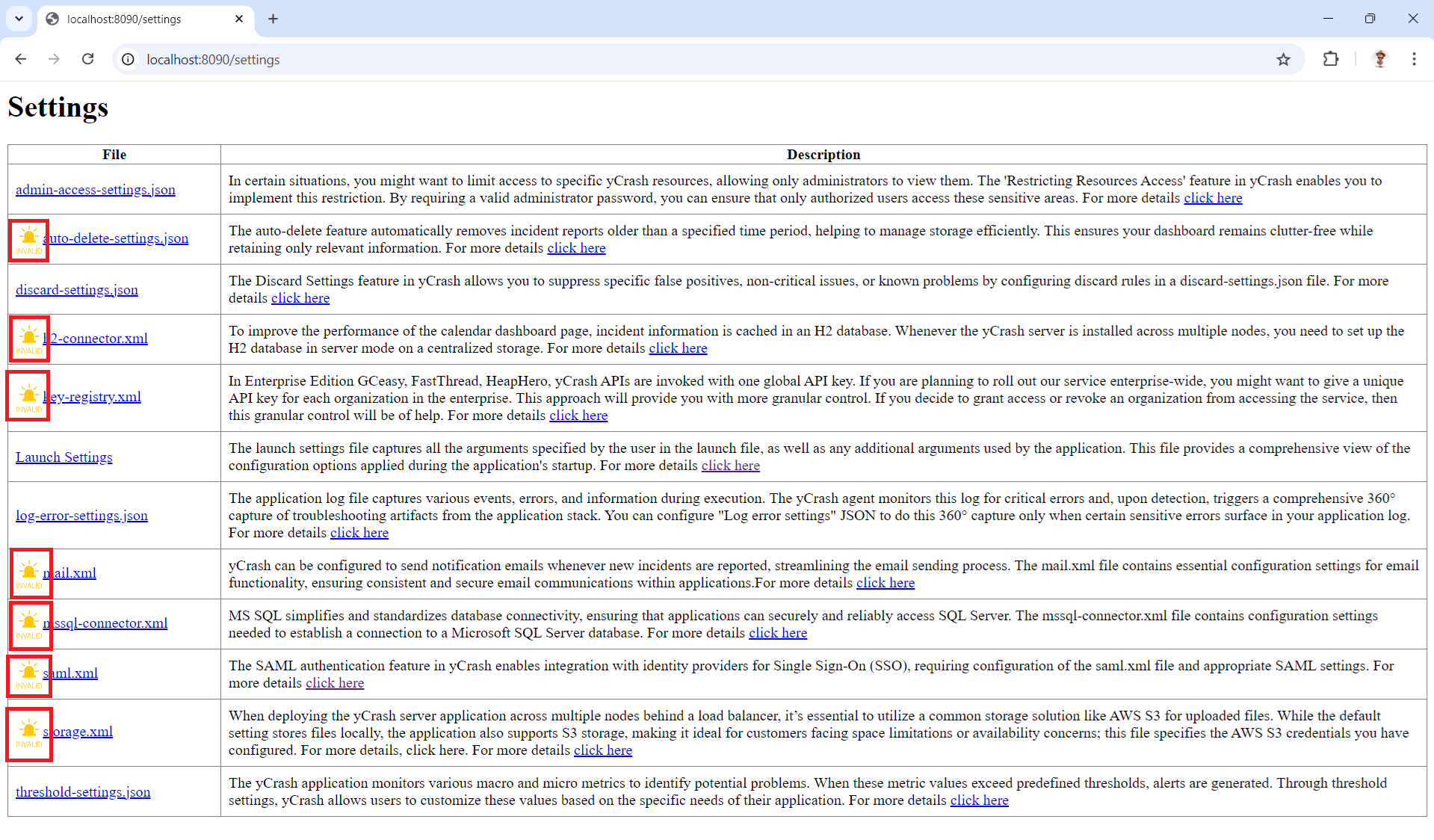
Figure 3: Highlighting files containing invalid formats with warning icons
Example: Here auto-delete-settings.json displays an "Invalid" warning. So now when we click on that file, it opens the view and it shows the invalid content of the file.
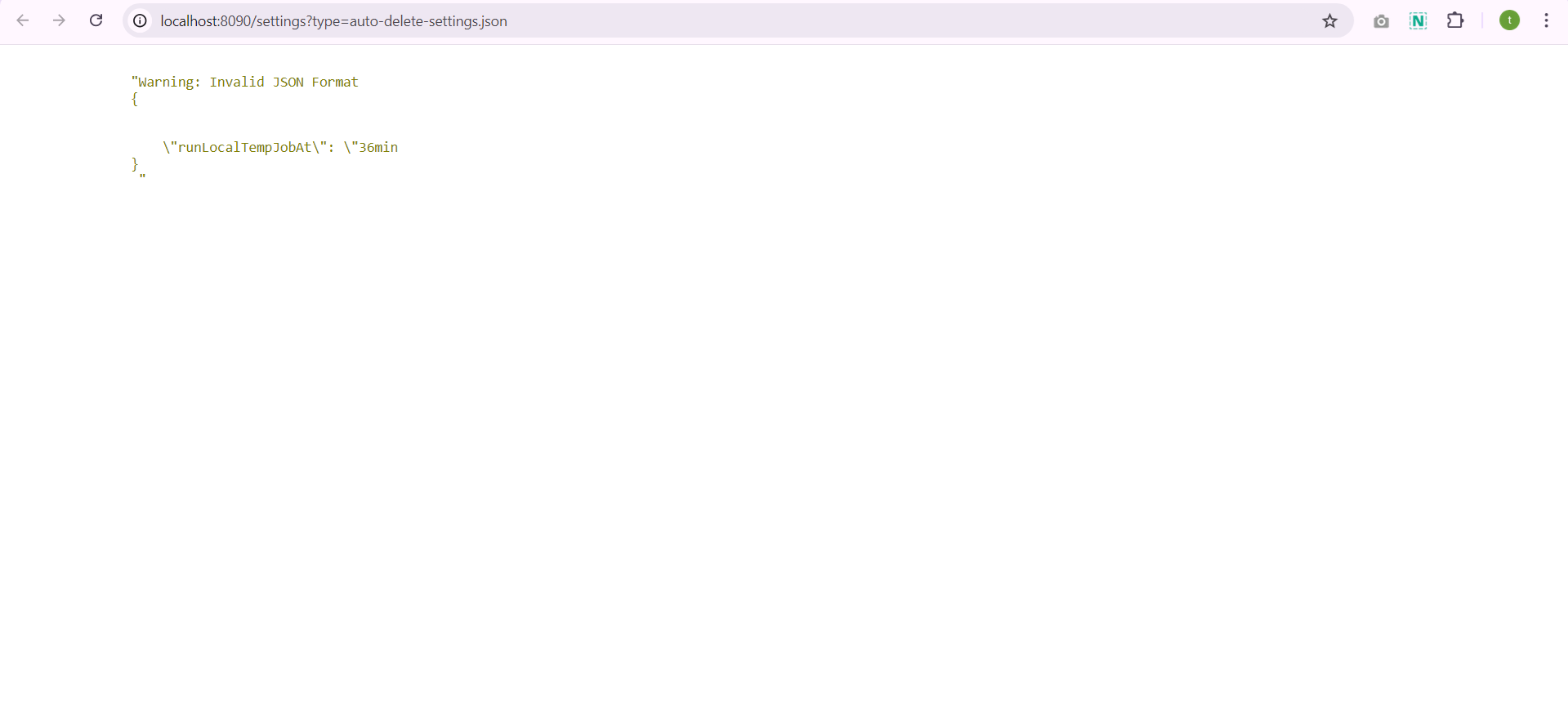
Figure 4: Example of an auto-delete-settings.json file which contains invalid format