
# Restricting Resources Access
In certain situations, you might want to limit access to specific yCrash resources, allowing only administrators to view them. The 'Restricting Resources Access' feature in yCrash enables you to implement this restriction. By requiring a valid administrator password, you can ensure that only authorized users access these sensitive areas. This guide will walk you through the steps to activate and configure this feature.
# Step 1: Create 'admin-access-settings.json'
- Download
admin-access-settings.jsonfrom this location (opens new window). - Place the
admin-access-settings.jsonfile in the yCrash Server’s upload directory. If you are using remote storage (such as AWS S3 or Google Cloud storage, the yCrash application will first check for the file locally. If it is not found, the application will look for the file in the remote storage.
# Step 2: Edit the 'admin-access-settings.json'
- Open the
admin-access-settings.jsonfile in a text editor. - Enter the URLs of the pages you want to restrict. For example, to restrict access to the 'Cool Tools' page, add its URL (/yc-dashboard-tools.jsp) to the
admin-access-settings.jsonfile as shown below. - After making your changes, restart the yCrash Server.
{
    "urls": [
     	   "/yc-dashboard-tools.jsp"
    ]
}
2
3
4
5
# Step 3: Setup Admin Password
To access restricted pages, users must enter the Admin Password. For instructions on setting up the Admin Password for the yCrash application, click here.
# Example
After configuring the admin-access-settings.json and setting the admin password, when you attempt to access a restricted resource, you will be prompted to enter a password. Only upon successful authentication with the correct password you will be granted access to the resource.
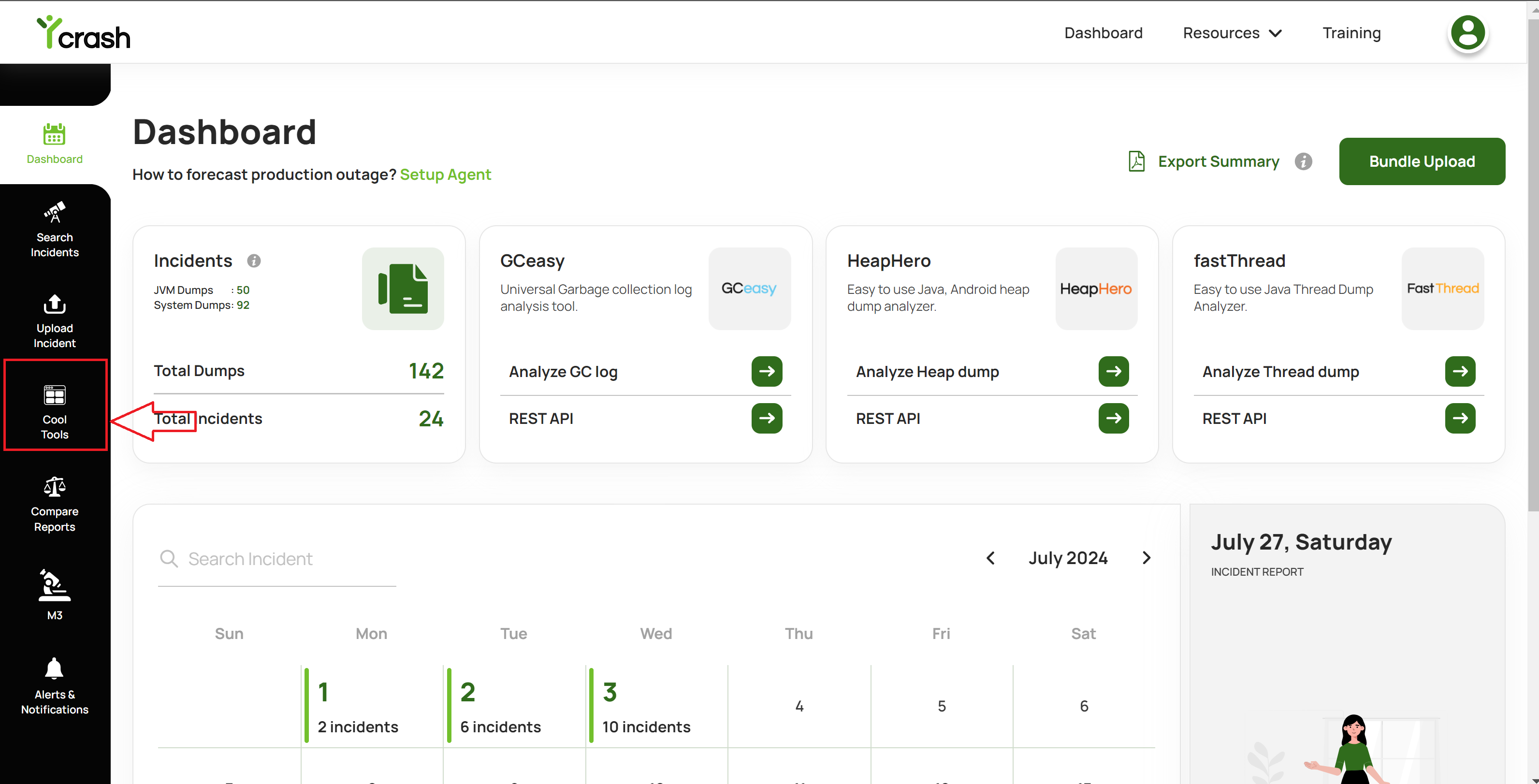
Fig: Cool Tools Page access is restricted by specifying the Page URL in `admin-access-settings.json`.
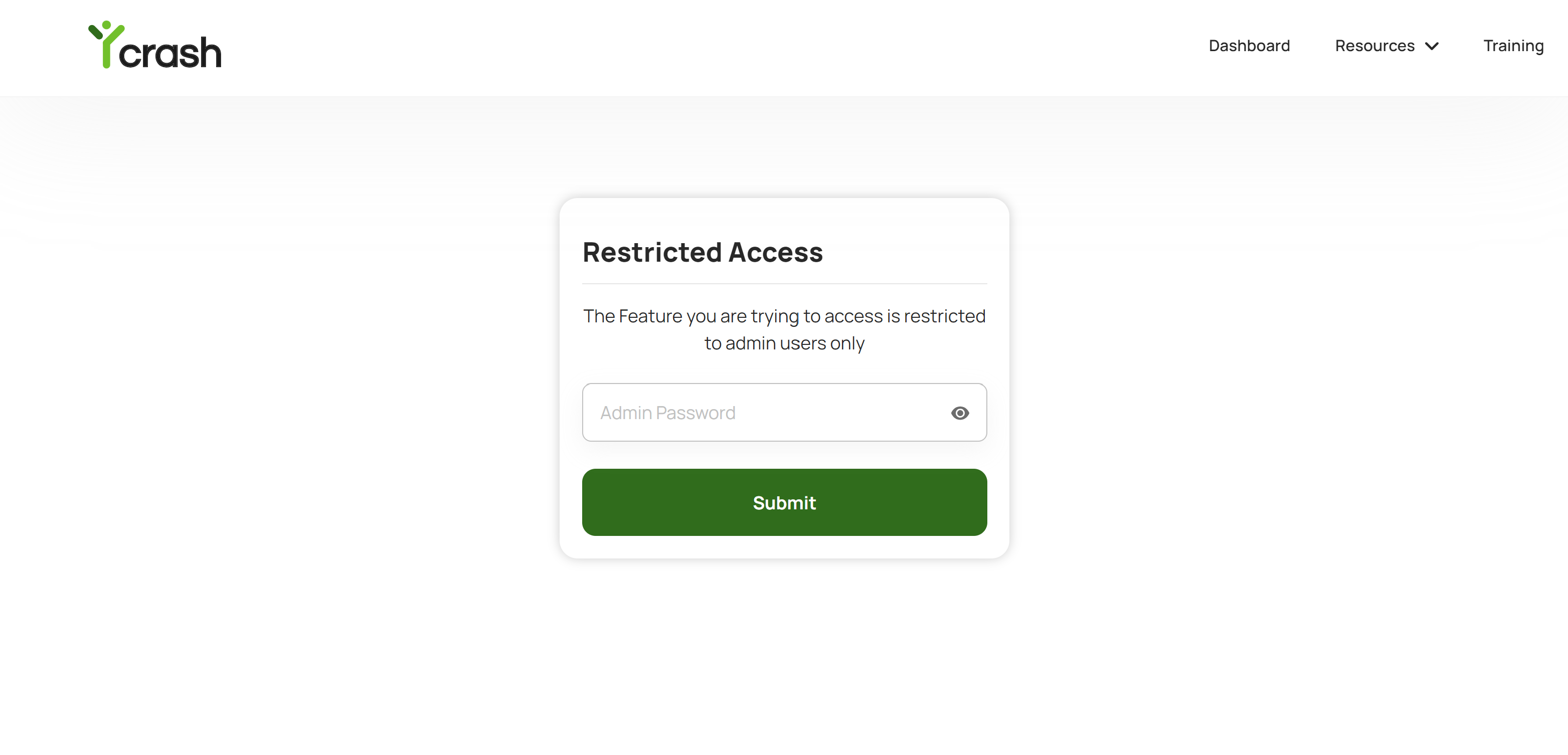
Fig: Admin Password challenge prompted for accessing restricted resources
# FAQ
Q: Can I use multiple passwords for different administrators?
A: Currently, the Admin Access feature supports a single password configuration.
Q: How do I reset the admin password?
A: To reset the admin password, edit the -DadminPassword property in the launch-yc-server file and restart the yCrash application.
Q: I configured the URL in "admin-access-settings.json", but the password challenge is not asked.
A: Verify that the URLs are correctly listed in the admin-access-settings.json file. Check for any syntax errors in the JSON file. Restart the yCrash server if any changes are made to the admin-access-settings.json file.