
# Team AI Settings
By default, yCrash uses one server-wide LLM configuration from ycbuddy-config.json (see the LLM provider introduction).
Team AI Settings lets each yCrash team override that file with its own provider, models, and API credentials. Use this when different teams must use different LLM vendors, keys, or models without sharing one global key.
# When to use Team AI Settings
| Use team settings when… | Prefer file-only config when… |
|---|---|
| Teams need separate API keys or providers | One LLM setup is shared by everyone |
| You want team admins to manage keys in the UI | Ops owns ycbuddy-config.json only |
| You need per-team monthly usage limits | Server-wide SaaS quotas are enough |
The file config remains the fallback. If a team has no override (or override is turned off), yCrash uses ycbuddy-config.json as usual.
# Prerequisites
- Configure at least one working LLM with
ycbuddy-config.jsonusing your provider guide (Gemini, OpenAI, Azure OpenAI, Claude, GitHub Copilot, LiteLLM, or AWS Bedrock). - Confirm AI features work with that file config (how to verify).
- You need a Team Admin or Super Admin account with an accepted team invitation. Team members can use yCrash AI feature but cannot open AI Settings.
# Step 1: Enable the feature on the yCrash server
Add the following JVM system property to the yCrash server startup arguments (for example in launch-yc-server.bat / .sh or your service wrapper):
-Dyc.multiTeamLlm=true
Restart the yCrash server after changing JVM arguments.
Without this property (or when it is false), yCrash keeps the classic file-only behavior: AI Settings does not appear in the menu, and team overlays are ignored.
# Step 2: Open AI Settings
- Sign in as a Team Admin or Super Admin.
- Open My Teams → AI Settings.
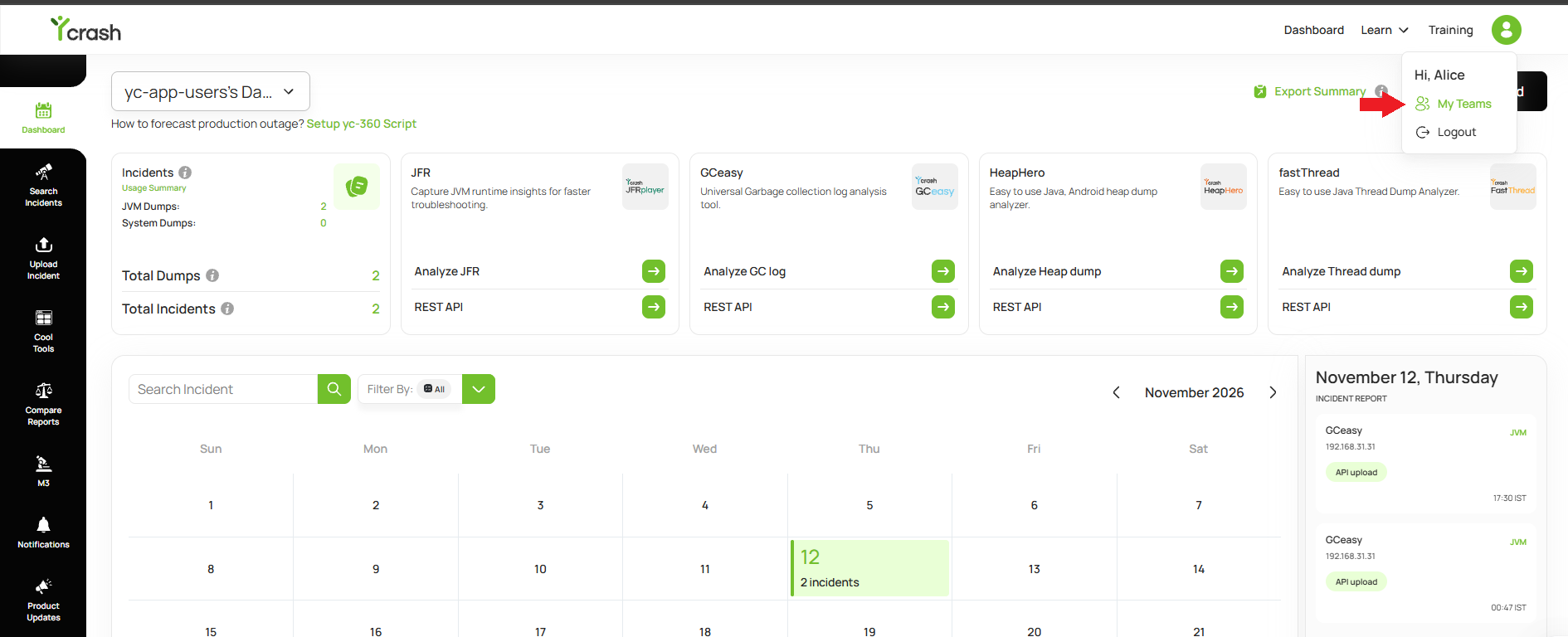
- Choose the team to configure from the dropdown.
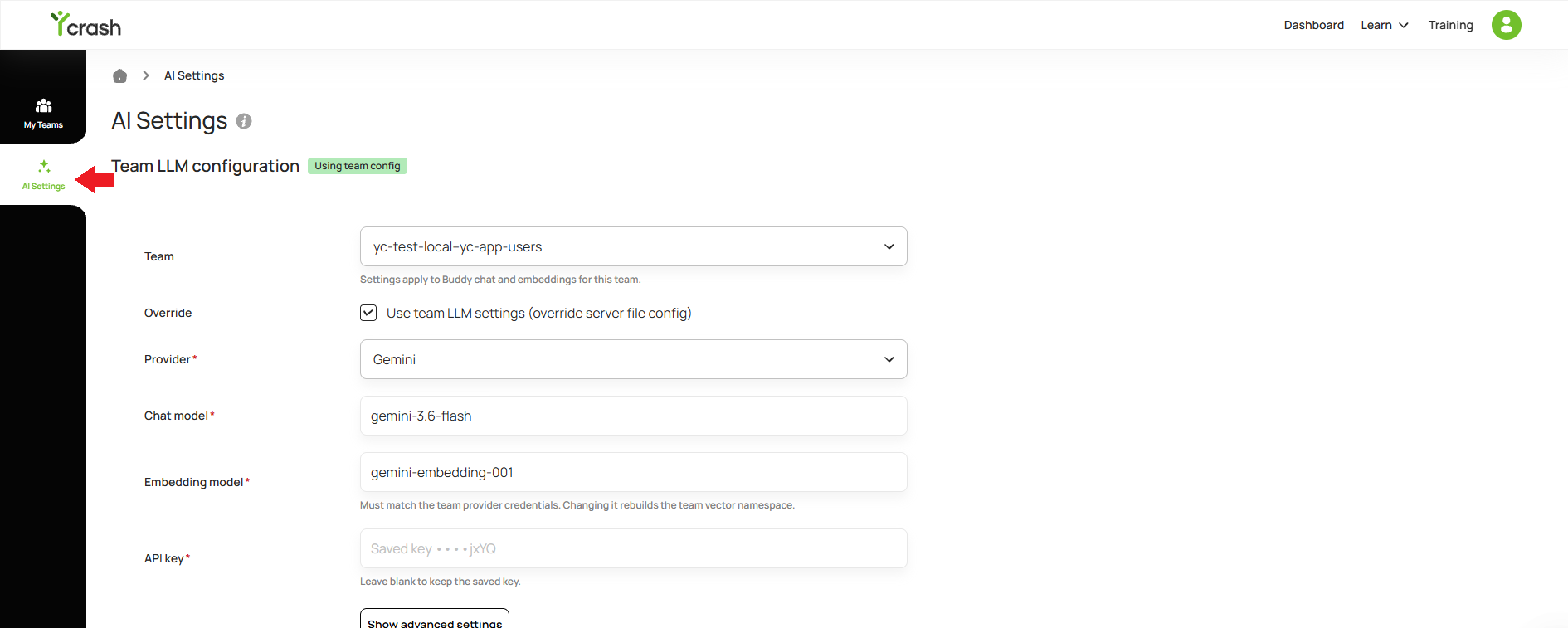
Only teams you can manage are listed.
# Step 3: Configure the team LLM
- Enable Use team LLM settings (override server file config).
- Fill the required fields (marked with
*):- Provider
- Chat model
- Embedding model
- API key (and provider-specific fields such as Azure endpoint, Bedrock region / secret key, and so on)
- Click Test configuration to verify the credentials reach the provider.
- Click Save.
Field meanings match the provider documentation (for example llmProvider, llmModelName, llmEmbeddingModelName). Use the same values you would put in ycbuddy-config.json for that provider.
Note:
Claude and GitHub Copilot have no remote embeddings API. Set the embedding model to a local-* model (for example local-all-minilm-l6-v2-q), as described on the Claude and GitHub Copilot pages.
# Keep vs re-enter the API key
- Leave API key blank when saving other fields to keep the stored key.
- If you change provider, endpoint, or region, you must re-enter the API key.
Saved keys are never shown in full. The UI shows a masked hint (last characters only).
# Clear team settings
Use Clear team settings to delete the team override. yCrash AI for that team falls back to ycbuddy-config.json immediately after a successful clear.
# Step 4: Confirm which config is active
On the AI Settings page, the badge next to the heading shows the effective source for the selected team:
| Badge | Meaning |
|---|---|
| Using team config | Override is enabled and valid for that team |
| Using file config | No team override (or override disabled); server file is used |
| Team config invalid | Override is on but settings failed validation, fix or clear; yCrash will not silently use the file key while the broken team override stays enabled |
# Advanced settings
Open Show advanced settings for optional tuning:
| Setting | Purpose |
|---|---|
| Temperature | Sampling temperature for chat completions |
| Max output tokens | Soft cap on completion length |
| Reasoning effort | Reasoning depth where the provider supports it (none, minimal, low, medium, high, …). Leave Server default to inherit from ycbuddy-config.json |
These map to the same optional fields documented on each provider page.
# Team usage limits
Still under Advanced settings, you can enforce monthly limits for the whole team (all members’ yCrash AI usage for that team):
- Enable Enforce monthly limits for this team.
- Set Max requests / month and/or Max tokens / month.
- Use
-1for unlimited on a metric.
When a limit is reached, yCrash returns a team usage limit message. These team limits apply even on Enterprise deployments (they are separate from optional SaaS Free/Premium user quotas in ycbuddy-config.json).
# How configuration precedence works
Team AI Settings (enabled + valid) → ycbuddy-config.json / env
| Situation | What yCrash uses |
|---|---|
| Feature flag off | File config only |
| Flag on, no team row / override off | File config |
| Flag on, override on and valid | Team settings |
| Flag on, override on but invalid | Error — fix or clear team settings (no silent file fallback) |
# Conversations and team switching
The first message in a conversation stores which team’s LLM was used. Later turns in that same conversation keep that team’s LLM even if the user switches their active team in the session (while they remain an accepted member of the original team).
Start a new conversation after switching teams if you want the other team’s LLM.
# Security notes
- Team API keys are stored encrypted in the database. The UI never returns the full key.
- Only Team Admins and Super Admins can view or change AI Settings.
- Diagnostic data may still be sent to whichever LLM provider that team configured. Review your organization’s data-processing policy.
- Usage is billed by the chosen provider (or your LiteLLM gateway), not by yCrash. Team monthly limits are optional guardrails inside yCrash.
# Rollback
- Set
-Dyc.multiTeamLlm=false(or remove the property) and restart the server.
AI Settings disappears; yCrash usesycbuddy-config.jsononly. - Optionally leave database rows in place. They are ignored while the flag is off.
- Or clear each team’s settings in the UI before disabling the flag.
# Troubleshooting
| Symptom | Likely cause |
|---|---|
| AI Settings menu missing | -Dyc.multiTeamLlm=true not set, or server not restarted |
| “Only Team Admins…” empty state | Signed in as a member without admin rights |
| Save fails asking to re-enter API key | Provider / endpoint / region changed without a new key |
| Save fails on Claude / Copilot embedding | Embedding model is not local-* |
| Test configuration fails | Invalid key, wrong endpoint/region, or outbound HTTPS blocked |
| Chat error about invalid team AI settings | Team override enabled but broken — fix credentials or clear team settings |
| Chat still uses old model after save | Hard-refresh; confirm badge shows Using team config; start a new conversation |
| Team usage limit message | Monthly team request/token cap reached — raise limits or disable team quota in Advanced |
Also confirm:
- File LLM still works when team override is cleared (troubleshooting checklist)
- Outbound HTTPS from the yCrash server to the team’s provider (or LiteLLM proxy) is allowed
If setup still fails, reach our support team (opens new window).
# Related documentation
- LLM Provider Introduction
- LLM Configuration Troubleshooting
- yCrash upload directory (opens new window) (
ycbuddy-config.jsonlocation)