
# LLM Configuration Troubleshooting
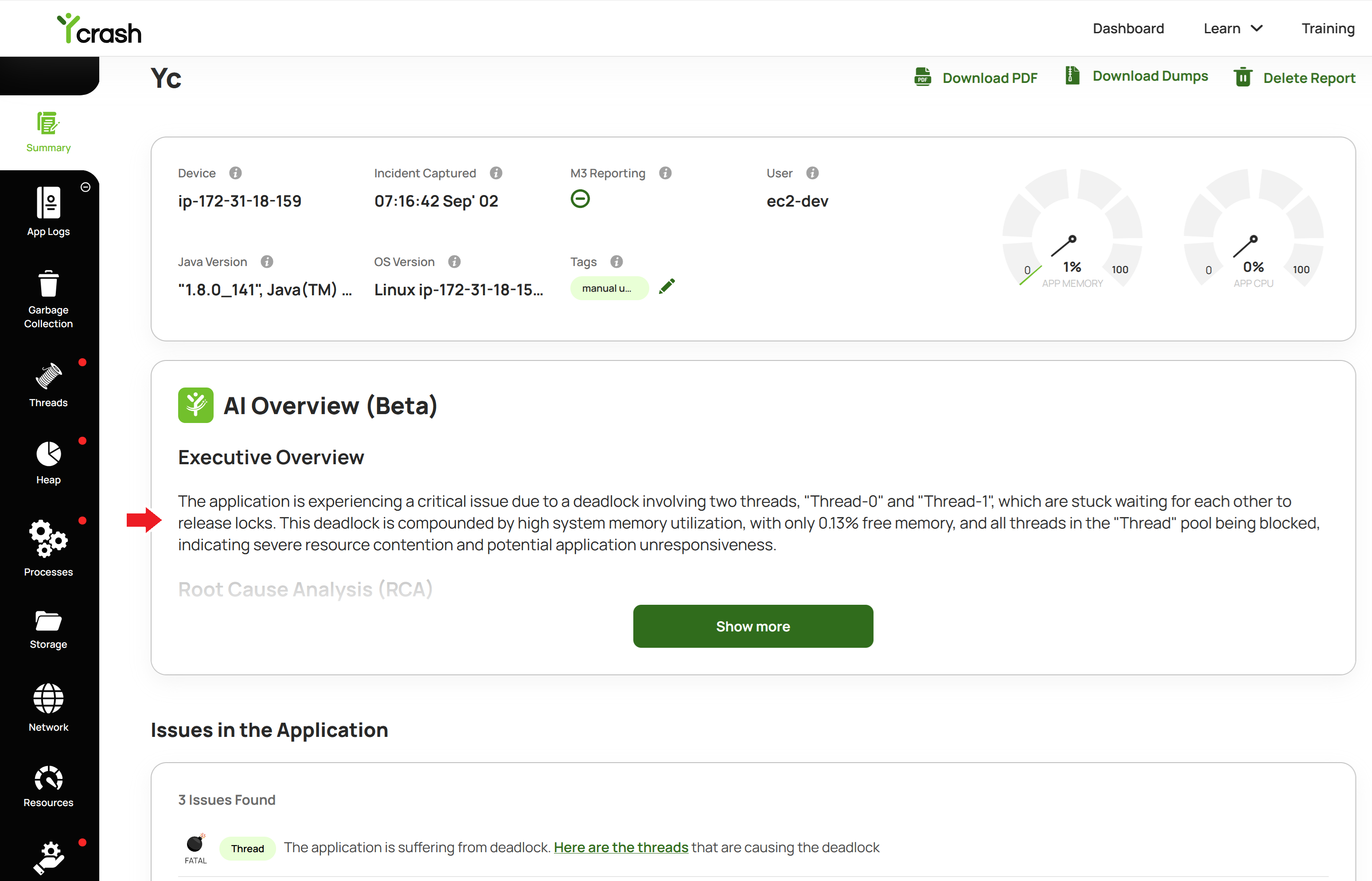
# How do you know LLM Configuration Succeeded?
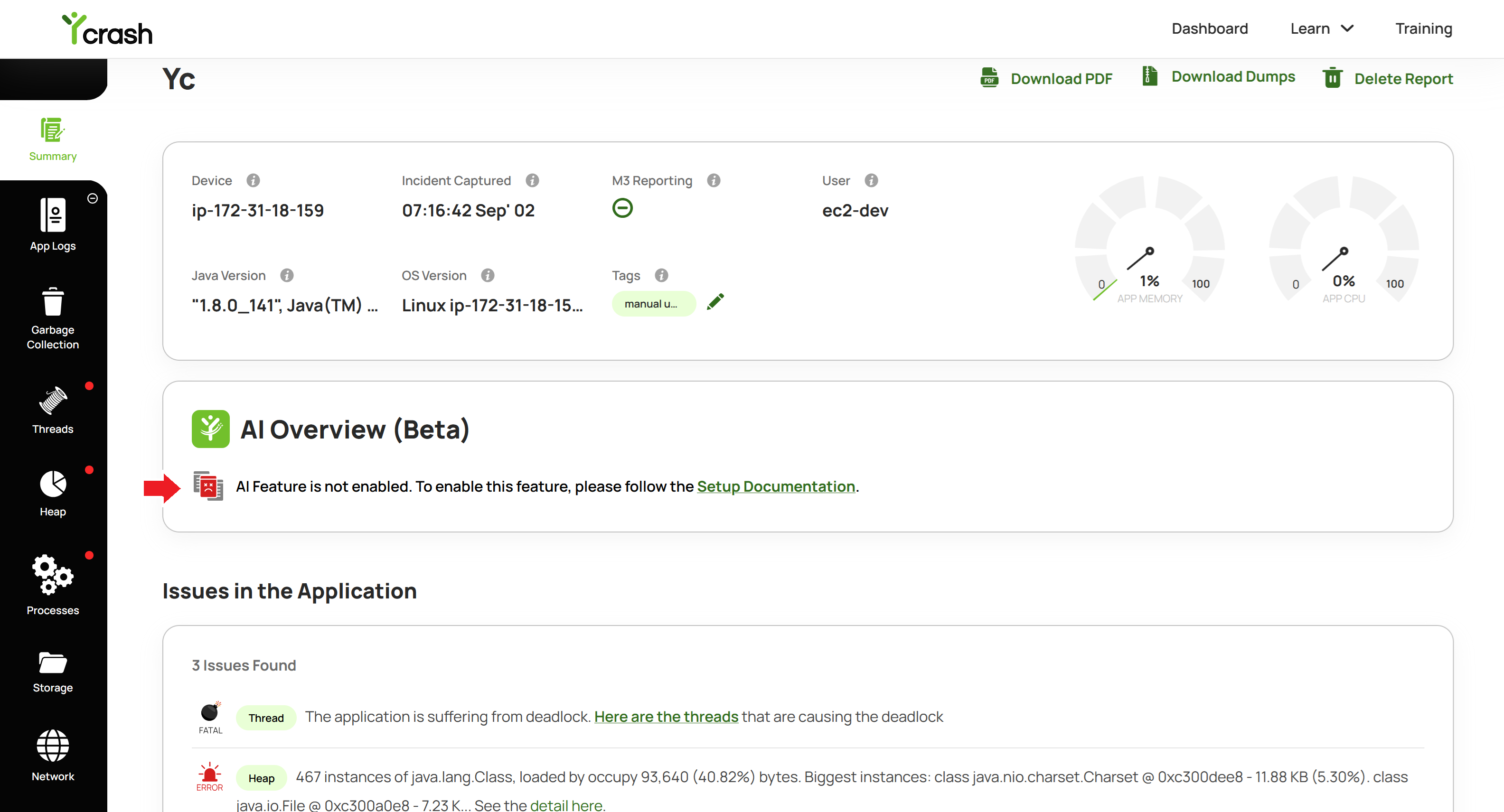
# How do you know LLM Configuration Failed?
# Troubleshooting Checklist
Use this checklist before opening a support ticket:
File is named exactly
ycbuddy-config.jsonFile is in the directory specified by
-DuploadDir(not a subdirectory)JSON is valid (no trailing commas, double-quoted keys and values)
llmProvider matches a supported value exactly (lowercase)
API key is complete, not expired, and has access at the provider
yCrash server was restarted after the file was added or changed
Server logs show successful YCBuddy / LLM client initialization
Outbound HTTPS from the yCrash server to the provider is allowed by your firewall.
Provider-specific checks (billing, hostnames, token types) are listed on each provider page.
# Security and Compliance Notes
The API key in
ycbuddy-config.jsonis a live credential. Apply OS-level file permissions so only the yCrash service account can read it.Diagnostic data from reports may be sent to the LLM provider as part of AI analysis. Review your organization's data-processing policy before enabling AI in regulated environments.
Usage is billed by your chosen provider, not by yCrash. Monitor API usage in that provider's console.
yCrash can optionally enforce monthly usage quotas per user tier via additional settings in the same config file (quotaEnabled, etc.). Contact your yCrash administrator if limits are required.
# Related Documentation
- yCrash upload directory (opens new window) (server startup / -DuploadDir)
- GCeasy Deterministic AI
- FastThread Deterministic AI
- RCA Dive Deeper in AI Mode (opens new window)