
# Java Flight Recorder Upload API
Java Flight Recorder (JFR) is a low-overhead event collection framework built into the Java Virtual Machine (JVM). It records runtime events such as CPU usage, memory allocation, garbage collection, thread activity, synchronization, and I/O operations, making it valuable for diagnosing performance issues.
If you have collected a JFR recording from your application, you can upload it to the yCrash Server using the Bundle Upload API. Once the upload is complete, yCrash automatically analyzes the JFR recording and generates a comprehensive Root Cause Analysis (RCA) report.
# How to invoke Java Flight Recorder Upload API?
Steps to invoke the 'Java Flight Recorder Upload API' are outlined below:
Endpoint:
You need to invoke the Java Flight Recorder Upload API in the below given endpoint
https://<HOST:PORT>/bundle-upload?apiKey=<YOUR_API_KEY>
where,
HOST:host/ip address where yCrash server is installed.PORT:Port in which yCrash server is listening.YOUR_API_Key:Key given to you at the registration time.
Request payload:
The Java Flight Recorder file (i.e. .jfr) should be submitted as a multipart/form-data request payload with the following as Key and Value.
Value: Upload
A Java Flight Recorder file (.jfr).
Key: bundleFile
Value: file type (upload your .jfr file).
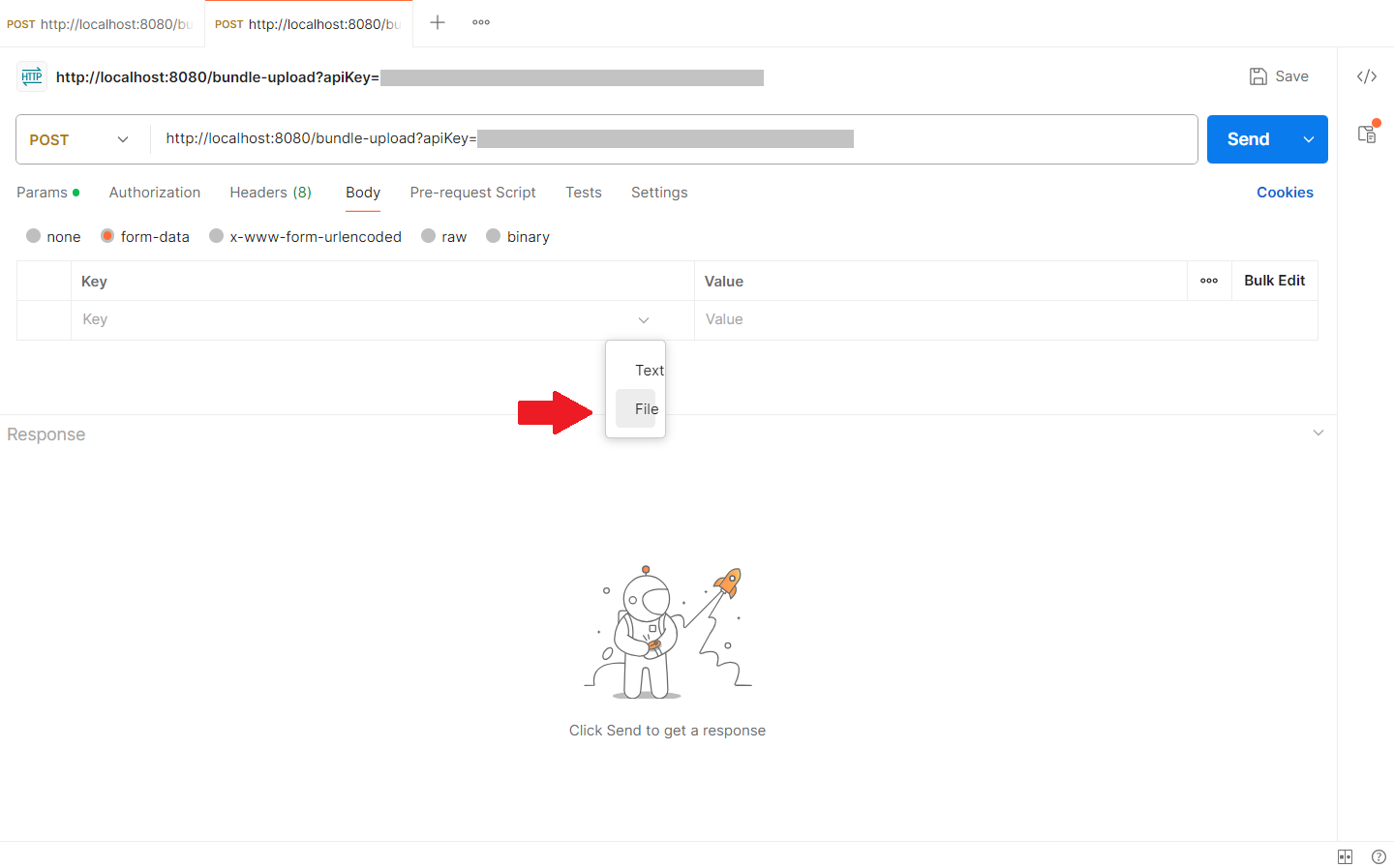
Below is an example of how to send a request payload through postman:

a. Select 'Body' radio button.
b. In the 'Body' form enter the key as "bundleFile".
c. Change the value type text to 'File' and upload the .jfr file.
Response Payload:
Below is the sample response JSON payload sent from the yCrash server upon analyzing the java flight recorder file (i.e. .jfr file):
{
  {
	"results": "http://192.168.0.3:8080/yc-report.jsp?ou=Testing&de=host&app=yc&ts=2026-07-07T07-13-07",
    "message": "Successfully analyzed file",
    "status": true,
    "code": 0
	}
}
2
3
4
5
6
7
8
Here is description:
results: URL where you can access the root cause analysis report of the uploaded .jfr file.
status: Contains either true or false indicating the status of the analysis. true indicates that the analysis was successful. false indicates that the analysis failed.
message: If analysis failed, message element indicated the reason for failure.
# Invoking through Postman
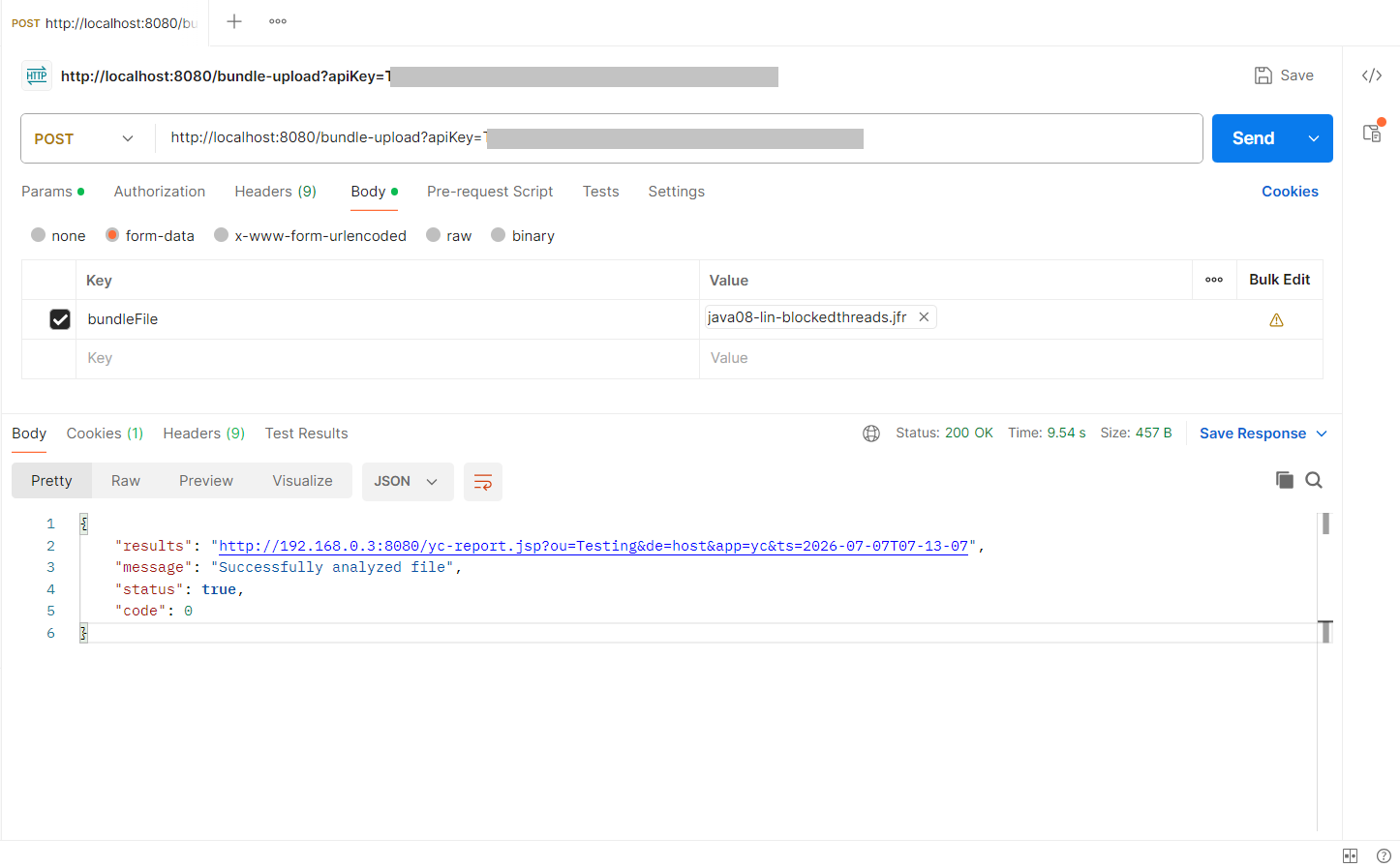
Fig: 'Bundle Upload' API when invoked through Postman with .jfr file
Above are the screenshots showing the Bundle Upload API request and response when invoked through Postman for .jfr file.
# Invoking through curl
You can use the CURL command to upload the .jfr file using the Bundle Upload API. Below are the steps to use the CURL command:
curl -F "bundleFile=@<Zip file location directory path>" https://<HOST:PORT>/bundle-upload?apiKey=<YOUR_API_KEY>
where,
HOST:host/ip address where yCrash server is installed.PORT:Port in which yCrash server is listening.YOUR_API_Key:Your API key was provided with your license at the time of registration. If you're not sure where to find the API key, click here (opens new window)
Example:
curl -F "bundleFile=@D:\TestData\BundleUpload-TestData\BundleUpload-TestData\yc-2022-12-14T09-40-37.zip" http://localhost:8080/bundle-upload?apiKey=<YOUR_API_KEY>
Once after executing the command yCrash server will analyze the uploaded .jfr file and generate the RCA report URL, and send it in the response.
Response Payload:
Below is the sample response JSON payload sent from the yCrash server upon analyzing the Java Flight Recorder file (.jfr) :
{
	"results": "http://localhost:8080/yc-report.jsp?ou=czlWbG0rUko0UXAxazlSbjZrSUIwUT09&de=host&app=yc&ts=2022-09-01T17-04-23",
	"message": "Successfully analyzed file",
	"status": true
}
2
3
4
5
← JFR Upload JFR FAQ →